> ## Documentation Index
> Fetch the complete documentation index at: https://docs.abbyy.com/llms.txt
> Use this file to discover all available pages before exploring further.
# Customize the Context Menu and Toolbar of a Visual Component
> Customize the context menu and toolbar of ABBYY FineReader Engine Visual Components on Windows: add, remove, or replace commands to fit your workflow.
Visual Components are implemented in FRE for Windows.
Most of the functionality provided in ABBYY FineReader Engine Visual Components can be accessed via their context menu and toolbar (if exists). The commands available in the context menu and toolbar are useful in most common usage scenarios. However, you may need to customize their elements to fit your task.
Toolbar is available for [Image Viewer](/fine-reader/engine/visual-components-reference/imageviewer), [Text Editor](/fine-reader/engine/visual-components-reference/texteditor), [Document Viewer](/fine-reader/engine/visual-components-reference/documentviewer). You can add new buttons to the toolbar and remove excess ones. The buttons can be either predefined ones or the ones you've created.
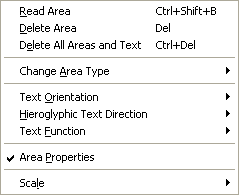
 Context menu is available for [Image Viewer](/fine-reader/engine/visual-components-reference/imageviewer), [Zoom Viewer](/fine-reader/engine/visual-components-reference/zoomviewer), [Text Editor](/fine-reader/engine/visual-components-reference/texteditor), [Document Viewer](/fine-reader/engine/visual-components-reference/documentviewer). The context menu of each component has a standard part and a custom part:
* The standard part of the context menu is the context menu which is displayed in the component by default. This part cannot be changed. You can only display or hide from the display this part of the menu.
* The custom part of the context menu can be edited. By default, it is empty. You can add any of the standard commands available for the component or any user-defined commands to this part of the context menu. The custom part of the context menu is always displayed after the standard part. The custom part of the context menu can be enabled or disabled too.
Context menu is available for [Image Viewer](/fine-reader/engine/visual-components-reference/imageviewer), [Zoom Viewer](/fine-reader/engine/visual-components-reference/zoomviewer), [Text Editor](/fine-reader/engine/visual-components-reference/texteditor), [Document Viewer](/fine-reader/engine/visual-components-reference/documentviewer). The context menu of each component has a standard part and a custom part:
* The standard part of the context menu is the context menu which is displayed in the component by default. This part cannot be changed. You can only display or hide from the display this part of the menu.
* The custom part of the context menu can be edited. By default, it is empty. You can add any of the standard commands available for the component or any user-defined commands to this part of the context menu. The custom part of the context menu is always displayed after the standard part. The custom part of the context menu can be enabled or disabled too.
 ## Managing available commands
You may find the complete list of commands available in Visual Components in the [MenuItemEnum](/fine-reader/engine/visual-components-reference/enumerations/menuitemenum) enumeration constants. The [Commands](/fine-reader/engine/visual-components-reference/supplementary-objects/commands) subobjects of the [ImageViewer](/fine-reader/engine/visual-components-reference/imageviewer), [ZoomViewer](/fine-reader/engine/visual-components-reference/zoomviewer), [DocumentViewer](/fine-reader/engine/visual-components-reference/documentviewer), [TextEditor](/fine-reader/engine/visual-components-reference/texteditor) objects provide access to the commands available in each component.
The commands can be called by:
* selecting an item from a context menu,
* clicking a toolbar button,
* pressing a hot key,
* using the [DoCommand](/fine-reader/engine/visual-components-reference/supplementary-objects/commands/docommand-method) method of the Commands subobject of a component.
However, not all these methods are available for each command. See the list of available commands and the ways these commands can be used in each component:
* [Image Viewer commands](/fine-reader/engine/visual-components-reference/imageviewer/image-viewer-commands)
* [Zoom Viewer commands](/fine-reader/engine/visual-components-reference/zoomviewer/zoom-viewer-commands)
* [Document Viewer commands](/fine-reader/engine/visual-components-reference/documentviewer/document-viewer-commands)
* [Text Editor commands](/fine-reader/engine/visual-components-reference/texteditor/text-editor-commands)
To enable or disable a command, use the [EnableCommand](/fine-reader/engine/visual-components-reference/supplementary-objects/commands/enablecommand-method) or [DisableCommand](/fine-reader/engine/visual-components-reference/supplementary-objects/commands/disablecommand-method) method of the Commands object. If you disable a command, none of the calling methods available for the command works.
## Adding predefined commands to the toolbar
Some of the predefined commands are available on the toolbar by default, others can be added to the toolbar of a component by the developer. See the lists of available predefined commands for each component.
To add a predefined command to a toolbar or to remove it:
1. Obtain the [Toolbar](/fine-reader/engine/visual-components-reference/supplementary-objects/toolbar) object via the Toolbar property of the component.
2. Insert the command into the selected position in the toolbar using the [InsertAt](/fine-reader/engine/visual-components-reference/supplementary-objects/toolbar/insertat-method) method of the Toolbar object or remove it using the [Delete](/fine-reader/engine/visual-components-reference/supplementary-objects/toolbar/delete-method) or [DeleteAt](/fine-reader/engine/visual-components-reference/supplementary-objects/toolbar/deleteat-method) method.
You can group the buttons on the toolbar using separators. Use the InsertAt method of the Toolbar object with the MI\_Separator constant as a parameter.
```csharp theme={null}
// We add the predefined command MI_InvertImage at the beginning of the toolbar of Image Viewer
private FineReaderVisualComponents.AxImageViewer imageViewer;
imageViewer.Toolbar.InsertAt(FineReaderVisualComponents.MenuItemEnum.MI_InvertImage, 0);
```
After the predefined command has been added, it can be used in the application. ABBYY FineReader Engine handles corresponding events. You can complement the handler with some additional functionality by using the [OnCommand](/fine-reader/engine/visual-components-reference/supplementary-objects/icommandevents/oncommand-method) event of the [ICommandEvents](/fine-reader/engine/visual-components-reference/supplementary-objects/icommandevents) interface.
## Adding predefined commands to the context menu
Some of the predefined commands are available in the context menu by default — these commands form the standard part of the context menu. All other predefined commands available in the component can be added to the custom part of the context menu.
To add a predefined command to a custom part of a context menu or to remove it:
1. Obtain the [PopupMenu](/fine-reader/engine/visual-components-reference/supplementary-objects/popupmenu) object via the PopupMenu property of the component.
2. Disable the whole standard part of the context menu using the [StandardMenuEnabled](/fine-reader/engine/visual-components-reference/supplementary-objects/popupmenu#standardmenuenabled) property of the PopupMenu object if you do not need to use it. By default, the standard part is enabled.
3. Enable the custom part of the context menu using the [CustomMenuEnabled](/fine-reader/engine/visual-components-reference/supplementary-objects/popupmenu#custommenuenabled) property of the PopupMenu object.
4. Insert a command into the selected position in the custom part of the context menu using the [InsertAt](/fine-reader/engine/visual-components-reference/supplementary-objects/popupmenu/insertat-method) method of the PopupMenu object or remove it using the [Delete](/fine-reader/engine/visual-components-reference/supplementary-objects/toolbar/delete-method) or [DeleteAt](/fine-reader/engine/visual-components-reference/supplementary-objects/toolbar/deleteat-method) method.
You can group the items in the custom part of the context menu using separators. Use the InsertAt method of the PopupMenu object with the MI\_Separator constant as a parameter.
```csharp theme={null}
// We add the predefined command MI_InvertImage at the beginning of the custom part of context menu of Image Viewer
private FineReaderVisualComponents.AxImageViewer imageViewer;
imageViewer.PopupMenu.StandardMenuEnabled = false;
imageViewer.PopupMenu.CustomMenuEnabled = true;
imageViewer.PopupMenu.InsertAt(FineReaderVisualComponents.MenuItemEnum.MI_InvertImage, 0);
```
After the predefined command has been added, it can be used in the application. ABBYY FineReader Engine handles corresponding events. You can complement the handler with some additional functionality by using the [OnCommand](/fine-reader/engine/visual-components-reference/supplementary-objects/icommandevents/oncommand-method) event of the [ICommandEvents](/fine-reader/engine/visual-components-reference/supplementary-objects/icommandevents) interface.
## Creating user-defined commands
You can also create your own commands and add them to a toolbar or context menu. The [MenuItemEnum](/fine-reader/engine/visual-components-reference/enumerations/menuitemenum) enumeration includes the constants (MI\_CustomCommand1, ... MI\_CustomCommand10), which can be used to define your own commands.
Before you add a custom command, you need to create an icon (16х16 px) for its toolbar button and think of the text for the command. Then you should register the command in the component and add it to the toolbar or custom part of the context menu. See details below.
To add a user command:
1. Register the command in the component. Use the [RegisterUserCommand](/fine-reader/engine/visual-components-reference/supplementary-objects/commands/registerusercommand-method) method of the [Commands](/fine-reader/engine/visual-components-reference/supplementary-objects/commands) subobject of the component with any of the MI\_CustomCommand1, ... MI\_CustomCommand10 constants as a parameter. You should also specify the path to the icon, the text of the command, and hot key in the parameters of this method.
Hot key consists of two parts: the virtual key code and key modifiers (Ctrl, Alt, Shift). When you pass a hot key to a FineReader Engine method, the hot key should have the same format as the returned value (LRESULT) of the Windows [SendMessage](http://msdn.microsoft.com/en-us/library/ms644950\(VS.85\).aspx) function for the [HKM\_GETHOTKEY](http://msdn.microsoft.com/en-us/library/windows/desktop/bb775235\(v=vs.85\).aspx) message sent. To obtain the hot key value in this format, you should pack the virtual key code of the hot key to the low-order byte of the value and the key modifier that specifies the keys that define a hot key combination to the high-order byte. If you do not need to use a hot key for the command, pass 0 as the parameter of the method.
2. Implement the [OnCommand](/fine-reader/engine/visual-components-reference/supplementary-objects/icommandevents/oncommand-method) event of the [ICommandEvents](/fine-reader/engine/visual-components-reference/supplementary-objects/icommandevents) interface in order that it handles the event for the new command. See [Working with Connectable Objects](/fine-reader/engine/guided-tour/advanced-techniques/programming-aspects/working-with-connectable-objects).
3. Add the command to the toolbar or custom part of the context menu of the component. The procedure is the same as for predefined commands of a toolbar or context menu.
After this, the command can be used in your application.
```csharp theme={null}
private FineReaderVisualComponents.AxImageViewer imageViewer;
private FineReaderVisualComponents.AxTextEditor textEditor;
private const int HotkeyShift = 1;
private const int HotkeyControl = 2;
private const int HotkeyAlt = 4;
// Creating hot key value
private int makeWord(int keyCode, int modifierFlags)
{
return (int)((uint)((byte)(keyCode)) | ((uint)((byte)(modifierFlags)) << 8));
}
// Adding custom commands
private void addCommands()
{
…
int hotKey = makeWord((int)Keys.B, HotkeyShift);
imageViewer.Commands.RegisterUserCommand(FineReaderVisualComponents.MenuItemEnum.MI_CustomCommand1, "MyCommand", "D:\\img.bmp", hotKey);
imageViewer.Toolbar.InsertAt(FineReaderVisualComponents.MenuItemEnum.MI_CustomCommand1, 0);
imageViewer.Commands.OnCommand += new FineReaderVisualComponents.DICommandEvents_OnCommandEventHandler( imageViewer_OnCommand );
hotKey = makeWord((int)Keys.T, HotkeyAlt | HotkeyShift);
textEditor.Commands.RegisterUserCommand(FineReaderVisualComponents.MenuItemEnum.MI_CustomCommand1, "MyTextCommand", "", hotKey);
…
}
// Handler for the OnCommand event of the Image Viewer
private void imageViewer_OnCommand( FineReaderVisualComponents.MenuItemEnum command, out bool cancel ){
if( command == FineReaderVisualComponents.MenuItemEnum.MI_CustomCommand1 )
{
...
}
}
```
To remove previously added user command:
1. Remove it from the toolbar or custom part of the context menu. The procedure is the same as for predefined commands of a toolbar or context menu.
2. Unregister the command. Use the [UnregisterUserCommand](/fine-reader/engine/visual-components-reference/supplementary-objects/commands/unregisterusercommand-method) method of the Commands subobject of the component.
## See also
[Creating an Application with a Graphical User Interface](/fine-reader/engine/guided-tour/advanced-techniques/using-gui-elements/creating-an-application-with-gui)
## Managing available commands
You may find the complete list of commands available in Visual Components in the [MenuItemEnum](/fine-reader/engine/visual-components-reference/enumerations/menuitemenum) enumeration constants. The [Commands](/fine-reader/engine/visual-components-reference/supplementary-objects/commands) subobjects of the [ImageViewer](/fine-reader/engine/visual-components-reference/imageviewer), [ZoomViewer](/fine-reader/engine/visual-components-reference/zoomviewer), [DocumentViewer](/fine-reader/engine/visual-components-reference/documentviewer), [TextEditor](/fine-reader/engine/visual-components-reference/texteditor) objects provide access to the commands available in each component.
The commands can be called by:
* selecting an item from a context menu,
* clicking a toolbar button,
* pressing a hot key,
* using the [DoCommand](/fine-reader/engine/visual-components-reference/supplementary-objects/commands/docommand-method) method of the Commands subobject of a component.
However, not all these methods are available for each command. See the list of available commands and the ways these commands can be used in each component:
* [Image Viewer commands](/fine-reader/engine/visual-components-reference/imageviewer/image-viewer-commands)
* [Zoom Viewer commands](/fine-reader/engine/visual-components-reference/zoomviewer/zoom-viewer-commands)
* [Document Viewer commands](/fine-reader/engine/visual-components-reference/documentviewer/document-viewer-commands)
* [Text Editor commands](/fine-reader/engine/visual-components-reference/texteditor/text-editor-commands)
To enable or disable a command, use the [EnableCommand](/fine-reader/engine/visual-components-reference/supplementary-objects/commands/enablecommand-method) or [DisableCommand](/fine-reader/engine/visual-components-reference/supplementary-objects/commands/disablecommand-method) method of the Commands object. If you disable a command, none of the calling methods available for the command works.
## Adding predefined commands to the toolbar
Some of the predefined commands are available on the toolbar by default, others can be added to the toolbar of a component by the developer. See the lists of available predefined commands for each component.
To add a predefined command to a toolbar or to remove it:
1. Obtain the [Toolbar](/fine-reader/engine/visual-components-reference/supplementary-objects/toolbar) object via the Toolbar property of the component.
2. Insert the command into the selected position in the toolbar using the [InsertAt](/fine-reader/engine/visual-components-reference/supplementary-objects/toolbar/insertat-method) method of the Toolbar object or remove it using the [Delete](/fine-reader/engine/visual-components-reference/supplementary-objects/toolbar/delete-method) or [DeleteAt](/fine-reader/engine/visual-components-reference/supplementary-objects/toolbar/deleteat-method) method.
You can group the buttons on the toolbar using separators. Use the InsertAt method of the Toolbar object with the MI\_Separator constant as a parameter.
```csharp theme={null}
// We add the predefined command MI_InvertImage at the beginning of the toolbar of Image Viewer
private FineReaderVisualComponents.AxImageViewer imageViewer;
imageViewer.Toolbar.InsertAt(FineReaderVisualComponents.MenuItemEnum.MI_InvertImage, 0);
```
After the predefined command has been added, it can be used in the application. ABBYY FineReader Engine handles corresponding events. You can complement the handler with some additional functionality by using the [OnCommand](/fine-reader/engine/visual-components-reference/supplementary-objects/icommandevents/oncommand-method) event of the [ICommandEvents](/fine-reader/engine/visual-components-reference/supplementary-objects/icommandevents) interface.
## Adding predefined commands to the context menu
Some of the predefined commands are available in the context menu by default — these commands form the standard part of the context menu. All other predefined commands available in the component can be added to the custom part of the context menu.
To add a predefined command to a custom part of a context menu or to remove it:
1. Obtain the [PopupMenu](/fine-reader/engine/visual-components-reference/supplementary-objects/popupmenu) object via the PopupMenu property of the component.
2. Disable the whole standard part of the context menu using the [StandardMenuEnabled](/fine-reader/engine/visual-components-reference/supplementary-objects/popupmenu#standardmenuenabled) property of the PopupMenu object if you do not need to use it. By default, the standard part is enabled.
3. Enable the custom part of the context menu using the [CustomMenuEnabled](/fine-reader/engine/visual-components-reference/supplementary-objects/popupmenu#custommenuenabled) property of the PopupMenu object.
4. Insert a command into the selected position in the custom part of the context menu using the [InsertAt](/fine-reader/engine/visual-components-reference/supplementary-objects/popupmenu/insertat-method) method of the PopupMenu object or remove it using the [Delete](/fine-reader/engine/visual-components-reference/supplementary-objects/toolbar/delete-method) or [DeleteAt](/fine-reader/engine/visual-components-reference/supplementary-objects/toolbar/deleteat-method) method.
You can group the items in the custom part of the context menu using separators. Use the InsertAt method of the PopupMenu object with the MI\_Separator constant as a parameter.
```csharp theme={null}
// We add the predefined command MI_InvertImage at the beginning of the custom part of context menu of Image Viewer
private FineReaderVisualComponents.AxImageViewer imageViewer;
imageViewer.PopupMenu.StandardMenuEnabled = false;
imageViewer.PopupMenu.CustomMenuEnabled = true;
imageViewer.PopupMenu.InsertAt(FineReaderVisualComponents.MenuItemEnum.MI_InvertImage, 0);
```
After the predefined command has been added, it can be used in the application. ABBYY FineReader Engine handles corresponding events. You can complement the handler with some additional functionality by using the [OnCommand](/fine-reader/engine/visual-components-reference/supplementary-objects/icommandevents/oncommand-method) event of the [ICommandEvents](/fine-reader/engine/visual-components-reference/supplementary-objects/icommandevents) interface.
## Creating user-defined commands
You can also create your own commands and add them to a toolbar or context menu. The [MenuItemEnum](/fine-reader/engine/visual-components-reference/enumerations/menuitemenum) enumeration includes the constants (MI\_CustomCommand1, ... MI\_CustomCommand10), which can be used to define your own commands.
Before you add a custom command, you need to create an icon (16х16 px) for its toolbar button and think of the text for the command. Then you should register the command in the component and add it to the toolbar or custom part of the context menu. See details below.
To add a user command:
1. Register the command in the component. Use the [RegisterUserCommand](/fine-reader/engine/visual-components-reference/supplementary-objects/commands/registerusercommand-method) method of the [Commands](/fine-reader/engine/visual-components-reference/supplementary-objects/commands) subobject of the component with any of the MI\_CustomCommand1, ... MI\_CustomCommand10 constants as a parameter. You should also specify the path to the icon, the text of the command, and hot key in the parameters of this method.
Hot key consists of two parts: the virtual key code and key modifiers (Ctrl, Alt, Shift). When you pass a hot key to a FineReader Engine method, the hot key should have the same format as the returned value (LRESULT) of the Windows [SendMessage](http://msdn.microsoft.com/en-us/library/ms644950\(VS.85\).aspx) function for the [HKM\_GETHOTKEY](http://msdn.microsoft.com/en-us/library/windows/desktop/bb775235\(v=vs.85\).aspx) message sent. To obtain the hot key value in this format, you should pack the virtual key code of the hot key to the low-order byte of the value and the key modifier that specifies the keys that define a hot key combination to the high-order byte. If you do not need to use a hot key for the command, pass 0 as the parameter of the method.
2. Implement the [OnCommand](/fine-reader/engine/visual-components-reference/supplementary-objects/icommandevents/oncommand-method) event of the [ICommandEvents](/fine-reader/engine/visual-components-reference/supplementary-objects/icommandevents) interface in order that it handles the event for the new command. See [Working with Connectable Objects](/fine-reader/engine/guided-tour/advanced-techniques/programming-aspects/working-with-connectable-objects).
3. Add the command to the toolbar or custom part of the context menu of the component. The procedure is the same as for predefined commands of a toolbar or context menu.
After this, the command can be used in your application.
```csharp theme={null}
private FineReaderVisualComponents.AxImageViewer imageViewer;
private FineReaderVisualComponents.AxTextEditor textEditor;
private const int HotkeyShift = 1;
private const int HotkeyControl = 2;
private const int HotkeyAlt = 4;
// Creating hot key value
private int makeWord(int keyCode, int modifierFlags)
{
return (int)((uint)((byte)(keyCode)) | ((uint)((byte)(modifierFlags)) << 8));
}
// Adding custom commands
private void addCommands()
{
…
int hotKey = makeWord((int)Keys.B, HotkeyShift);
imageViewer.Commands.RegisterUserCommand(FineReaderVisualComponents.MenuItemEnum.MI_CustomCommand1, "MyCommand", "D:\\img.bmp", hotKey);
imageViewer.Toolbar.InsertAt(FineReaderVisualComponents.MenuItemEnum.MI_CustomCommand1, 0);
imageViewer.Commands.OnCommand += new FineReaderVisualComponents.DICommandEvents_OnCommandEventHandler( imageViewer_OnCommand );
hotKey = makeWord((int)Keys.T, HotkeyAlt | HotkeyShift);
textEditor.Commands.RegisterUserCommand(FineReaderVisualComponents.MenuItemEnum.MI_CustomCommand1, "MyTextCommand", "", hotKey);
…
}
// Handler for the OnCommand event of the Image Viewer
private void imageViewer_OnCommand( FineReaderVisualComponents.MenuItemEnum command, out bool cancel ){
if( command == FineReaderVisualComponents.MenuItemEnum.MI_CustomCommand1 )
{
...
}
}
```
To remove previously added user command:
1. Remove it from the toolbar or custom part of the context menu. The procedure is the same as for predefined commands of a toolbar or context menu.
2. Unregister the command. Use the [UnregisterUserCommand](/fine-reader/engine/visual-components-reference/supplementary-objects/commands/unregisterusercommand-method) method of the Commands subobject of the component.
## See also
[Creating an Application with a Graphical User Interface](/fine-reader/engine/guided-tour/advanced-techniques/using-gui-elements/creating-an-application-with-gui)