> ## Documentation Index
> Fetch the complete documentation index at: https://docs.abbyy.com/llms.txt
> Use this file to discover all available pages before exploring further.

# Pattern Training Dialog Box

> Reference for the ABBYY FineReader Engine Pattern Training dialog box on Windows: enter character, train/skip buttons, italic/bold/superscript effects, and ligature handling.

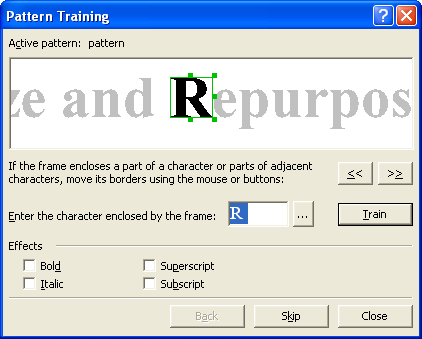
This dialog box displays during recognition if the [IRecognizerParams::TrainUserPatterns](/fine-reader/engine/api-reference/parameter-objects/preprocessing-analysis-recognition-and-synthesis-parameters/recognizerparams#trainuserpatterns) property is TRUE and some user pattern file is specified in the [IRecognizerParams::UserPatternsFile](/fine-reader/engine/api-reference/parameter-objects/preprocessing-analysis-recognition-and-synthesis-parameters/recognizerparams#userpatternsfile) property.

The top dialog window displays the character you train. The frame enclosing the character must fully enclose the character or several characters (when you are training [ligatures](/fine-reader/engine/guided-tour/advanced-techniques/using-gui-elements/training-user-patterns#ligature)).

<img src="https://mintcdn.com/abbyy/i-EfCQVmseNiPQcp/images/fine-reader/engine/patterntrainingdialog.gif?s=34bb024c1f5437beb9ff217feeae2664" alt="PatternTrainingDialog" width="422" height="339" data-path="images/fine-reader/engine/patterntrainingdialog.gif" />

<table><thead><tr><th><p><strong>Option</strong></p></th><th><p><strong>Option description</strong></p></th></tr></thead><tbody><tr><td><p><strong>Active pattern</strong></p></td><td><p>Displays the active user pattern file that should by specified in the <strong><a href="/fine-reader/engine/api-reference/parameter-objects/preprocessing-analysis-recognition-and-synthesis-parameters/recognizerparams#userpatternsfile">IRecognizerParams::UserPatternsFile</a></strong> property.</p></td></tr><tr><td><p><img alt="MoveBodyLeft" src="https://mintcdn.com/abbyy/lsETHFYUFiongXSm/images/fine-reader/engine/movebodyleft.gif?s=003dc6f9b8a6095c07dd932951b3eebc" width="35" height="23" data-path="images/fine-reader/engine/movebodyleft.gif" /> <strong>button</strong></p></td><td><p>Moves the enclosing frame left. Move the frame so as to enclose the entire character.</p></td></tr><tr><td><p><img alt="MoveBodyRight" src="https://mintcdn.com/abbyy/lsETHFYUFiongXSm/images/fine-reader/engine/movebodyright.gif?s=1d996c2ec650a677e7e33849b2c5faf0" width="35" height="23" data-path="images/fine-reader/engine/movebodyright.gif" /> <strong>button</strong></p></td><td><p>Moves the enclosing frame right. Move the frame so as to enclose the entire character.</p></td></tr><tr><td><p><strong>Enter character</strong></p></td><td><p>Specify the name of the character enclosed by the frame in the top window. If you train ABBYY FineReader to recognize characters you cannot type, you may use two-character combinations as captions, or you may copy the necessary character from the <strong>character table</strong>. Click the <img alt="DotButton" src="https://mintcdn.com/abbyy/lsETHFYUFiongXSm/images/fine-reader/engine/dotbutton.gif?s=b0d60b4a0a196fa6a0cfaed2c69996f9" width="20" height="20" data-path="images/fine-reader/engine/dotbutton.gif" /> button to open the table.</p></td></tr><tr><td><p><img alt="DotButton" src="https://mintcdn.com/abbyy/lsETHFYUFiongXSm/images/fine-reader/engine/dotbutton.gif?s=b0d60b4a0a196fa6a0cfaed2c69996f9" width="20" height="20" data-path="images/fine-reader/engine/dotbutton.gif" /> <strong>button</strong></p></td><td><p>Opens the <strong>character table</strong>. You may choose the necessary character from the table and copy it to the <strong>Enter character </strong>field.</p></td></tr><tr><td><p><strong>Train (button)</strong></p></td><td><p>Trains the character, i.e., adds the new pair "character image — character caption" to the active pattern.</p></td></tr><tr><td colspan="2"><p><strong>Effects group</strong></p></td></tr><tr><td><p><strong>Italic</strong></p></td><td><p>Specifies that the current character is italic.</p></td></tr><tr><td><p><strong>Bold</strong></p></td><td><p>Specifies that the current character is bold.</p></td></tr><tr><td><p><strong>Superscript</strong></p></td><td><p>Specifies that the current character is superscript.</p></td></tr><tr><td><p><strong>Subscript</strong></p></td><td><p>Specifies that the current character is subscript.</p></td></tr><tr><td><p><strong>Back (button)</strong></p></td><td><p>If you have made a mistake during training, you may click the <strong>Back</strong> button: the frame will go back to the previous position, and the latest pair "image — character" will be removed from the pattern. This "undo" is limited: you may only "undo" training in the last word.</p></td></tr><tr><td><p><strong>Skip (button)</strong></p></td><td><p>Skips the current character. Use this button if what the frame encloses is not a character or if you were unable to enclose a character or a group of characters fully.</p><Note>If you click the Skip button, you'll see the ^ character, which is used to replace the unrecognized symbols, in the recognized text in the place of the character you skipped.</Note></td></tr></tbody></table>

## See also

[RecognizerParams](/fine-reader/engine/api-reference/parameter-objects/preprocessing-analysis-recognition-and-synthesis-parameters/recognizerparams)

[Recognizing with Training](/fine-reader/engine/guided-tour/advanced-techniques/using-gui-elements/recognizing-with-training)

[Training User Patterns](/fine-reader/engine/guided-tour/advanced-techniques/using-gui-elements/training-user-patterns)
