> ## Documentation Index
> Fetch the complete documentation index at: https://docs.abbyy.com/llms.txt
> Use this file to discover all available pages before exploring further.
# Business Card Recognition
> Capture business card data with ABBYY FineReader Engine and export it to vCard or other electronic formats — name, company, phone, e-mail, and website extraction.
Business cards contain business information about a company or a person. Business cards can include a person's name, company, telephone numbers, fax, e-mail, website addresses, and similar information. You may need to capture this information from paper business cards and save it in electronic format. It can be an electronic address book of a mobile phone, e-mail client, or any other data storage system. For example, business cards are often passed by e-mail or network in vCard format.
The main steps which you need to perform in this scenario:
1. Obtaining a digital copy of a business card
You either scan or take a photo of a business card. Photos made with digital cameras of mobile devices may have low resolution and quality. Thus additional preparation of the images may be required.
2. Recognizing business cards
Scanned pages can contain several business cards per page. Recognition must have high quality; all information must be extracted accurately.
3. Saving recognized data in a suitable format
You can save recognized data to different data storage systems, or export it to vCard format and pass by e-mail.
## Scenario implementation
The code samples provided in this topic are Windows -specific.
Below follows a detailed description of the recommended method of using ABBYY FineReader Engine in this scenario.
To start your work with ABBYY FineReader Engine, you need to create the [Engine](/fine-reader/engine/api-reference/engine-object-iengine-interface) object. The Engine object is the top object in the hierarchy of the ABBYY FineReader Engine objects and provides various global settings, some processing methods, and methods for creating the other objects.
To create the Engine object, you can use the [InitializeEngine](/fine-reader/engine/api-reference/functions/initializeengine-function) function. See also [other ways to load Engine object](/fine-reader/engine/guided-tour/advanced-techniques/programming-aspects/different-ways-to-load-engine) (Win).
### C\#
```csharp theme={null}
public class EngineLoader : IDisposable
{
public EngineLoader()
{
// Initialize these variables with the full path to FREngine.dll, your Customer Project ID,
// and, if applicable, the path to your Online License token file and the Online License password
string enginePath = "";
string customerProjectId = "";
string licensePath = "";
string licensePassword = "";
// Load the FREngine.dll library
dllHandle = LoadLibraryEx(enginePath, IntPtr.Zero, LOAD_WITH_ALTERED_SEARCH_PATH);
try
{
if (dllHandle == IntPtr.Zero)
{
throw new Exception("Can't load " + enginePath);
}
IntPtr initializeEnginePtr = GetProcAddress(dllHandle, "InitializeEngine");
if (initializeEnginePtr == IntPtr.Zero)
{
throw new Exception("Can't find InitializeEngine function");
}
IntPtr deinitializeEnginePtr = GetProcAddress(dllHandle, "DeinitializeEngine");
if (deinitializeEnginePtr == IntPtr.Zero)
{
throw new Exception("Can't find DeinitializeEngine function");
}
IntPtr dllCanUnloadNowPtr = GetProcAddress(dllHandle, "DllCanUnloadNow");
if (dllCanUnloadNowPtr == IntPtr.Zero)
{
throw new Exception("Can't find DllCanUnloadNow function");
}
// Convert pointers to delegates
initializeEngine = (InitializeEngine)Marshal.GetDelegateForFunctionPointer(
initializeEnginePtr, typeof(InitializeEngine));
deinitializeEngine = (DeinitializeEngine)Marshal.GetDelegateForFunctionPointer(
deinitializeEnginePtr, typeof(DeinitializeEngine));
dllCanUnloadNow = (DllCanUnloadNow)Marshal.GetDelegateForFunctionPointer(
dllCanUnloadNowPtr, typeof(DllCanUnloadNow));
// Call the InitializeEngine function
// passing the path to the Online License file and the Online License password
int hresult = initializeEngine(customerProjectId, licensePath, licensePassword,
"", "", false, ref engine);
Marshal.ThrowExceptionForHR(hresult);
}
catch (Exception)
{
// Free the FREngine.dll library
engine = null;
// Deleting all objects before FreeLibrary call
GC.Collect();
GC.WaitForPendingFinalizers();
GC.Collect();
FreeLibrary(dllHandle);
dllHandle = IntPtr.Zero;
initializeEngine = null;
deinitializeEngine = null;
dllCanUnloadNow = null;
throw;
}
}
// Kernel32.dll functions
[DllImport("kernel32.dll")]
private static extern IntPtr LoadLibraryEx(string dllToLoad, IntPtr reserved, uint flags);
private const uint LOAD_WITH_ALTERED_SEARCH_PATH = 0x00000008;
[DllImport("kernel32.dll")]
private static extern IntPtr GetProcAddress(IntPtr hModule, string procedureName);
[DllImport("kernel32.dll")]
private static extern bool FreeLibrary(IntPtr hModule);
// FREngine.dll functions
[UnmanagedFunctionPointer(CallingConvention.StdCall, CharSet = CharSet.Unicode)]
private delegate int InitializeEngine(string customerProjectId, string licensePath,
string licensePassword, string tempFolder, string dataFolder, bool isSharedCPUCoresMode,
ref FREngine.IEngine engine);
[UnmanagedFunctionPointer(CallingConvention.StdCall)]
private delegate int DeinitializeEngine();
[UnmanagedFunctionPointer(CallingConvention.StdCall)]
private delegate int DllCanUnloadNow();
// private variables
private FREngine.IEngine engine = null;
// Handle to FREngine.dll
private IntPtr dllHandle = IntPtr.Zero;
private InitializeEngine initializeEngine = null;
private DeinitializeEngine deinitializeEngine = null;
private DllCanUnloadNow dllCanUnloadNow = null;
}
```
You can load the processing settings suitable for this scenario using the [LoadPredefinedProfile](/fine-reader/engine/api-reference/engine-object-iengine-interface/supplementary-methods/loadpredefinedprofile-method) method of the Engine object. This method uses the name of a settings profile as an input parameter. Please see [Working with Profiles](/fine-reader/engine/guided-tour/advanced-techniques/working-with-profiles) for more information.
The settings for this scenario are available in the [BusinessCardsProcessing](/fine-reader/engine/guided-tour/advanced-techniques/working-with-profiles#businesscardsprocessing) predefined profile:
* Detects only business cards (sets the [SynthesizeBusinessCards](/fine-reader/engine/api-reference/parameter-objects/preprocessing-analysis-recognition-and-synthesis-parameters/synthesisparamsforpage#synthesizebusinesscards) property of the SynthesisParamsForPage object to TRUE).
* Enables detection of all text on an image, including small text areas of low quality (pictures and tables are not detected).
* Resolution correction is performed.
* Full synthesis of the logical structure of a document is not performed.
### C\#
```csharp theme={null}
// Load the predefined profile
engine.LoadPredefinedProfile("BusinessCardsProcessing");
```
If you wish to change processing settings, use appropriate parameter objects. Please see [Additional optimization for specific tasks](/fine-reader/engine/guided-tour/basic-usage-scenarios-implementation/business-card-recognition#optimization) below for further information.
To load images to FineReader Engine, you can use the methods of these objects:
* [FRDocument](/fine-reader/engine/api-reference/document-related-objects/frdocument)
* [BatchProcessor](/fine-reader/engine/api-reference/batch-processor/batchprocessor) for Linux and Windows
Linux and Windows users can learn about the advantages and disadvantages of each approach in [Parallel Processing with ABBYY FineReader Engine](/fine-reader/engine/guided-tour/advanced-techniques/parallel-processing). The current topic focuses on FRDocument.
To load images to the FRDocument object, do one of the following:
* When creating the FRDocument object, use the [CreateFRDocumentFromImage](/fine-reader/engine/api-reference/engine-object-iengine-interface/creation-methods/createfrdocumentfromimage-method) method of the [Engine](/fine-reader/engine/api-reference/engine-object-iengine-interface) object.
* Add images to the created FRDocument object from file (use the [AddImageFile](/fine-reader/engine/api-reference/document-related-objects/frdocument/addimagefile-method), [AddImageFileWithPassword](/fine-reader/engine/api-reference/document-related-objects/frdocument/addimagefilewithpassword-method), or [AddImageFileWithPasswordCallback](/fine-reader/engine/api-reference/document-related-objects/frdocument/addimagefilewithpasswordcallback-method) method).
All these methods use as a parameter [PrepareImageMode](/fine-reader/engine/api-reference/image-related-objects/prepareimagemode) object which allows you to specify different parameters of image preprocessing. Create this object by calling the [IEngine::CreatePrepareImageMode](/fine-reader/engine/api-reference/engine-object-iengine-interface/creation-methods/createlessobjectgreater-methods) function, then change its properties as necessary and then pass it to a function that requires it.
### C\#
```csharp theme={null}
FREngine.IEngine engine;
string imagePath;
FREngine.IPrepareImageMode pim = engine.CreatePrepareImageMode();
pim.DocumentType = FREngine.DocumentTypeEnum.DT_BusinessCard;
FREngine.IFRDocument frDoc = engine.CreateFRDocument();
frDoc.AddImageFile(imagePath, pim, null);
```
To recognize business cards:
1. Specify the language of business cards using the [SetPredefinedTextLanguage](/fine-reader/engine/api-reference/parameter-objects/preprocessing-analysis-recognition-and-synthesis-parameters/recognizerparams/setpredefinedtextlanguage-method) method of the RecognizerParams object. See the [list of predefined languages](/fine-reader/engine/specifications/predefined-languages) available for business card recognition.
2. Set other processing parameters, if necessary. See [Tuning Parameters of Page Preprocessing, Analysis, Recognition, and Synthesis](/fine-reader/engine/guided-tour/advanced-techniques/tuning-parameters-of-preprocessing-analysis-recognition-and-synthesis).
3. Pass the parameters to any of the processing methods (e.g., the [Process](/fine-reader/engine/api-reference/document-related-objects/frdocument/process-method) method of the FRDocument object). The method fills in the collections of business cards of the document and its pages ([IFRDocument::BusinessCards](/fine-reader/engine/api-reference/document-related-objects/frdocument#businesscards), [IFRPage::BusinessCards](/fine-reader/engine/api-reference/document-related-objects/frpage#businesscards)).
You can also synthesize a business card from the whole page or a region on each page using the [SynthesizeBusinessCard](/fine-reader/engine/api-reference/document-related-objects/frpage/synthesizebusinesscard-method) or [SynthesizeBusinessCardEx](/fine-reader/engine/api-reference/document-related-objects/frpage/synthesizebusinesscardex-method) method of the FRPage object. The method returns a [BusinessCard](/fine-reader/engine/api-reference/document-related-objects/businesscard) object. Note that in this case, a business card is not added to the collection of business cards of the page. This way is especially useful if you select the way of processing that uses Batch Processor.
### C\#
```csharp theme={null}
// Create parameters of document processing
FREngine.IDocumentProcessingParams dpp = engine.CreateDocumentProcessingParams();
// Perform recognition with the specified parameters
frDoc.Process( dpp );
// Access a business card
FREngine.IBusinessCard card = frDoc.BusinessCards[0];
```
A recognized business card (the [BusinessCard](/fine-reader/engine/api-reference/document-related-objects/businesscard) object) can contain the following fields:
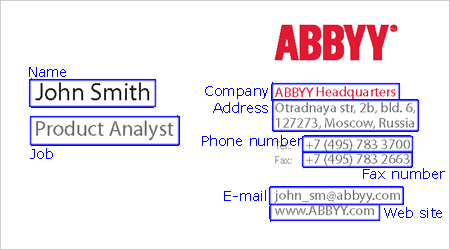
- Personal name
- Company name
- Position in the company
- Company address
- Phone number
- Fax
- Mobile phone number
- E-mail
- Web site
You can access each field by its type ([FieldByType](/fine-reader/engine/api-reference/document-related-objects/businesscard/fieldbytype-property) property) or by its index in the collection of fields ([Field](/fine-reader/engine/api-reference/document-related-objects/businesscard/field-property) property). Each field has the [Value](/fine-reader/engine/api-reference/document-related-objects/businesscardfield#value) property, which provides access to the field value in the string format. For each character in the field, its recognition variants are available ([GetCharParams](/fine-reader/engine/api-reference/document-related-objects/businesscardfield/getcharparams-method) method).
Some fields can consist of several components, e.g., the address field can contain zip code, country, USA state, city, street address. To access a field component, you can use the [Component](/fine-reader/engine/api-reference/document-related-objects/businesscardfield/component-property) property or the [FindComponent](/fine-reader/engine/api-reference/document-related-objects/businesscardfield/findcomponent-method) method. The first one allows you to access the component by its index; the second one finds the component by its type. For each component, you can view its type and value and get parameters and recognition variants for each character ([GetCharParams](/fine-reader/engine/api-reference/document-related-objects/businesscardfieldcomponent/getcharparams-method) method).
### C\#
```csharp theme={null}
// Obtain the name field
FREngine.IBusinessCardField nameField = card.FieldByType( FREngine.BusinessCardFieldTypeEnum.BCFT_Name, 0 );
// Obtain the component which contains the first name
FREngine.IBusinessCardFieldComponent firstNameComponent =
nameField.FindComponent( FREngine.BusinessCardFieldComponentTypeEnum.BCFCT_FirstName );
// The recognized first name
string firstName = firstNameComponent.Value;
```
The BusinessCard object provides the special [ExportToVCard](/fine-reader/engine/api-reference/document-related-objects/businesscard/exporttovcard-method) method for saving a business card in vCard format. The path to the file is passed as the parameter.
You can save business card in any other available export format, for example, in XML.
### C\#
```csharp theme={null}
// Save recognized data in vCard format
card.ExportToVCard("D:\\sample.vcf");
// Save in XML
frDoc.Export("D:\\Demo.xml", FREngine.FileExportFormatEnum.FEF_XML, null);
```
After finishing your work with ABBYY FineReader Engine, you need to unload the [Engine](/fine-reader/engine/api-reference/engine-object-iengine-interface) object. To do this, use the [DeinitializeEngine](/fine-reader/engine/api-reference/functions/deinitializeengine-function) exported function.
### C\#
```csharp theme={null}
public class EngineLoader : IDisposable
{
// Unload FineReader Engine
public void Dispose()
{
if (engine == null)
{
// Engine was not loaded
return;
}
engine = null;
// Deleting all objects before FreeLibrary call
GC.Collect();
GC.WaitForPendingFinalizers();
GC.Collect();
int hresult = deinitializeEngine();
hresult = dllCanUnloadNow();
if (hresult == 0)
{
FreeLibrary(dllHandle);
}
dllHandle = IntPtr.Zero;
initializeEngine = null;
deinitializeEngine = null;
dllCanUnloadNow = null;
// throwing exception after cleaning up
Marshal.ThrowExceptionForHR(hresult);
}
// Kernel32.dll functions
[DllImport("kernel32.dll")]
private static extern IntPtr LoadLibraryEx(string dllToLoad, IntPtr reserved, uint flags);
private const uint LOAD_WITH_ALTERED_SEARCH_PATH = 0x00000008;
[DllImport("kernel32.dll")]
private static extern IntPtr GetProcAddress(IntPtr hModule, string procedureName);
[DllImport("kernel32.dll")]
private static extern bool FreeLibrary(IntPtr hModule);
// FREngine.dll functions
[UnmanagedFunctionPointer(CallingConvention.StdCall, CharSet = CharSet.Unicode)]
private delegate int InitializeEngine( string customerProjectId, string LicensePath, string LicensePassword, , , , ref FREngine.IEngine engine);
[UnmanagedFunctionPointer(CallingConvention.StdCall)]
private delegate int DeinitializeEngine();
[UnmanagedFunctionPointer(CallingConvention.StdCall)]
private delegate int DllCanUnloadNow();
// private variables
private FREngine.IEngine engine = null;
// Handle to FREngine.dll
private IntPtr dllHandle = IntPtr.Zero;
private InitializeEngine initializeEngine = null;
private DeinitializeEngine deinitializeEngine = null;
private DllCanUnloadNow dllCanUnloadNow = null;
}
```
## Required resources
You can use the [FREngineDistribution.csv](/fine-reader/engine/distribution/distribution-windows/distribution-kit/working-with-the-frenginedistributioncsv-file) file to automatically create a list of files required for your application to function. For processing with this scenario, select in the column 5 (RequiredByModule) the following values:
Core
Core.Resources
Opening
Opening, Processing
Processing
Processing.BCR
Processing.OCR
Processing.OCR, Processing.ICR
Processing.OCR.NaturalLanguages
Processing.OCR.NaturalLanguages, Processing.ICR.NaturalLanguages
Export
Export, Processing
If you modify the standard scenario, change the required modules accordingly. You also need to specify the interface languages, recognition languages and any additional features which your application uses (such as, e.g., Opening.PDF if you need to open PDF files, or Processing.OCR.CJK if you need to recognize texts in [CJK languages](/fine-reader/engine/guided-tour/advanced-techniques/recognizing-cjk-languages#cjk)). See [Working with the FREngineDistribution.csv File](/fine-reader/engine/distribution/distribution-windows/distribution-kit/working-with-the-frenginedistributioncsv-file) for further details.
## Additional optimization
These are the sections of the Help file where you can find additional information about setting up the parameters for the various processing stages:
* Loading Engine
* [Different Ways to Load the Engine Object](/fine-reader/engine/guided-tour/advanced-techniques/programming-aspects/different-ways-to-load-engine) for Windows
Describes the ways of loading Engine object in detail.
* [Using ABBYY FineReader Engine in Multi-Threaded Server Applications](/fine-reader/engine/guided-tour/advanced-techniques/programming-aspects/using-in-server-applications) for Windows
Discusses the specifics of using FineReader Engine in server applications.
* [Working with Profiles](/fine-reader/engine/guided-tour/advanced-techniques/working-with-profiles)
Provides detailed description of predefined and user profiles.
* Recognition
* [Tuning Parameters of Preprocessing, Analysis, Recognition, and Synthesis](/fine-reader/engine/guided-tour/advanced-techniques/tuning-parameters-of-preprocessing-analysis-recognition-and-synthesis)
Customization of document processing using objects of preprocessing, analysis, recognition, and synthesis parameters.
* [Parallel Processing with ABBYY FineReader Engine](/fine-reader/engine/guided-tour/advanced-techniques/parallel-processing) for Linux and Windows
You can use another way of document processing which uses Batch Processor.
* Export
* [Tuning Export Parameters](/fine-reader/engine/guided-tour/advanced-techniques/tuning-export-parameters)
Setting up export with the objects of export parameters.
* [XMLExportParams Object](/fine-reader/engine/api-reference/parameter-objects/export-parameters/xmlexportparams)
This object allows you to set up the saving of recognition results to XML.
## See also
[Basic Usage Scenarios Implementation](/fine-reader/engine/guided-tour/basic-usage-scenarios-implementation)