> ## Documentation Index
> Fetch the complete documentation index at: https://docs.abbyy.com/llms.txt
> Use this file to discover all available pages before exploring further.

# License Manager Utility

> Use the FineReader Engine License Manager Utility to add, remove, activate, deactivate, and update licenses through the console UI or the command line.

With the help of the License Manager Utility, you can add, remove, activate, deactivate, update licenses and view license properties. To understand how to access the use the License Manager Utility, choose the dropdown for your operating system from the list below:

<Accordion title="License Management for Linux">
  Managing the licenses is possible both through an interactive console interface and [via the command line](/fine-reader/engine/licensing/license-manager-utility/working-from-the-command-line). To enter the interactive mode, run activatefre.sh without any parameters and select the Manage licenses option, or start Bin/LicenseManager.Console without any parameters. In both cases, you will see the console interface for the License Manager utility.

  <Warning>
    Activation script must be run under ROOT.
  </Warning>

  The console interface displays the list of currently available licenses. Select the license number to view the following information about it:

  <table><thead><tr><th><p><strong>Column</strong></p></th><th><p><strong>Description</strong></p></th></tr></thead><tbody><tr><td><p><strong>Serial number</strong></p></td><td><p>The ABBYY FineReader Engine 12 serial number.</p></td></tr><tr><td><p><strong>Functionality subset</strong></p></td><td><p>The functionality subset of the license (Developer or Runtime, and any license limitations, e.g., Trial).</p></td></tr><tr><td><p><strong>Protection type</strong></p></td><td><p>The protection type:</p><ul><li><strong>Software (File)</strong> — software protection key.</li><li><strong>Online licensing</strong> — online protection.</li></ul></td></tr><tr><td><p><strong>Installation type</strong></p></td><td><p>The installation type:</p><ul><li><strong>Standalone</strong> — the license is used on a local computer.</li><li><strong>Network</strong> — the license is located on a network computer.</li></ul></td></tr><tr><td><p><strong>Expiration date</strong></p></td><td><p>The expiration date.</p></td></tr></tbody></table>

  ## Activating, updating, or deactivating the license

  To activate a new license, select Activate license on the first screen and follow the instructions.

  To update or deactivate one of the available licenses, select it in the list of all licenses, then select Update license or Deactivate license. License update may be performed by e-mail or via the Internet connection. Deactivation is possible only via the Internet.

  ## Runtime license emulation

  You can use your Developer's license in the Runtime emulated mode. This allows you to test your application which uses the ABBYY FineReader Engine 12 library.

  To try emulation, select the Developer License in the list and choose License emulation method: Developer; it will change to License emulation method: Emulate runtime. You may now select License parameters emulation settings, go through the list of available modules, and disable those modules which will not be available in your Runtime License. Note that you can still select only those modules which are supported by your Developer License.
</Accordion>

<Accordion title="License Manager for macOS">
  The License Manager utility allows you to manage ABBYY SDK licenses. To start the License Manager, run the activation script activateFREngine.command and select the necessary option in the console. With the help of the ABBYY SDK 12 License Manager, you can activate, deactivate, or update a license and view the properties of an activated license.

  The following license information is available in the ABBYY SDK 12 License Manager:

  | Column               | Description                                                                                               |
  | -------------------- | --------------------------------------------------------------------------------------------------------- |
  | Serial number        | The ABBYY FineReader Engine 12 serial number.                                                             |
  | Functionality subset | The functionality subset of the license (Developer or Runtime, and any license limitations, e.g., Trial). |
  | Expiration date      | The expiration date.                                                                                      |

  ## Activating, updating, or deactivating the license

  To activate a new license, select Activate license on the first screen and follow the instructions.

  To update or deactivate one of the available licenses, select it in the list of all licenses, then select Update license or Deactivate license. License update may be performed by e-mail or via the Internet connection. Deactivation is possible only via the Internet.

  ## Runtime license emulation

  You can use your Developer's license in the Runtime emulated mode. This allows you to test your application which uses the ABBYY FineReader Engine 12 library.

  To try emulation, select the Developer License in the list and choose License emulation method: Developer; it will change to License emulation method: Emulate runtime. You may now select License parameters emulation settings, go through the list of available modules, and disable those modules which will not be available in your Runtime License. Note that you can still select only those modules which are supported by your Developer License.
</Accordion>

<Accordion title="License Manager for Windows">
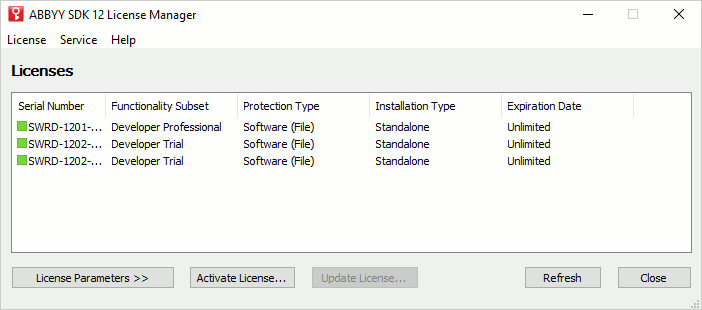
  The License Manager utility allows you to manage ABBYY SDK licenses of all types. In the ABBYY SDK 12 License Manager dialog box you can activate, deactivate, or update a license and view the properties of an activated license.

  The License Manager utility is installed automatically during a Developer installation or during a Runtime ABBYY FineReader Engine library installation in automatic mode together with the [Licensing Service](/fine-reader/engine/distribution/distribution-windows/activating-the-library-windows/installing-the-licensing-service-on-windows). This utility is accessible through Start > Programs > ABBYY FineReader Engine 12 > License Manager or in the Bin (Bin64) folder. This utility is distributed along with other ABBYY FineReader Engine 12 files allowed for [distribution](/fine-reader/engine/distribution/distribution-windows/distribution-kit) and is used for Runtime Licenses activation. Developers can also use the License Manager utility via the [command line](/fine-reader/engine/licensing/license-manager-utility/working-from-the-command-line) to create their own registration utilities.

  ## ABBYY SDK 12 License Manager dialog box

  <img src="https://mintcdn.com/abbyy/lsETHFYUFiongXSm/images/fine-reader/engine/licensemanager.gif?s=662a5ac08fc5d2115f5ef93a745e877f" alt="LicenseManager" width="702" height="310" data-path="images/fine-reader/engine/licensemanager.gif" />

  The following license information is available in the ABBYY SDK 12 License Manager dialog box:

  <table><thead><tr><th><p><strong>Column</strong></p></th><th><p><strong>Description</strong></p></th></tr></thead><tbody><tr><td><p><strong>Serial number</strong></p></td><td><p>The ABBYY FineReader Engine 12 serial number.</p><Note>The icon in front of the serial number shows whether the license is currently in use:</Note><div><table><tbody><tr><td><p>  <img alt="LM_green" src="https://mintcdn.com/abbyy/lsETHFYUFiongXSm/images/fine-reader/engine/lm_green.gif?s=1174edf1411550f9682b5372c1c34c53" width="10" height="10" data-path="images/fine-reader/engine/lm_green.gif" /></p></td><td><p>The license is not in use now, all available CPU cores are free. The license can be used for processing.</p></td></tr></tbody></table></div><div><table><tbody><tr><td><p>  <img alt="LM_green_red" src="https://mintcdn.com/abbyy/lsETHFYUFiongXSm/images/fine-reader/engine/lm_green_red.gif?s=268a27400c7d21087e002ac755f1eaf5" width="10" height="10" data-path="images/fine-reader/engine/lm_green_red.gif" /></p></td><td><p>The license is in use, but there are some free CPU cores. Some recognition processes can be run with this license.</p></td></tr></tbody></table></div><div><table><tbody><tr><td><p>  <img alt="LM_red" src="https://mintcdn.com/abbyy/lsETHFYUFiongXSm/images/fine-reader/engine/lm_red.gif?s=9bf0e86e631534269df945dc839e209a" width="10" height="10" data-path="images/fine-reader/engine/lm_red.gif" /></p></td><td><p>The license is in use, all available CPU cores are busy. No more recognition processes can be run with this license.</p></td></tr></tbody></table></div><p>You can view detailed license usage statistics in the <strong>Service > License Use Statistic</strong> menu.</p></td></tr><tr><td><p><strong>Functionality subset</strong></p></td><td><p>The functionality subset of the license (Developer or Runtime, and any license limitations, e.g., Trial).</p></td></tr><tr><td><p><strong>Protection type</strong></p></td><td><p>The protection type:</p><ul><li><strong>Software (File)</strong> — software protection key.</li><li><strong>Online licensing</strong> — online protection.</li></ul></td></tr><tr><td><p><strong>Installation type</strong></p></td><td><p>The installation type:</p><ul><li><strong>Standalone</strong> — the license is used on a local computer.</li><li><strong>Network</strong> — the license is located on a network computer.</li></ul></td></tr><tr><td><p><strong>Expiration date</strong></p></td><td><p>The expiration date.</p></td></tr></tbody></table>

  You can find more details about the license in the [License Parameters](/fine-reader/engine/licensing/license-manager-utility/license-parameters) table. To show or hide license parameters, use the License Parameters/Hide License Parameters button.

  ## Activating, updating, or deactivating the license

  To activate, update, or deactivate the license, press the corresponding button, or select the corresponding item in the menu, and follow the instructions in the dialog box that opens. See details about license activation, deactivation and update in the [Activation](/fine-reader/engine/licensing/activation) section.

  ## Buttons

  * License Parameters/Hide License Parameters<br />Shows or hides license parameters.
  * Activate license...<br />Starts the License Activation Wizard.
  * Update license...<br />Starts the License Update Wizard for the selected license.
  * Refresh<br />Updates the license list.
  * Close<br />Closes the License Manager.

  ## Menu items

  <table><thead><tr><th colspan="2"><p><strong>Item</strong></p></th><th><p><strong>Description</strong></p></th></tr></thead><tbody><tr><td rowspan="5"><p><strong>License</strong></p></td><td><p><strong>Activate...</strong></p></td><td><p>Starts the License Activation Wizard.</p></td></tr><tr><td><p><strong>Update...</strong></p></td><td><p>Starts the License Update Wizard for the selected license.</p></td></tr><tr><td><p><strong>Deactivate...</strong></p></td><td><p>Starts the License Deactivation Wizard for the selected license.</p></td></tr><tr><td><p><strong>Copy Serial Number</strong></p></td><td><p>Copies the selected license.</p></td></tr><tr><td><p><strong>Close</strong></p></td><td><p>Closes the License Manager.</p></td></tr><tr><td rowspan="3"><p><strong>Service</strong></p></td><td><p><strong>License Use Statistic...</strong></p></td><td><p>Shows the statistics of license usage on the workstations. Available only for the Network licenses with the CPU cores limitation.</p></td></tr><tr><td><p><strong>Refresh</strong></p></td><td><p>Updates the license list.</p></td></tr><tr><td><p><strong>Release Online Licenses...</strong></p></td><td><p>Disables and removes the Online Licenses along with the associated information.</p></td></tr><tr><td><p><strong>Help</strong></p></td><td><p><strong>Help</strong></p></td><td><p>Opens this help file.</p></td></tr></tbody></table>
</Accordion>

## See also

[Licensing](/fine-reader/engine/licensing)

[Activation](/fine-reader/engine/licensing/activation)
