> ## Documentation Index
> Fetch the complete documentation index at: https://docs.abbyy.com/llms.txt
> Use this file to discover all available pages before exploring further.
# Secure your network connections
> Secure ABBYY FlexiCapture connections with HTTPS, Mutual SSL, and TLS 1.2, and protect links to the database and file storage across system components.
For secure transfer of data among ABBYY FlexiCapture components, a secure network connection is required.
## Secure your connection with HTTPS
By default, ABBYY FlexiCapture is configured to use the HTTP protocol, which is only recommended for staging, testing or demo environments.
The HTTP protocol is also used to transmit data between the Web Scanning Station and the ABBYY Scanning Plugin, since the scanning plugin is designed exclusively to be deployed locally on the user's machine.
For production use, HTTPS must be used to protect sensitive data.
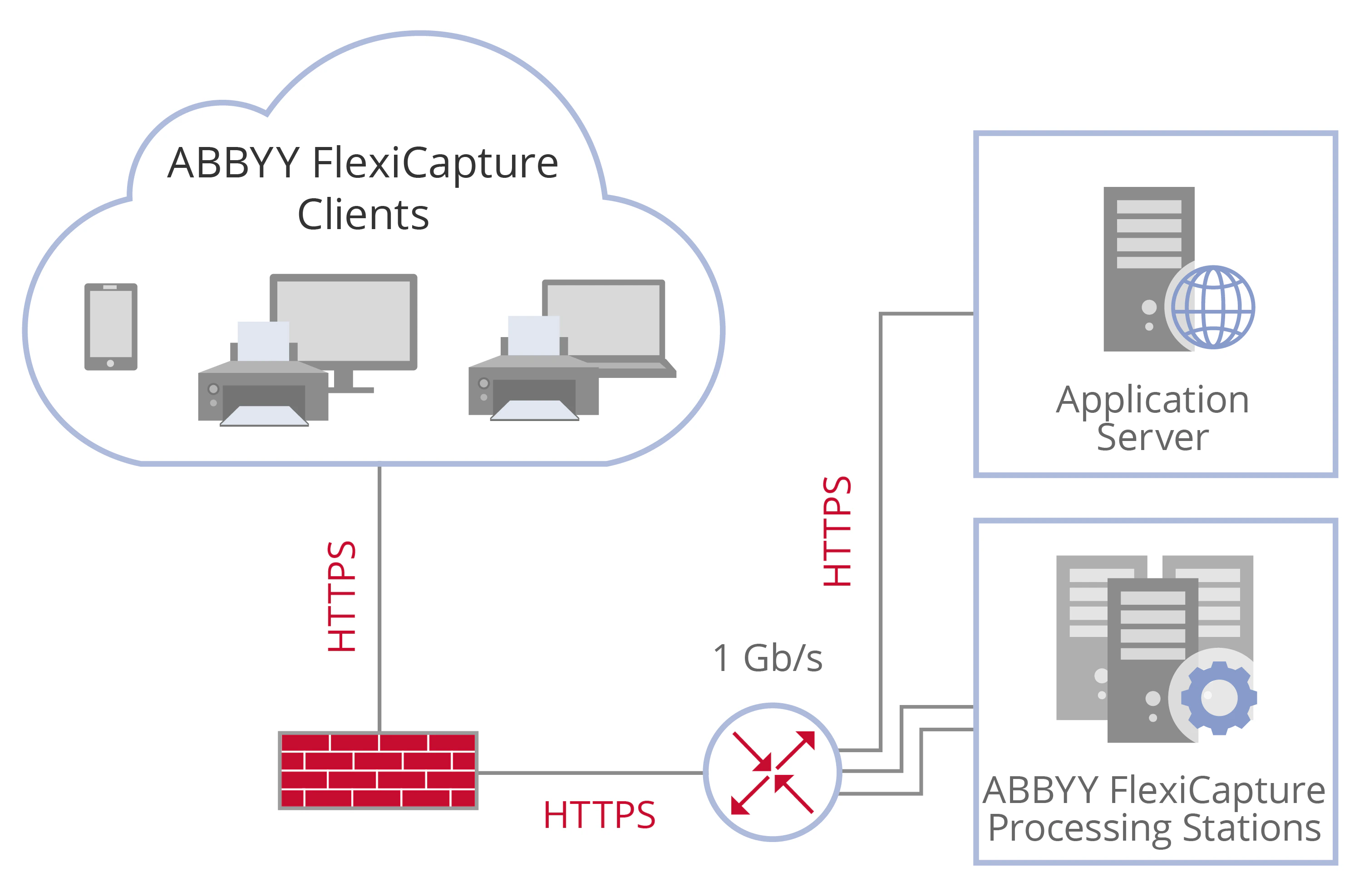 To use HTTPS, enable SSL support in the IIS settings.
To work with IIS over HTTPS, you need to obtain a certificate for the server. For more information about managing certificates, see [this section of the Microsoft website](https://technet.microsoft.com/en-us/library/cc754122.aspx).
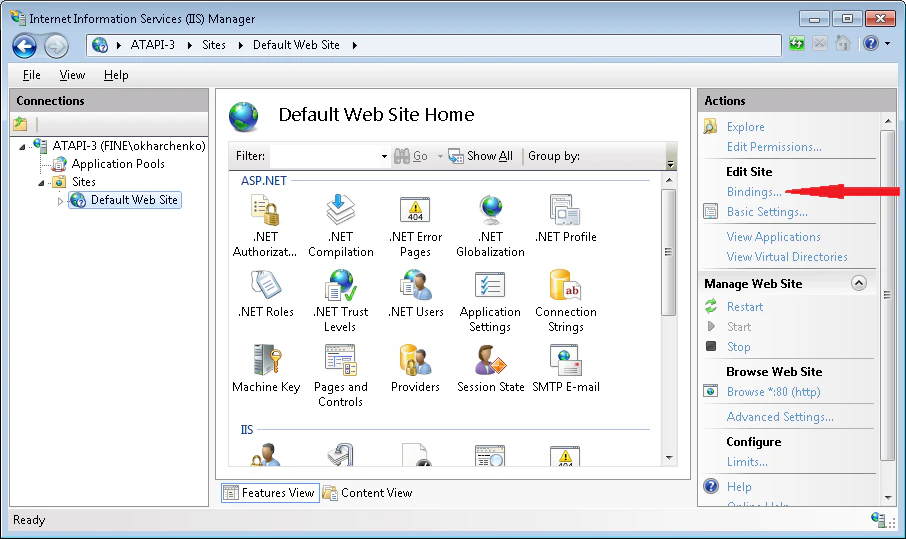
In the IIS settings, specify the HTTPS protocol for the default website:
Run the IIS Manager console from the Control Panel.
Select **Default Web Site** and click **Bindings** in the **Actions** pane.
To use HTTPS, enable SSL support in the IIS settings.
To work with IIS over HTTPS, you need to obtain a certificate for the server. For more information about managing certificates, see [this section of the Microsoft website](https://technet.microsoft.com/en-us/library/cc754122.aspx).
In the IIS settings, specify the HTTPS protocol for the default website:
Run the IIS Manager console from the Control Panel.
Select **Default Web Site** and click **Bindings** in the **Actions** pane.
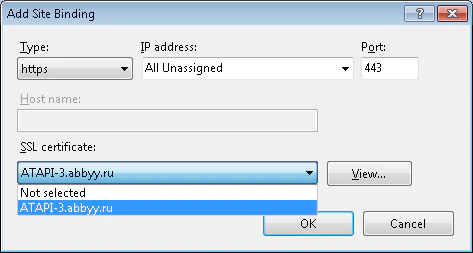
 In the dialog box that opens, click **Add** and select **https** from the **Type** drop-down list.
From the **SSL Certificate** drop-down list, select a certificate and click **OK**.
In the dialog box that opens, click **Add** and select **https** from the **Type** drop-down list.
From the **SSL Certificate** drop-down list, select a certificate and click **OK**.
 If you want a site to be available via HTTPS only, select the site in the tree pane, double-click **SSL Settings** in the content pane, and select the **Require SSL** option.
As client certificates are not verified, set the **Client certificates** option to **Ignore** when configuring SSL.
Once the certificate has been added, the Application Server address must be prefixed with “https” (that is, `https://`) and the name of each client machine connecting to the Application Server must match the name in the certificate.
You will need to specify the Application Server address on the Processing Server, on user stations, and on web stations.
To specify the Application Server address on the Processing Server:
Start the Processing Server Monitor.
Open the Processing Server shortcut menu and select **Change Application Server**.
In the dialog box that opens, specify the address: `https://`.
The Application Server address must also be specified when you start a user station or open a project.
When working on a web station, enter the URL in the following format: `https:///FlexiCapture12/`.
### TLS 1.2 for data encryption
ABBYY FlexiCapture 12 supports the TLS 1.2 protocol, which is the recommended encryption protocol for secure connections.
When connecting to ABBYY FlexiCapture, other protocols can be used at the operating system level. For detailed instructions on how to restrict the use of certain protocols, see [this section of the Microsoft website](https://docs.microsoft.com/en-us/windows-server/identity/ad-fs/operations/manage-ssl-protocols-in-ad-fs).
## Secure your connection with Mutual SSL
By default, when configuring HTTPS, one-way SSL authentication is configured. This means that the client will verify the authenticity of the server certificate. You can make the connection more secure by using Mutual SSL, so that the client will verify the authenticity of the server certificate and the server will verify the authenticity of the client certificate.
To configure Mutual SSL for the Application Server, complete the following steps:
In IIS, specify HTTPS as the protocol to be used for connections to the Application Server (see [Secure your connection with HTTPS](#sbp-https) above).
For `Default Web Site\FlexiCapture12\Server`, select the **Require SSL** option in **SSL Settings**.
For **Client certificates**, select the **Require** option.
Now a client will need to provide a certificate when connecting to the Application Server:
* **Project Setup Station and Verification Station**: No additional configuration is required. When connecting, the client will be asked to select a certificate to provide to the Application Server.
* **Processing Server and Processing Station**: Specify the thumbprint of the appropriate certificate in the registry. Locate `HKLM\Software\ABBYY\FlexiCapture\12.0\FlexiBr` in the registry and specify ``.
* **Administration and Monitoring Console**: Specify which certificate to provide by modifying the `web.config` file with the following keys:
```
```
The client certificate with the specified thumbprint must be stored in **Local Computer > Personal**, and the account providing the certificate must have permission to use it. For detailed information, see [this section of the Microsoft website](https://docs.microsoft.com/en-us/windows/desktop/winhttp/winhttpcertcfg-exe--a-certificate-configuration-tool).
Mutual SSL cannot be configured for the Web Scanning Station or the Web Capture Station.
## Secure your connection to the database and file storage
The Application Server interacts with the database and file storage.
If you want a site to be available via HTTPS only, select the site in the tree pane, double-click **SSL Settings** in the content pane, and select the **Require SSL** option.
As client certificates are not verified, set the **Client certificates** option to **Ignore** when configuring SSL.
Once the certificate has been added, the Application Server address must be prefixed with “https” (that is, `https://`) and the name of each client machine connecting to the Application Server must match the name in the certificate.
You will need to specify the Application Server address on the Processing Server, on user stations, and on web stations.
To specify the Application Server address on the Processing Server:
Start the Processing Server Monitor.
Open the Processing Server shortcut menu and select **Change Application Server**.
In the dialog box that opens, specify the address: `https://`.
The Application Server address must also be specified when you start a user station or open a project.
When working on a web station, enter the URL in the following format: `https:///FlexiCapture12/`.
### TLS 1.2 for data encryption
ABBYY FlexiCapture 12 supports the TLS 1.2 protocol, which is the recommended encryption protocol for secure connections.
When connecting to ABBYY FlexiCapture, other protocols can be used at the operating system level. For detailed instructions on how to restrict the use of certain protocols, see [this section of the Microsoft website](https://docs.microsoft.com/en-us/windows-server/identity/ad-fs/operations/manage-ssl-protocols-in-ad-fs).
## Secure your connection with Mutual SSL
By default, when configuring HTTPS, one-way SSL authentication is configured. This means that the client will verify the authenticity of the server certificate. You can make the connection more secure by using Mutual SSL, so that the client will verify the authenticity of the server certificate and the server will verify the authenticity of the client certificate.
To configure Mutual SSL for the Application Server, complete the following steps:
In IIS, specify HTTPS as the protocol to be used for connections to the Application Server (see [Secure your connection with HTTPS](#sbp-https) above).
For `Default Web Site\FlexiCapture12\Server`, select the **Require SSL** option in **SSL Settings**.
For **Client certificates**, select the **Require** option.
Now a client will need to provide a certificate when connecting to the Application Server:
* **Project Setup Station and Verification Station**: No additional configuration is required. When connecting, the client will be asked to select a certificate to provide to the Application Server.
* **Processing Server and Processing Station**: Specify the thumbprint of the appropriate certificate in the registry. Locate `HKLM\Software\ABBYY\FlexiCapture\12.0\FlexiBr` in the registry and specify ``.
* **Administration and Monitoring Console**: Specify which certificate to provide by modifying the `web.config` file with the following keys:
```
```
The client certificate with the specified thumbprint must be stored in **Local Computer > Personal**, and the account providing the certificate must have permission to use it. For detailed information, see [this section of the Microsoft website](https://docs.microsoft.com/en-us/windows/desktop/winhttp/winhttpcertcfg-exe--a-certificate-configuration-tool).
Mutual SSL cannot be configured for the Web Scanning Station or the Web Capture Station.
## Secure your connection to the database and file storage
The Application Server interacts with the database and file storage.
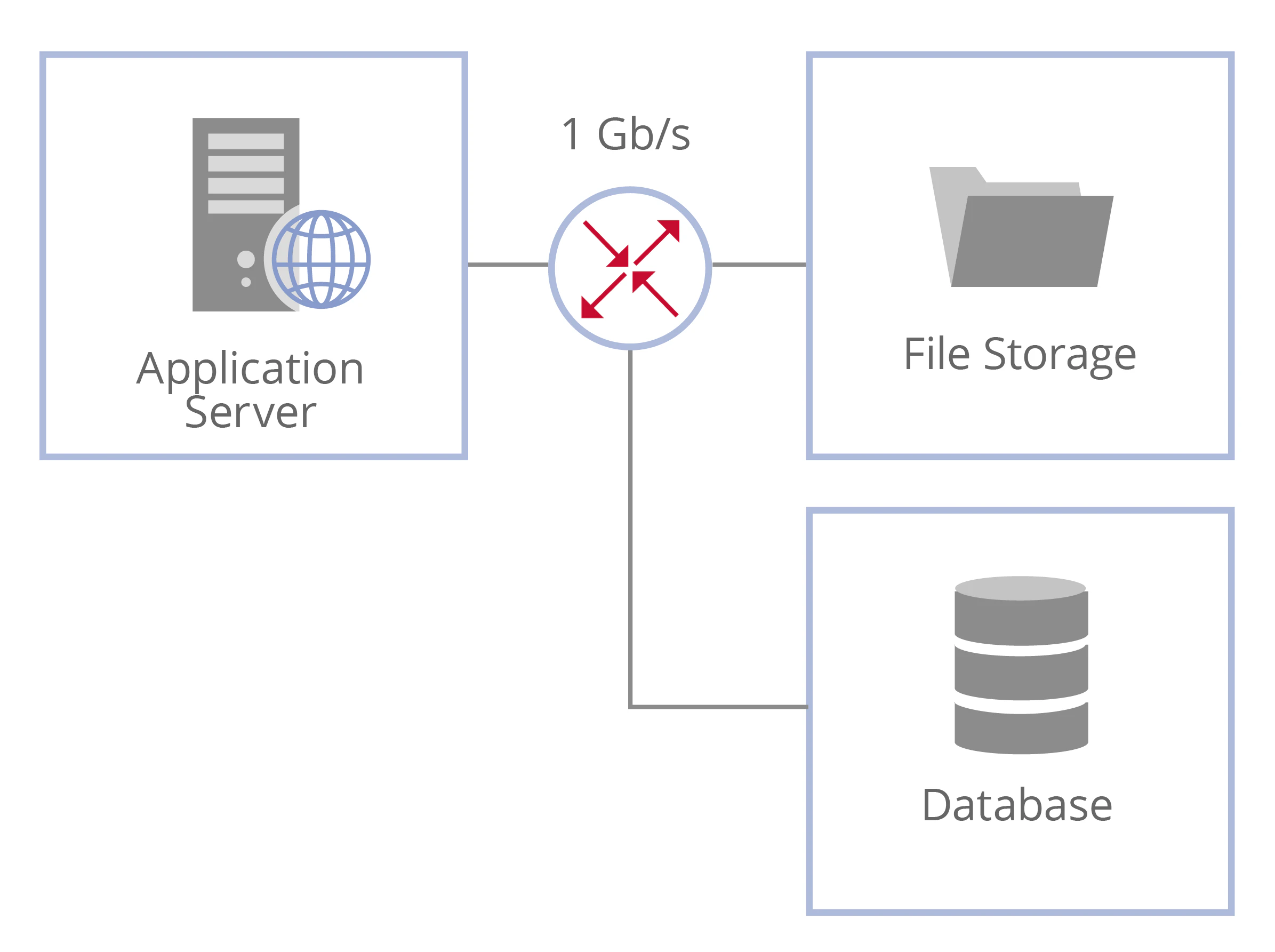 To secure your connection to an SQL, SQL Azure, or Oracle database, we recommend using the TLS 1.2 encryption protocol. Configure TLS in the database:
* **SQL**: For detailed instructions, see [this section of the Microsoft website](https://docs.microsoft.com/en-us/sql/database-engine/configure-windows/enable-encrypted-connections-to-the-database-engine?view=sql-server-2017).
* **SQL Azure**: For detailed instructions, see [this section of the Microsoft website](https://docs.microsoft.com/en-us/azure/sql-database/sql-database-security-overview).
* **Oracle**: For detailed instructions, see [this section of the Oracle website](https://docs.oracle.com/cd/B28359_01/network.111/b28530/asossl.htm#i1013323).
* **PostgreSQL**: For detailed instructions, see [this section of the PostgreSQL website](https://www.postgresql.org/docs/current/ssl-tcp.html).
The Application Server uses SMB protocols to interact with file storage. A number of security enhancements were introduced in SMB 3.0. For detailed information, see [this section of the Microsoft website](https://docs.microsoft.com/en-us/windows-server/storage/file-server/smb-security).
To secure your connection to an SQL, SQL Azure, or Oracle database, we recommend using the TLS 1.2 encryption protocol. Configure TLS in the database:
* **SQL**: For detailed instructions, see [this section of the Microsoft website](https://docs.microsoft.com/en-us/sql/database-engine/configure-windows/enable-encrypted-connections-to-the-database-engine?view=sql-server-2017).
* **SQL Azure**: For detailed instructions, see [this section of the Microsoft website](https://docs.microsoft.com/en-us/azure/sql-database/sql-database-security-overview).
* **Oracle**: For detailed instructions, see [this section of the Oracle website](https://docs.oracle.com/cd/B28359_01/network.111/b28530/asossl.htm#i1013323).
* **PostgreSQL**: For detailed instructions, see [this section of the PostgreSQL website](https://www.postgresql.org/docs/current/ssl-tcp.html).
The Application Server uses SMB protocols to interact with file storage. A number of security enhancements were introduced in SMB 3.0. For detailed information, see [this section of the Microsoft website](https://docs.microsoft.com/en-us/windows-server/storage/file-server/smb-security).