> ## Documentation Index
> Fetch the complete documentation index at: https://docs.abbyy.com/llms.txt
> Use this file to discover all available pages before exploring further.
# Set up user roles and access rights
> Assign roles like scanning or verification operator and grant project and batch-type access rights to ABBYY FlexiCapture users in the Monitoring Console.
To manage user roles and access rights, the administrator must go to the **Settings → Users** page of the Administration and Monitoring Console. To edit a user account, click the respective login in the **Login** column.
The administrator can assign roles (for example, scanning operator, verification operator, and so on) to users and grant access rights to projects and individual batch types within the assigned role.
When a user is granted rights to a project, the user gets access to all of the batch types currently configured for the project. If any new batch types are added to the project later, the administrator will need to grant rights for such batch types separately.
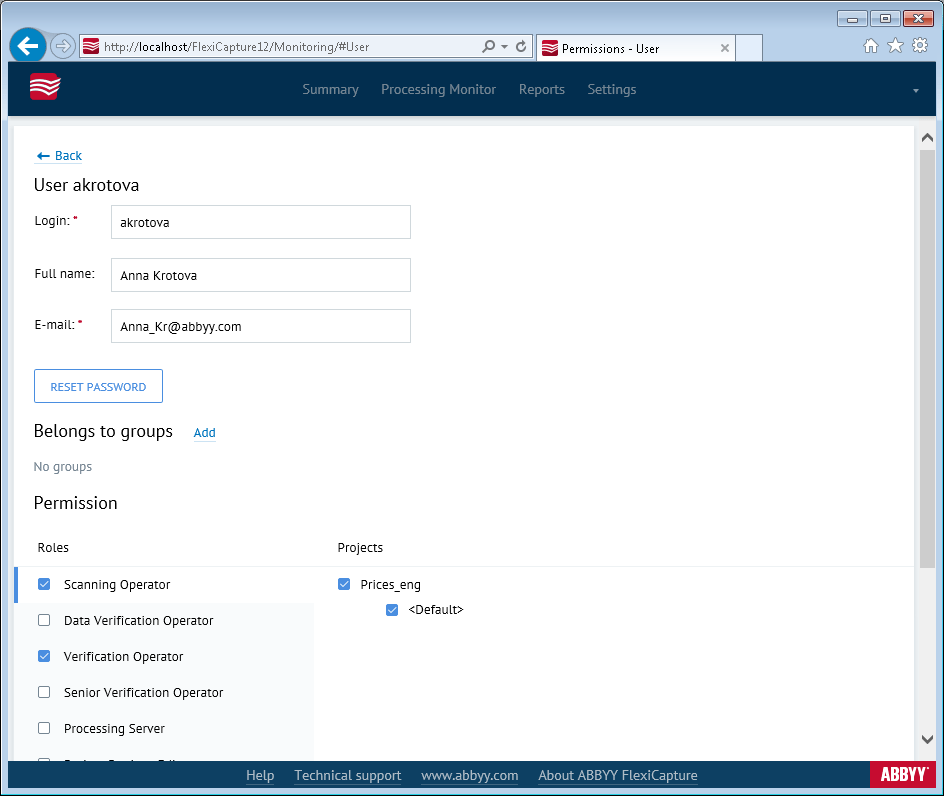 The roles of Administrator, Processing Server, and Monitoring Operator are assigned for all projects at once. The role of Processing Server should be assigned only to the user under whose account the Processing Server is running (see [Set up the Processing Server](/flexi-capture/admin-guide/processing-server-setup)).
For the Web Capture Operator role, the list of projects and batch types may not allow choosing any items. This is because for the given role, access rights may be granted only to the projects in which the “for Web Capture station” or “Advanced for Web Capture station” workflow scheme is used.
Clicking the **Reset password** button will issue a temporary password to the user. The word `password` is always used as a temporary password. The user will have to change this password on first login.
If you can't see the **Reset password** button, this means that the user has already been issued with a temporary password.
The roles of Administrator, Processing Server, and Monitoring Operator are assigned for all projects at once. The role of Processing Server should be assigned only to the user under whose account the Processing Server is running (see [Set up the Processing Server](/flexi-capture/admin-guide/processing-server-setup)).
For the Web Capture Operator role, the list of projects and batch types may not allow choosing any items. This is because for the given role, access rights may be granted only to the projects in which the “for Web Capture station” or “Advanced for Web Capture station” workflow scheme is used.
Clicking the **Reset password** button will issue a temporary password to the user. The word `password` is always used as a temporary password. The user will have to change this password on first login.
If you can't see the **Reset password** button, this means that the user has already been issued with a temporary password.