> ## Documentation Index
> Fetch the complete documentation index at: https://docs.abbyy.com/llms.txt
> Use this file to discover all available pages before exploring further.
# Create an ABBYY FlexiCapture backup
> Back up and restore an ABBYY FlexiCapture system by keeping the database and file storage in sync, with manual steps and a PowerShell script.
FC stores data in a database and in a file storage. The data stored in the database must always match the data stored in the file storage, otherwise you may not be able to recover cleanly from an unexpected crash. Possible consequences of mismatched data are:
* Partial loss of data
* Inability to resume processing from where it stopped
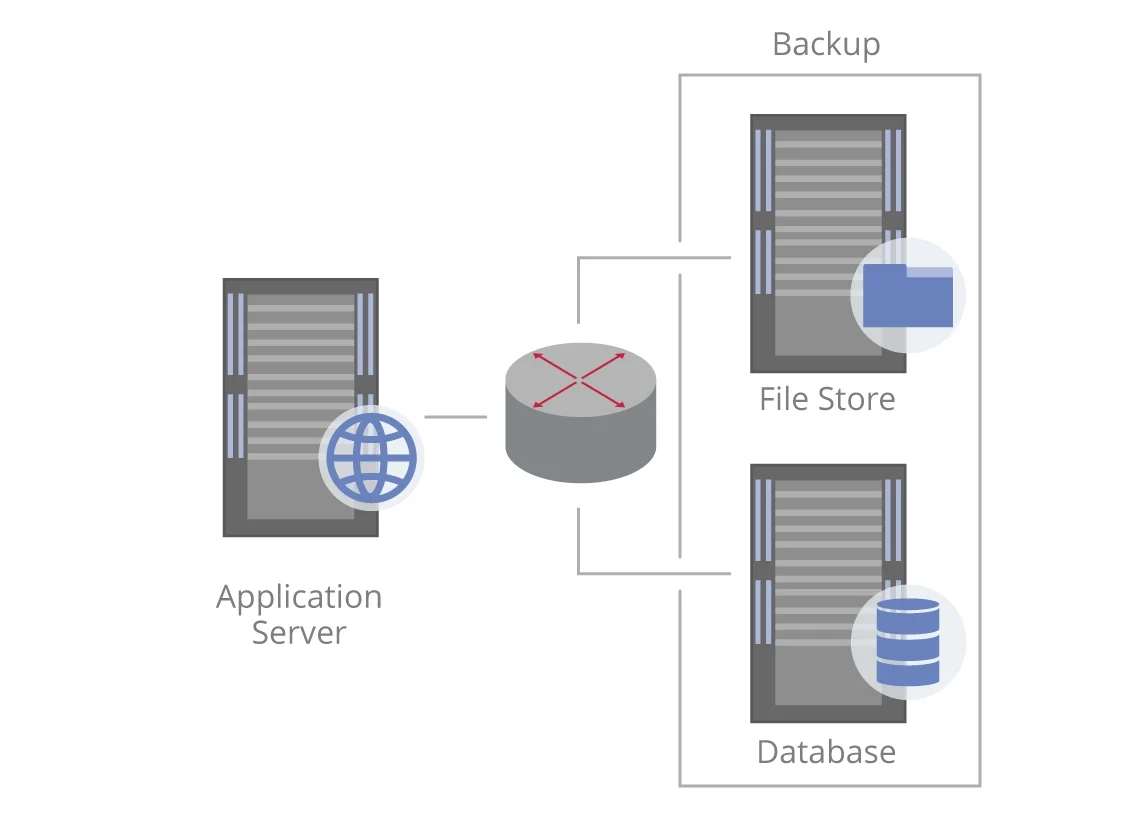 These consequences may be avoided by creating a system backup as described below.
## Back up your system
The steps below should not be carried out at heavy system loads, as they will take too much time to complete.
To back up your system:
1. For the Application Server, set the `FileRemovingDisabled` key to `true`. This will prevent old files from being deleted from the file storage. Wait at least five minutes for your changes to take effect.
2. Create a backup copy of the database using the backup tools indicated by the manufacturer.
3. Using a backup utility like [nnBackup](https://www.nncron.ru/index.shtml), create a backup copy of the data stored in the file storage.
4. Set the `FileRemovingDisabled` key to `false`. Now the system will delete any old files when batches are deleted.
### Automate the backup with a Windows PowerShell script
```powershell theme={null}
# Change Application Server settings to stop deleting old files from file storage
Add-WebConfigurationProperty -pspath 'MACHINE/WEBROOT/APPHOST/Default Web Site/FlexiCapture12/Server' -filter "appSettings" -name "." -value @{key='FileRemovingDisabled';value='false'}
Set-WebConfigurationProperty -pspath 'MACHINE/WEBROOT/APPHOST/Default Web Site/FlexiCapture12/Server' -filter "appSettings/add[@key='FileRemovingDisabled']" -name "value" -value "true"
# Timer for setting to apply
Start-Sleep 5 # in seconds
# Back up SQL databases
$backupFolder = 'D:\SQLBackUps'
$user = 'user'
$pass = 'password'
$inst = 'SQL_Server_Instance_Name'
$db = 'DB_Name'
$file = "$backupFolder\${db}.bak"
$secpasswd = ConvertTo-SecureString $pass -AsPlainText -Force
$cred = New-Object System.Management.Automation.PSCredential ($user, $secpasswd)
Backup-SqlDatabase -ServerInstance $inst -Database $db -Credential $cred -BackupFile $file -Initialize
# Back up file storage
C:\Windows\System32\wbadmin.exe start backup -backuptarget:f: -include:d:\filestorage -quiet -vssCopy
# Change Application Server settings to resume deleting old files from file storage
Set-WebConfigurationProperty -pspath 'MACHINE/WEBROOT/APPHOST/Default Web Site/FlexiCapture12/Server' -filter "appSettings/add[@key='FileRemovingDisabled']" -name "value" -value "false"
```
This example uses the Windows [wbadmin](https://docs.microsoft.com/en-us/windows-server/administration/windows-commands/wbadmin) command to back up the file storage.
## Restore your system
To restore your system after a crash:
1. Prepare the computers for installation and install the system. First, install the external components, and then the servers and the stations.
2. Connect your license key or activate your software license.
3. Restore the database on the server.
4. Restore the file storage.
5. Open the Administration and Monitoring Console and establish a connection to the existing database. Then provide the path to the restored database and the path to the restored file storage.
To migrate the system, administrative privileges are required. It is recommended that all system migration operations are performed by the person who created the database. If migration operations are performed by another person, make sure that this person has permissions to connect to the new server and to access the database on the server.
These consequences may be avoided by creating a system backup as described below.
## Back up your system
The steps below should not be carried out at heavy system loads, as they will take too much time to complete.
To back up your system:
1. For the Application Server, set the `FileRemovingDisabled` key to `true`. This will prevent old files from being deleted from the file storage. Wait at least five minutes for your changes to take effect.
2. Create a backup copy of the database using the backup tools indicated by the manufacturer.
3. Using a backup utility like [nnBackup](https://www.nncron.ru/index.shtml), create a backup copy of the data stored in the file storage.
4. Set the `FileRemovingDisabled` key to `false`. Now the system will delete any old files when batches are deleted.
### Automate the backup with a Windows PowerShell script
```powershell theme={null}
# Change Application Server settings to stop deleting old files from file storage
Add-WebConfigurationProperty -pspath 'MACHINE/WEBROOT/APPHOST/Default Web Site/FlexiCapture12/Server' -filter "appSettings" -name "." -value @{key='FileRemovingDisabled';value='false'}
Set-WebConfigurationProperty -pspath 'MACHINE/WEBROOT/APPHOST/Default Web Site/FlexiCapture12/Server' -filter "appSettings/add[@key='FileRemovingDisabled']" -name "value" -value "true"
# Timer for setting to apply
Start-Sleep 5 # in seconds
# Back up SQL databases
$backupFolder = 'D:\SQLBackUps'
$user = 'user'
$pass = 'password'
$inst = 'SQL_Server_Instance_Name'
$db = 'DB_Name'
$file = "$backupFolder\${db}.bak"
$secpasswd = ConvertTo-SecureString $pass -AsPlainText -Force
$cred = New-Object System.Management.Automation.PSCredential ($user, $secpasswd)
Backup-SqlDatabase -ServerInstance $inst -Database $db -Credential $cred -BackupFile $file -Initialize
# Back up file storage
C:\Windows\System32\wbadmin.exe start backup -backuptarget:f: -include:d:\filestorage -quiet -vssCopy
# Change Application Server settings to resume deleting old files from file storage
Set-WebConfigurationProperty -pspath 'MACHINE/WEBROOT/APPHOST/Default Web Site/FlexiCapture12/Server' -filter "appSettings/add[@key='FileRemovingDisabled']" -name "value" -value "false"
```
This example uses the Windows [wbadmin](https://docs.microsoft.com/en-us/windows-server/administration/windows-commands/wbadmin) command to back up the file storage.
## Restore your system
To restore your system after a crash:
1. Prepare the computers for installation and install the system. First, install the external components, and then the servers and the stations.
2. Connect your license key or activate your software license.
3. Restore the database on the server.
4. Restore the file storage.
5. Open the Administration and Monitoring Console and establish a connection to the existing database. Then provide the path to the restored database and the path to the restored file storage.
To migrate the system, administrative privileges are required. It is recommended that all system migration operations are performed by the person who created the database. If migration operations are performed by another person, make sure that this person has permissions to connect to the new server and to access the database on the server.