> ## Documentation Index
> Fetch the complete documentation index at: https://docs.abbyy.com/llms.txt
> Use this file to discover all available pages before exploring further.
# Improving your classifier
> Improve classifier accuracy in ABBYY FlexiCapture: adjust profiles and recall/precision, correct reference classes, and find similar pages in the batch.
### Tips for improving classifiers
If you are not satisfied with the results obtained with your classifier, try the following:
* Check whether the selected classification profile is appropriate.
* Adjust the recall/precision ratio.
* Check whether the reference classes have been assigned correctly.
* Use a larger number of sample documents. Make sure your training batch includes as many document variants as possible. The larger and more varied the training batch, the more document variants of the same class the classifier will detect.
### Document Definition confidence
Document Definition sections [mapped to document classes](/flexi-capture/classify-mapping-classes) will be matched against their document sections with a certain degree of confidence. The names of low-confidence sections will be marked in red. If Automatically confirm section type when matched is enabled and the Document Definition section mapped to the selected document class has been successfully matched, the name of the section will not be highlighted in red. In this case, the class will be confirmed during Document Definition matching, even if initially the class was determined with low-confidence.
The Automatically confirm section type when matched option is located on the **General** tab in the Document Definition section properties. Selecting this option will speed up manual verification, but it should be selected for sections that can only be matched to documents for which a given Document Definition was created. This can be a fixed Document Definition for a fixed section with [identifiers](/flexi-capture/mrf-requirements/ap-mrf-identifier), or a FlexiLayout section containing required elements. Operators will not need to confirm such matches manually. We do not recommend selecting this option for Document Definitions that can be matched to any documents.
If a Document Definition has been matched to a page or document with low-confidence, you have the following options:
* Click the Confirm Document Definition command on the shortcut menu of the page or document.
* Modify the low-confidence page (for example, by changing the section type or moving the page to another document).
* Change the Document Definition selected for the page or document.
Once an operator corrects all errors so that there are no more sections with unconfidently matched Document Definitions, the "low-confidence" error will be removed automatically.
In the errors pane, an assembly error will be reported for documents with low-confidence Document Definitions. Any documents that have other errors besides low-confidence Document Definitions are sent to the assembly verification stage. Any document that have no other errors apart from low-confidence classification are sent to the verification stage.
## Detecting errors in the classifier training batch
Classification errors are mostly caused by incorrectly assigned reference classes or by a lack of sample pages in the training batch. To detect these sorts of errors, you can ask the program to find pages that are similar to a misclassified page. To do this, right-click a misclassified page and then click one of the following three commands on the shortcut menu (these commands can also be accessed via the **Classification Training** menu at the top):
* Show Similar Pages looks for similar pages in the entire batch, regardless of the reference or the result class of the selected page.
* Show Similar Pages from Reference Class looks for similar pages with the same reference class as the reference class of the selected page.
* Show Similar Pages from Result Class looks for similar pages with the same reference class as the result class of the selected page.
The program will look for similar pages in all documents regardless of their state, whether they are marked as For Training, For Testing or Unused.
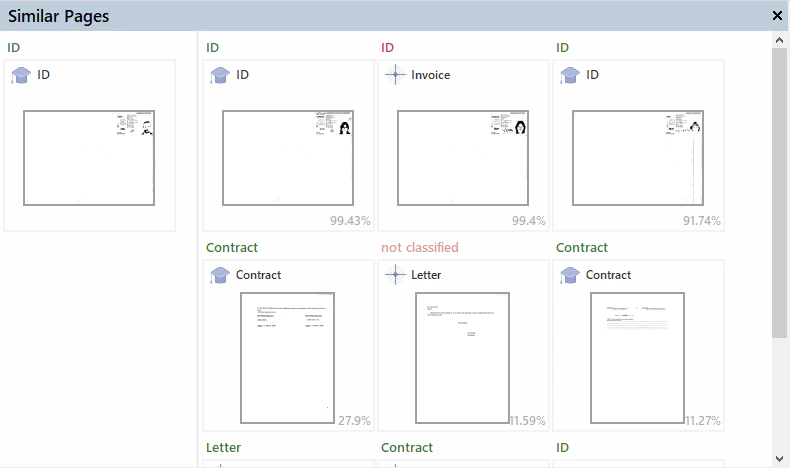
The similar pages will be shown in descending order from most similar to least similar:
 ### Practical example
Suppose you spot a misclassified page in the confusion matrix and this page has **ID** for its reference class and **Invoice** for its result class.
### Practical example
Suppose you spot a misclassified page in the confusion matrix and this page has **ID** for its reference class and **Invoice** for its result class.
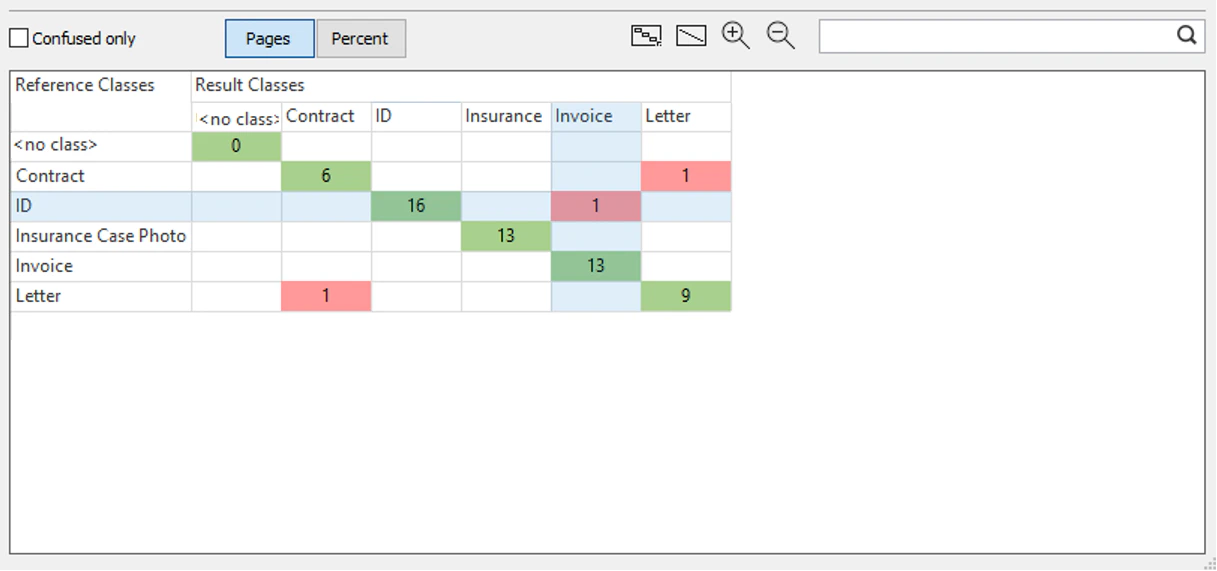 Open the misclassified page by clicking on its cell in the confusion matrix.
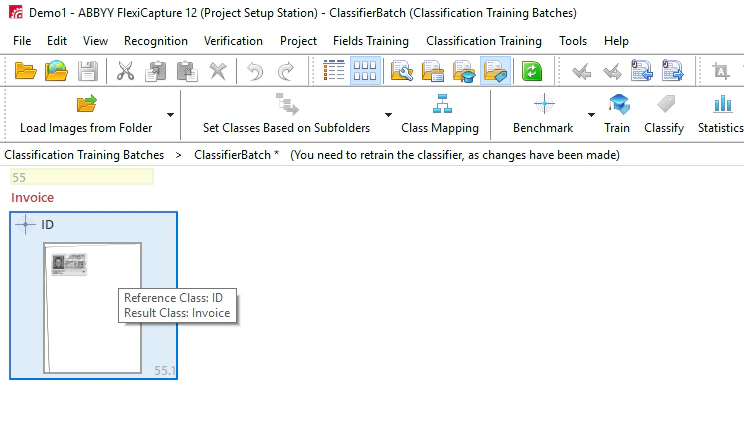 Right-click the page and then click Show Similar Pages from Result Class on the shortcut menu (this command can also be accessed via the **Classification Training** menu at the top). This will show all the pages in the classifier batch that are similar to the ID page but have **Invoice** specified as their reference class. The pages will be shown in descending order from most similar to least similar.
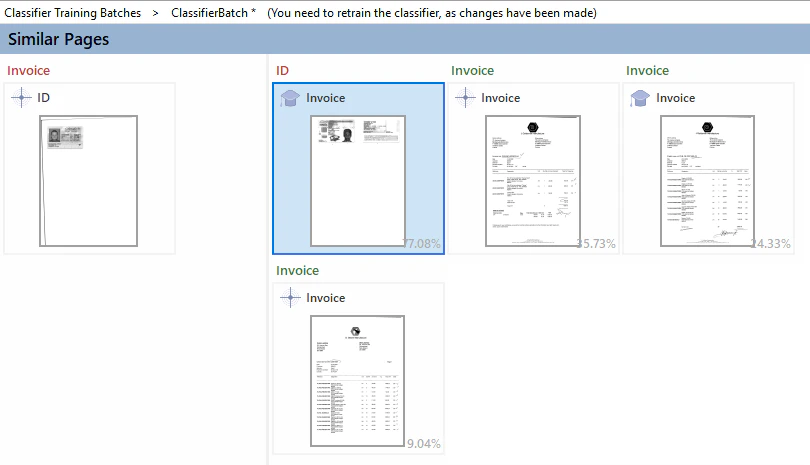 Now you will be able to identify the pages with incorrectly assigned reference classes that caused the ID page to be classified as an invoice. Change the reference class where appropriate and retrain the classifier.
Clicking the Show Similar Pages from Reference Class command will check whether a page is unique. For example, it can be used to check if there are any similar ID pages in the training batch that have **ID** specified as their reference class. If no similar ID pages are found, add the rogue page to the training batch and retrain the classifier.
Clicking the Show Similar Pages command will display all similar pages, regardless of their reference or result class. This will show all the pages in the classifier batch that are similar to the passport page, but for which reference classes other than **ID** have been specified. Change the reference class where appropriate and retrain the classifier.
Now you will be able to identify the pages with incorrectly assigned reference classes that caused the ID page to be classified as an invoice. Change the reference class where appropriate and retrain the classifier.
Clicking the Show Similar Pages from Reference Class command will check whether a page is unique. For example, it can be used to check if there are any similar ID pages in the training batch that have **ID** specified as their reference class. If no similar ID pages are found, add the rogue page to the training batch and retrain the classifier.
Clicking the Show Similar Pages command will display all similar pages, regardless of their reference or result class. This will show all the pages in the classifier batch that are similar to the passport page, but for which reference classes other than **ID** have been specified. Change the reference class where appropriate and retrain the classifier.