> ## Documentation Index
> Fetch the complete documentation index at: https://docs.abbyy.com/llms.txt
> Use this file to discover all available pages before exploring further.
# Training your classifier
> Train a classifier in ABBYY FlexiCapture: split documents into For Training and For Testing states, run a benchmark test, and launch the training.
To start training a classifier, click **Classification Training →** Train.
You can train the classifier on specific documents by selecting them and clicking **Classification Training →** Classify.
Before you can use the classifier that you have created, you need to train it and test it using examples of real images. Classifier training is based on the reference classes specified in the classifier's settings. When training a classifier, a document should be in one of the following states:
* Unused – the document is not used when training a classifier. In the thumbnail view mode (the  button on the toolbar), the Unused state will be displayed using the following icon:
  * For Testing – the document is used for classifier testing. In the thumbnail view mode, the For Testing state will be denoted by the following icon:
  * For Training – the document is used for classifier training. This status is assigned to documents by default when they are loaded into a classifier training batch. In the thumbnail view mode, the For Training state will be denoted by the following icon:
  Before launching the training, some of the documents need to be transferred to the For Testing state. This is necessary for further analysis of the classification results and improving the quality of the classifier.
You can automatically split a batch into training and testing documents. To do this, click the **Benchmark**
Before launching the training, some of the documents need to be transferred to the For Testing state. This is necessary for further analysis of the classification results and improving the quality of the classifier.
You can automatically split a batch into training and testing documents. To do this, click the **Benchmark**  button on the toolbar or select **Classification Training →** Benchmark in the main menu. In the new dialog window, specify the percentage of documents that you need to use for training and for testing. You can also specify inside each class a minimum number of documents to be used for training after a batch has been split (this number is set to 1 by default). After all values have been set, you can launch the training by selecting Run benchmark test and then clicking **OK**. If you just want to assign document states and then carry on setting up your classifier, select Only split documents and then click **OK**.
You can also split a batch manually by selecting the appropriate documents and clicking **Set Document State** in the shortcut menu or in the **Classification Training** menu.
After you have set up your classifier, launch the classifier training by doing one of the following:
* Click the **Train**
button on the toolbar or select **Classification Training →** Benchmark in the main menu. In the new dialog window, specify the percentage of documents that you need to use for training and for testing. You can also specify inside each class a minimum number of documents to be used for training after a batch has been split (this number is set to 1 by default). After all values have been set, you can launch the training by selecting Run benchmark test and then clicking **OK**. If you just want to assign document states and then carry on setting up your classifier, select Only split documents and then click **OK**.
You can also split a batch manually by selecting the appropriate documents and clicking **Set Document State** in the shortcut menu or in the **Classification Training** menu.
After you have set up your classifier, launch the classifier training by doing one of the following:
* Click the **Train**  button on the toolbar.
* Select **Classification Training →** Train.
* Select Train in the shortcut menu.
If needed, any page can be classified regardless of its assigned state. To do this, select them and click Classify
button on the toolbar.
* Select **Classification Training →** Train.
* Select Train in the shortcut menu.
If needed, any page can be classified regardless of its assigned state. To do this, select them and click Classify  on the toolbar or in the **Classification Training** menu. This might be necessary for assigning reference classes to pages based on their classification, as well as for testing the classifier you have created using particular pages.
The names of the resulting and reference classes (or the absence of both) will be highlighted using the classification results color.
*
on the toolbar or in the **Classification Training** menu. This might be necessary for assigning reference classes to pages based on their classification, as well as for testing the classifier you have created using particular pages.
The names of the resulting and reference classes (or the absence of both) will be highlighted using the classification results color.
* 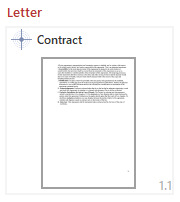 – the resulting class is highlighted in bright red since it does not match the reference class. The page’s state is set to For Testing.
*
– the resulting class is highlighted in bright red since it does not match the reference class. The page’s state is set to For Testing.
* 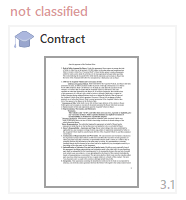 – the resulting class is highlighted in dull red since it does not match the reference class. The page’s state is set to For Training.
*
– the resulting class is highlighted in dull red since it does not match the reference class. The page’s state is set to For Training.
* 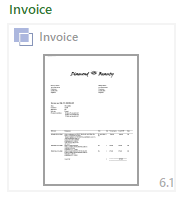 – the resulting class is highlighted in green since it matches the reference class. However, the page’s state is set to Unused, hence the reference class name is highlighted in grey.
After the classifier has been tested using the test batch, you can [view the statistics and analyze the classification results](/flexi-capture/classify-fc-statistics).
– the resulting class is highlighted in green since it matches the reference class. However, the page’s state is set to Unused, hence the reference class name is highlighted in grey.
After the classifier has been tested using the test batch, you can [view the statistics and analyze the classification results](/flexi-capture/classify-fc-statistics).