> ## Documentation Index
> Fetch the complete documentation index at: https://docs.abbyy.com/llms.txt
> Use this file to discover all available pages before exploring further.
# Installation
> Install the FlexiCapture Connector Multi-Task Package in Blue Prism: import the .bprelease file and VBOs, and then create the processes, queues, and variables.
To install the Multi-Task Package in Blue Prism:
1. Run the **ABBYY\_FlexiCapture\_Connector\_for\_BluePrism.exe** file, select a destination folder, and click **Extract**.
2. Open **Blue Prism - Robotic Process Automation Software** and click **File → Import**.
3. Select the **.bprelease** file in **ABBYY FlexiCapture Connector for Blue Prism\Multi-Task Package\Blue Prism Release File**.
4. Click **Next**. You will see the following message: "The incoming process has been published. Do you want to publish the process in this database after importing?". Select **Yes** for each of the processes to make them available on the **Control** tab. Then click **Next**.
5. Repeat the above steps to import the following additional VBOs from **Blue Prism Limited\Blue Prism Automate\VBO**:
* BPA Object - Utility - Environment.xml
* BPA Object - Utility - File Management.xml
* BPA Object - Utility - General.xml
6. Restart Blue Prism.
After importing the **.bprelease** file and the additional VBOs:
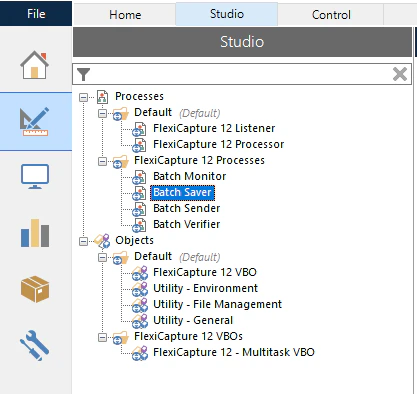
* On the **Studio** tab, a **FlexiCapture 12 Processes** group will be created in the list of processes, which will contain sample processes, and **FlexiCapture VBOs** group will be created in the list of objects, which will contain the **FlexiCapture 12 – Multitask VBO**. The additional VBOs will be placed into the **Default** group under **Objects**.
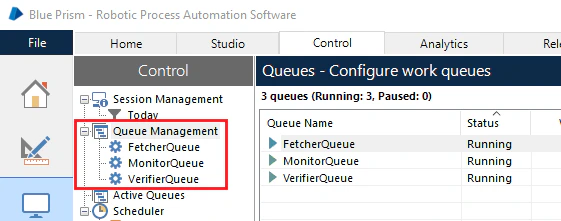
 * On the **Control** tab, **FetcherQueue**, **MonitorQueue**, and **VerifierQueue** queues will be created in the **Queue Management** group, which are required by the processes.
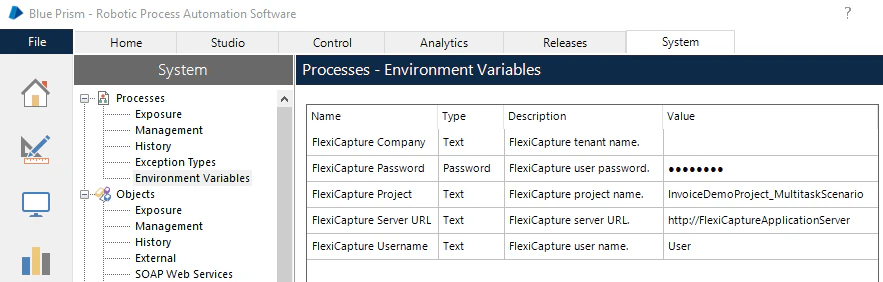
 * On the **System** tab, **FlexiCapture Password**, **FlexiCapture Project**, **FlexiCapture ServerURL**, **FlexiCapture Username**, and **FlexiCapture Company** variables will be displayed in the **Environmental Variables** section of the **Processes** node. These variables will contain the settings required to connect to FC. These settings will be used by the processes.