> ## Documentation Index
> Fetch the complete documentation index at: https://docs.abbyy.com/llms.txt
> Use this file to discover all available pages before exploring further.
# Adding the assembly
> Add the ABBYYFlexiCapture12.dll assembly to the Laserfiche Workflow Administration Console and Workflow Designer, including how to enable file browsing.
## Adding the assembly to Workflow Administration Console
To add the assembly to Workflow Administration Console:
1. Open the **Workflow Administration Console**.
2. Expand the **Server Configuration** node of the Workflow server where you want to add the activity.
3. Select **Custom Activities**.
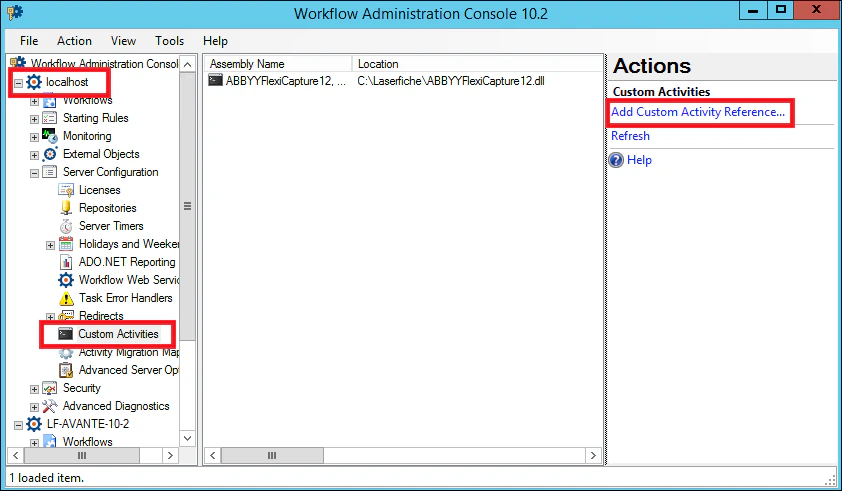 4. Click **Add Custom Activity Reference** and add the **ABBYYFlexiCapture12.dll** assembly.
When you click the **Add Custom Activity Reference** item, the following error may occur: "The Workflow Server does not have file browsing enabled. \[0620-WF1]".
To resolve the problem, complete the following steps:
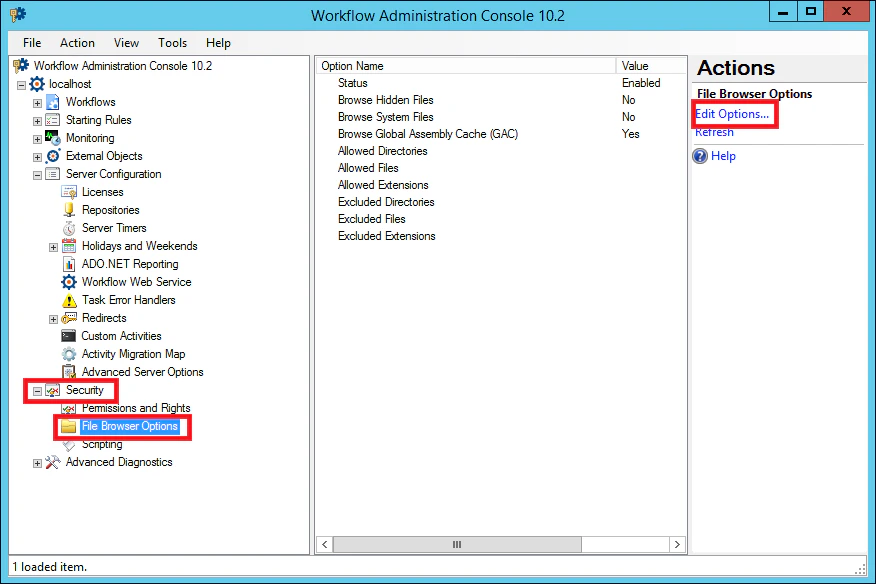
1. In the **Workflow Administration Console**, expand the **Security** node.
2. Select **File Browser Options** and click **Edit Options**.
3. In the dialog box that opens, open the **General** tab and select **Enable file browsing**.
4. Click **Add Custom Activity Reference** and add the **ABBYYFlexiCapture12.dll** assembly.
When you click the **Add Custom Activity Reference** item, the following error may occur: "The Workflow Server does not have file browsing enabled. \[0620-WF1]".
To resolve the problem, complete the following steps:
1. In the **Workflow Administration Console**, expand the **Security** node.
2. Select **File Browser Options** and click **Edit Options**.
3. In the dialog box that opens, open the **General** tab and select **Enable file browsing**.
 ## Adding the assembly to Workflow Designer
To add the assembly to Workflow Designer:
1. Open **Workflow Designer**.
2. Right-click the **Toolbox** pane.
3. On the menu that opens, select **Add/Remove Activities**.
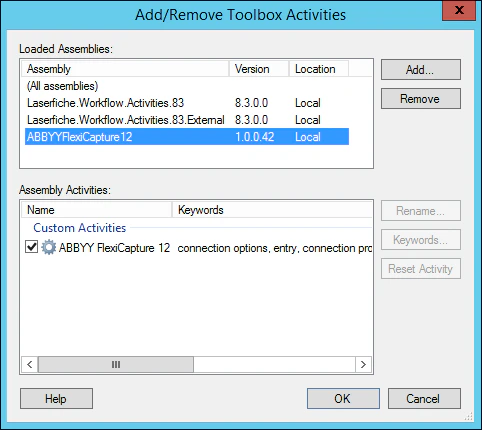
4. In the **Add/Remove Toolbox Activities** dialog box, click **Add**…
5. The **Add/Remove Toolbox Activities** dialog box will open. In this dialog box, click **Add…** and add the **ABBYYFlexiCapture12.dll** assembly. Once added, the assembly will become available in the **Toolbox** pane in **Custom Activities**.
## Adding the assembly to Workflow Designer
To add the assembly to Workflow Designer:
1. Open **Workflow Designer**.
2. Right-click the **Toolbox** pane.
3. On the menu that opens, select **Add/Remove Activities**.
4. In the **Add/Remove Toolbox Activities** dialog box, click **Add**…
5. The **Add/Remove Toolbox Activities** dialog box will open. In this dialog box, click **Add…** and add the **ABBYYFlexiCapture12.dll** assembly. Once added, the assembly will become available in the **Toolbox** pane in **Custom Activities**.