> ## Documentation Index
> Fetch the complete documentation index at: https://docs.abbyy.com/llms.txt
> Use this file to discover all available pages before exploring further.
# Creating a case with a workflow
> Add a Pega case type with the data-model fields and life-cycle stages needed to send documents to ABBYY FlexiCapture, verify them, and fetch captured data.
To create a new case:
1. Open **Dev Studio** and click **Case Types → Add a case type**.
2. Specify a name for your case and click **Submit**.
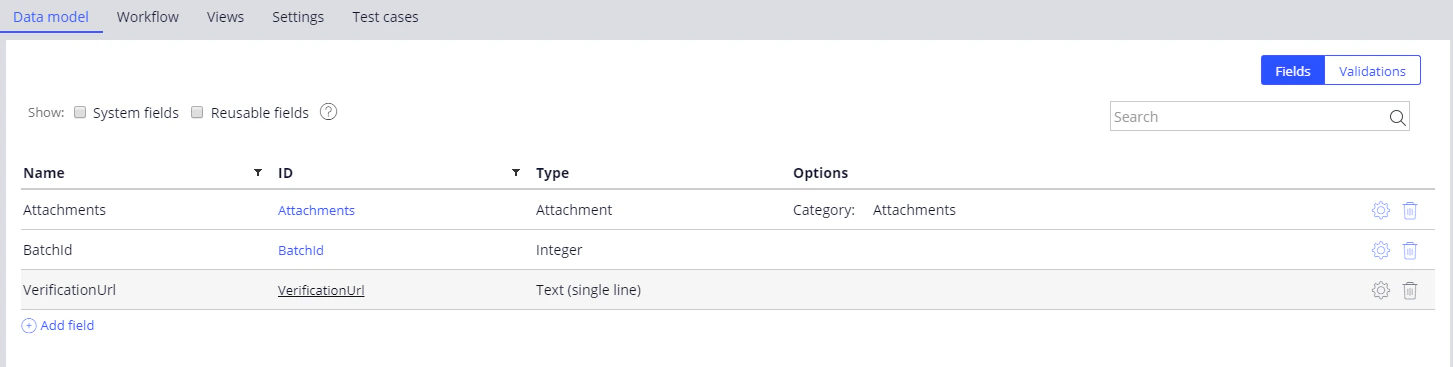
3. On the **Data model** tab, add new case fields by clicking **Add field**.
Specify the following required fields:
* **Attachments** — *Attachment* type (files) with the option *Category: Attachments;*
* **BatchId** — *Integer* type (batch identifier)
* **VerificationUrl** — *Text* type (verification URL)
 4. On the **Workflow** tab, click **Add life cycle** and create the following stages with the *Collect information* steps:
You can give any names to the stages and steps.
* *Invoice received* is the first stage. At this stage, documents can be added to the case.
* *Send for processing* is a stage where invoice processing is initiated on the FC side and the program starts waiting for a processing status. At this stage, Pega
* extracts an image from the case attachment.
* sends the image to FC for processing
* records the FC batch identifier in the case fields
* waits for the batch processing to finish
* updates the case field containing the verification URL if the batch has stopped at the verification stage
* proceeds to the FC data fetching stage if the batch has been processed completely
* *Verification* – At this stage, a verification page is embedded in the case interface using the iframe element.
* *Fetching captured data* – At this stage, export results are downloaded from FC and the case fields are filled in.
* *Next stage* – You can use this stage to include more steps.
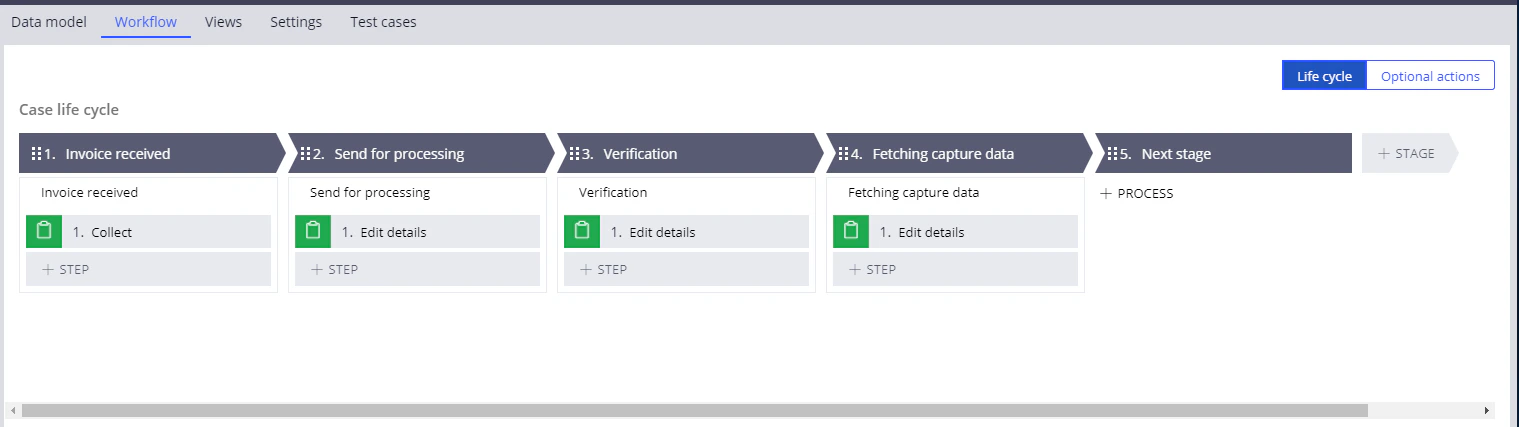
4. On the **Workflow** tab, click **Add life cycle** and create the following stages with the *Collect information* steps:
You can give any names to the stages and steps.
* *Invoice received* is the first stage. At this stage, documents can be added to the case.
* *Send for processing* is a stage where invoice processing is initiated on the FC side and the program starts waiting for a processing status. At this stage, Pega
* extracts an image from the case attachment.
* sends the image to FC for processing
* records the FC batch identifier in the case fields
* waits for the batch processing to finish
* updates the case field containing the verification URL if the batch has stopped at the verification stage
* proceeds to the FC data fetching stage if the batch has been processed completely
* *Verification* – At this stage, a verification page is embedded in the case interface using the iframe element.
* *Fetching captured data* – At this stage, export results are downloaded from FC and the case fields are filled in.
* *Next stage* – You can use this stage to include more steps.
 5. Click **Save**.