> ## Documentation Index
> Fetch the complete documentation index at: https://docs.abbyy.com/llms.txt
> Use this file to discover all available pages before exploring further.
# Creating a Data Transform record
> Create a Pega Data Transform record that maps the JSON string returned by the FlexiCapture Java function to case fields so captured values display in your case.
The Java function described in the [Installation](/flexi-capture/connectors/pega/pega-installation-2#java) section returns a JSON string. It is recommended that you transform this string so that the result is displayed as case fields. To do this, you need to create a record of type *Data Transform*.
To create a *Data Transform* record:
1. Open **Dev Studio** and create a new case type.
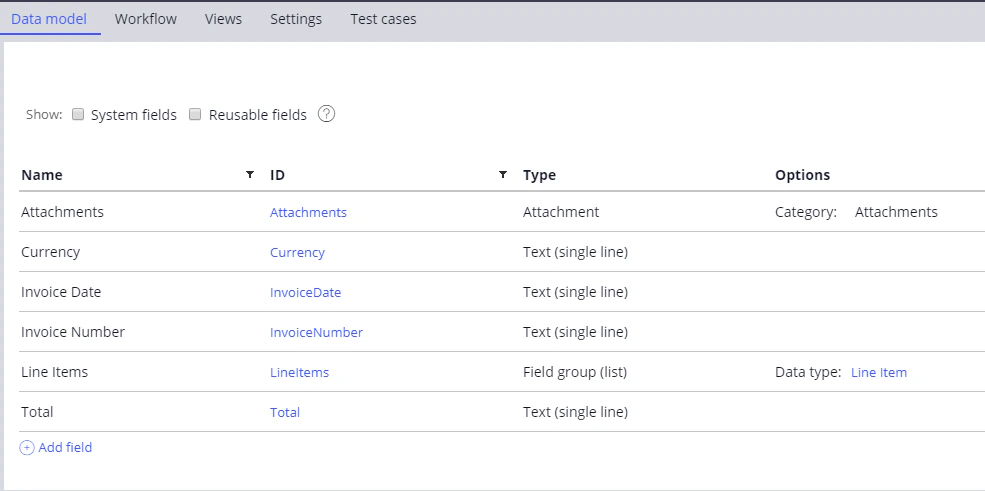
2. On the **Data model** tab, add the fields to be handled by your case and click **Save**.
 3. Click **Records → Data Model → Data Transform** and then click **Create** to open the **Create Data Transform** window.
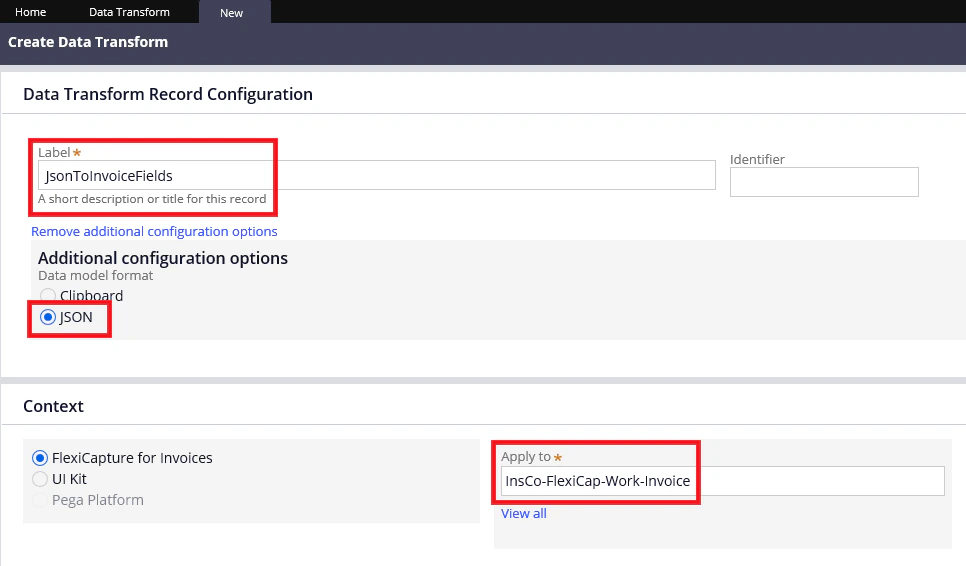
4. In the **Label** field, specify a name for your new record.
5. In the **Additional configuration options** section, select **JSON**.
6. In the **Apply to** field, specify the full name of the case type you created earlier.
3. Click **Records → Data Model → Data Transform** and then click **Create** to open the **Create Data Transform** window.
4. In the **Label** field, specify a name for your new record.
5. In the **Additional configuration options** section, select **JSON**.
6. In the **Apply to** field, specify the full name of the case type you created earlier.
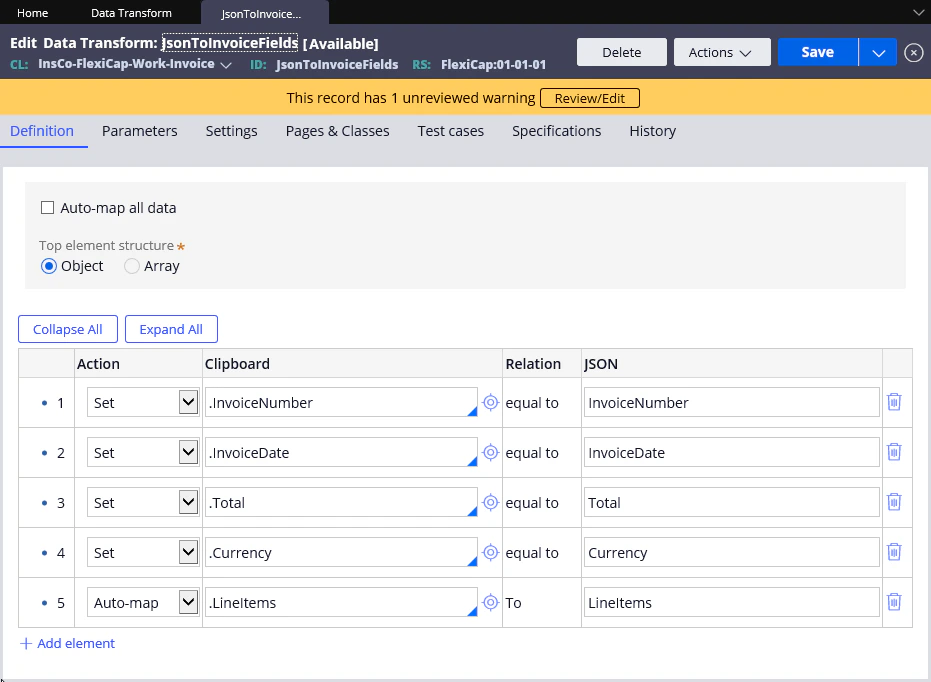
 7. Click **Create and open**. In the window that opens, map the JSON properties (displayed in the **JSON** column) to the case fields (displayed in the **Clipboard** column):
 8. Click **Save**.