> ## Documentation Index
> Fetch the complete documentation index at: https://docs.abbyy.com/llms.txt
> Use this file to discover all available pages before exploring further.
# Creating a single-document processing case
> Set up a Pega single-document case: define data-model fields and configure the send-for-processing and fetch-results stages that call FlexiCapture activities.
For more details about creating cases, see [Creating a case with a workflow](/flexi-capture/connectors/pega/pega-add-case-type).
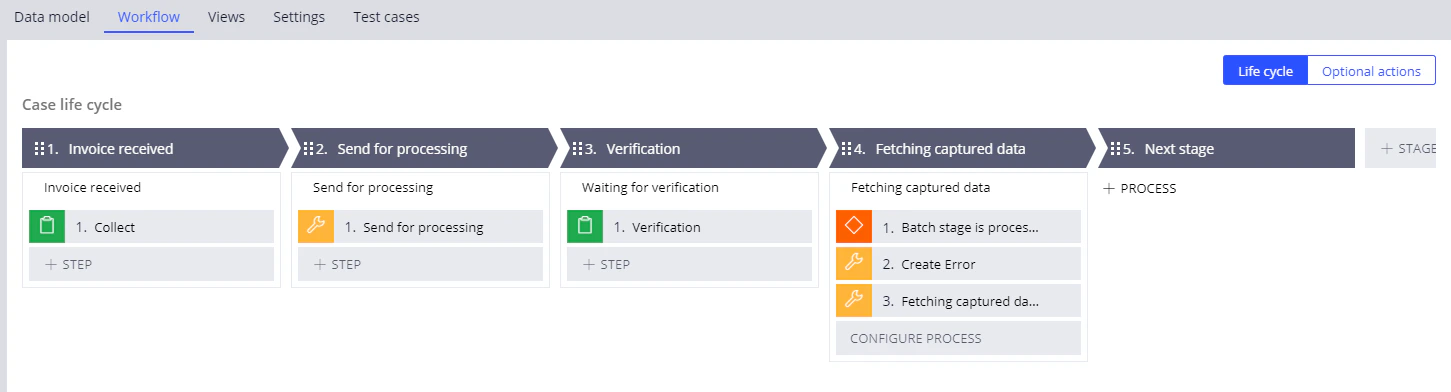
For a single-document processing case that includes verification, the **Workflow** tab should look as follows:
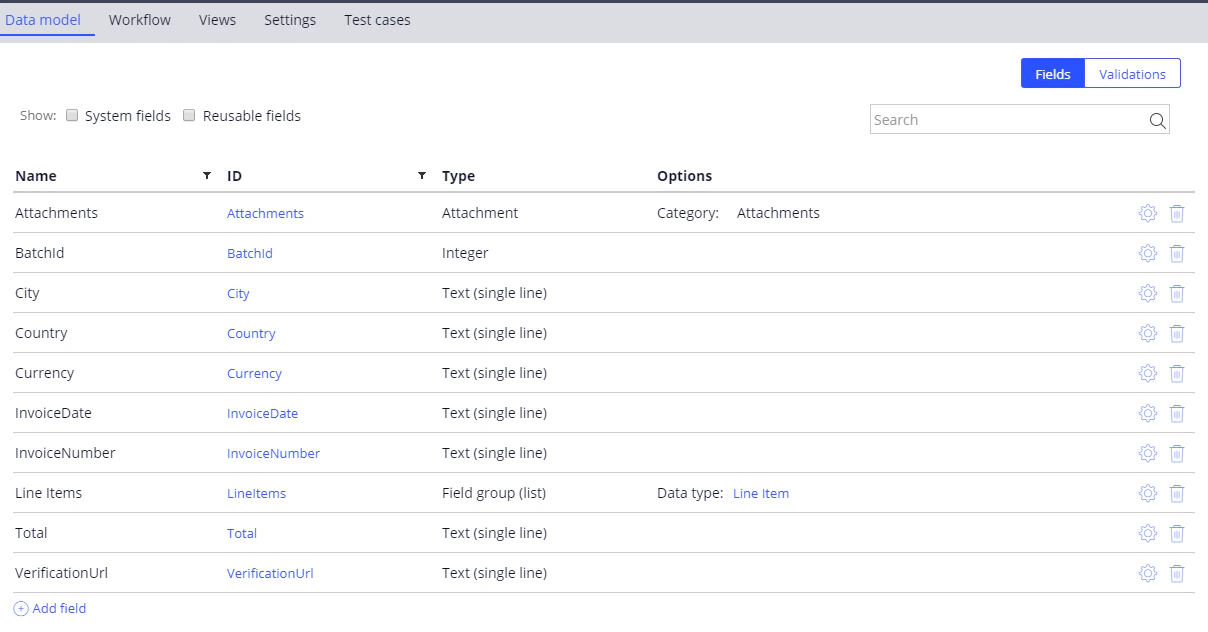
 The **Data Model** tab should have the following fields (in addition to the required *Attachments*, *BatchId,* and *VerificationUrl* fields):
| **Name** | **Id** | **Type** | **Options** |
| ------------------------------------------------------------------- | ------------- | ------------------ | -------------------- |
| City | City | Text | |
| Country | Country | Text | |
| Currency | Currency | Text | |
| InvoiceDate | InvoiceDate | Text | |
| InvoiceNumber | InvoiceNumber | Text | |
| [Line Items](/flexi-capture/connectors/pega/pega-one-doc-data-type) | LineItems | Field group (list) | Data type: Line Item |
| Total | Total | Text | |
The **Data Model** tab should have the following fields (in addition to the required *Attachments*, *BatchId,* and *VerificationUrl* fields):
| **Name** | **Id** | **Type** | **Options** |
| ------------------------------------------------------------------- | ------------- | ------------------ | -------------------- |
| City | City | Text | |
| Country | Country | Text | |
| Currency | Currency | Text | |
| InvoiceDate | InvoiceDate | Text | |
| InvoiceNumber | InvoiceNumber | Text | |
| [Line Items](/flexi-capture/connectors/pega/pega-one-doc-data-type) | LineItems | Field group (list) | Data type: Line Item |
| Total | Total | Text | |
 ## Configuring a stage that will submit a document for processing
For more detailed instructions, see the [Configuring workflow stages](/flexi-capture/connectors/pega/pega-stages-config) and [Utility step](/flexi-capture/connectors/pega/pega-stages-config#2) sections.
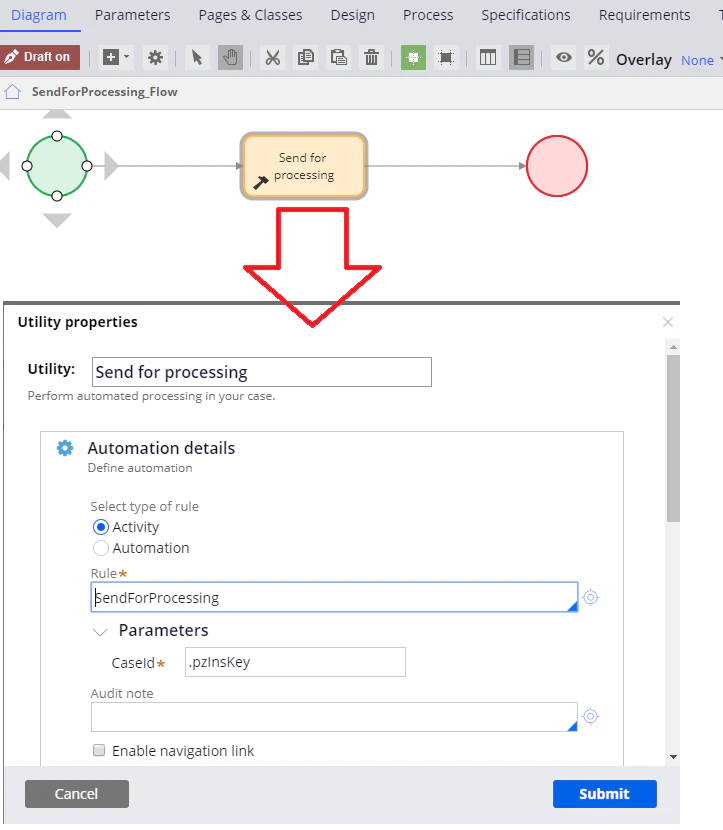
1. Open the *Send for processing* stage in configuration mode, replace the *Edit details* step with a *Utility* step, and specify the following name for the step: *Send for processing*.
2. Open the *Utility* step and call the *SendForProcessing* activity. For more details about creating this activity, see [SendForProcessing](/flexi-capture/connectors/pega/pega-send-for-processing-1).
You can begin creating an activity by clicking the configuration button to the right of the **Rule** field. Alternatively, you can leave the *pyUtilityStub* value specified in the **Rule** field and come back to this step after you have created an activity set.
3. In the **CaseId** field, specify the following: *.pzInsKey.*
## Configuring a stage that will submit a document for processing
For more detailed instructions, see the [Configuring workflow stages](/flexi-capture/connectors/pega/pega-stages-config) and [Utility step](/flexi-capture/connectors/pega/pega-stages-config#2) sections.
1. Open the *Send for processing* stage in configuration mode, replace the *Edit details* step with a *Utility* step, and specify the following name for the step: *Send for processing*.
2. Open the *Utility* step and call the *SendForProcessing* activity. For more details about creating this activity, see [SendForProcessing](/flexi-capture/connectors/pega/pega-send-for-processing-1).
You can begin creating an activity by clicking the configuration button to the right of the **Rule** field. Alternatively, you can leave the *pyUtilityStub* value specified in the **Rule** field and come back to this step after you have created an activity set.
3. In the **CaseId** field, specify the following: *.pzInsKey.*
 ## Configuring a stage that will fetch the processing results
For more detailed instructions, see the [Configuring workflow stages](/flexi-capture/connectors/pega/pega-stages-config) and [Utility step](/flexi-capture/connectors/pega/pega-stages-config#2) sections.
## Configuring a stage that will fetch the processing results
For more detailed instructions, see the [Configuring workflow stages](/flexi-capture/connectors/pega/pega-stages-config) and [Utility step](/flexi-capture/connectors/pega/pega-stages-config#2) sections.
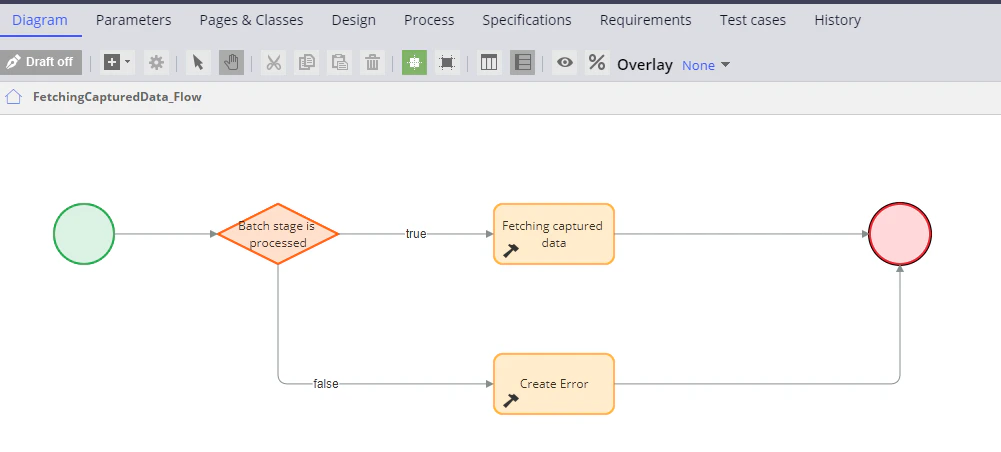 1. Open the *Fetching captured data* stage in configuration mode and delete the *Edit details* step.
2. Add a *Decision* step and name it *Batch stage is processed*.
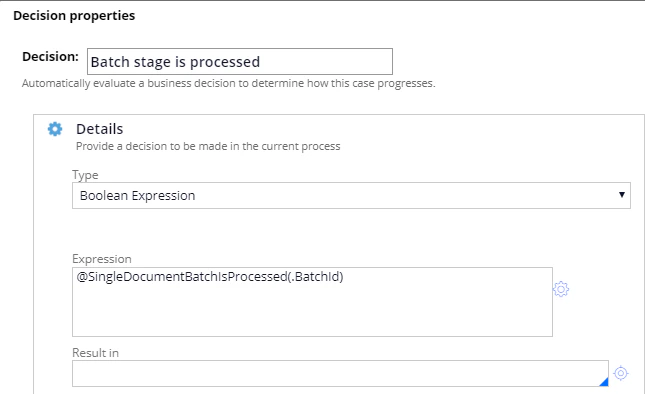
3. Open this step and select **Boolean Expression** in the **Type** field. Specify or configure a *@SingleDocumentBatchIsProcessed(.BatchId)* condition in the **Expression** field. For more details about creating this function, see [SingleDocumentBatchIsProcessed](/flexi-capture/connectors/pega/pega-func-one-doc#singledocumentbatchisprocessed).
1. Open the *Fetching captured data* stage in configuration mode and delete the *Edit details* step.
2. Add a *Decision* step and name it *Batch stage is processed*.
3. Open this step and select **Boolean Expression** in the **Type** field. Specify or configure a *@SingleDocumentBatchIsProcessed(.BatchId)* condition in the **Expression** field. For more details about creating this function, see [SingleDocumentBatchIsProcessed](/flexi-capture/connectors/pega/pega-func-one-doc#singledocumentbatchisprocessed).
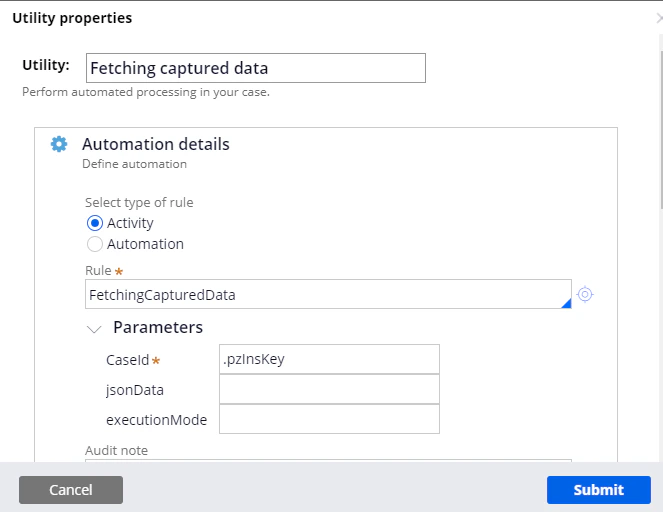
 4. For the *true* branch in the *Utility* step, add a step named *Fetching captured data*. To do this, open the *Utility* step and call the [FetchingCapturedData](/flexi-capture/connectors/pega/pega-fetching-captured-data-1) activity. Then, in the **CaseId** field, specify the following value: *.pzInsKey*.
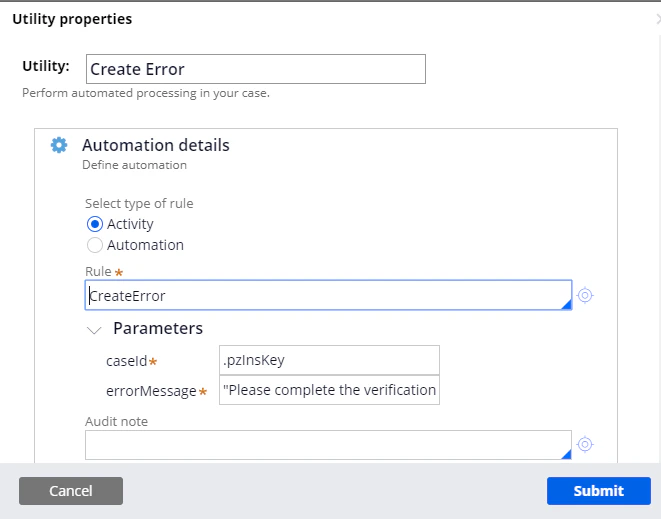
 5. For the *false* branch of the *Utility* step, add a step named *Create Error*. To do this, open the *Utility* step and call the [CreateError](/flexi-capture/connectors/pega/pega-create-error-1) activity\*.\* Then, in the *CaseId* parameter field, specify the following value: *.pzInsKey*. In the **errorMessage** field, enter the following text: *"Please complete the verification task before proceeding."*