> ## Documentation Index
> Fetch the complete documentation index at: https://docs.abbyy.com/llms.txt
> Use this file to discover all available pages before exploring further.
# Configuring workflow stages
> Configure Pega workflow stages with Utility and Decision steps that call FlexiCapture activities and branch on conditions during document processing.
When setting up scenarios for working with single or multiple documents, you will need to configure workflow stages.
To configure workflow stages, do the following:
1. Open your workflow and click **Configure process → Open process**. Alternatively, click **Records → Process → Flow** in **Dev Studio**.
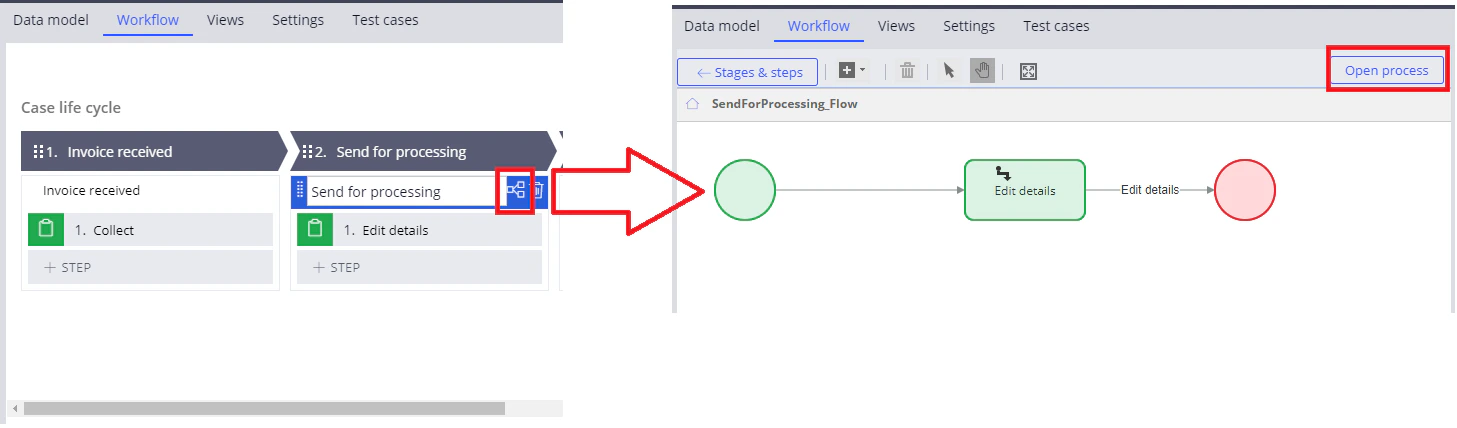 2. On the **Diagram** tab, delete the existing step and add a [Utility step](#2), which will call the necessary activity during the scenario. You will also need to add a [Decision step](#3) that will be used to check the conditions at some of the stages.
## The Utility step
To set up an activity call:
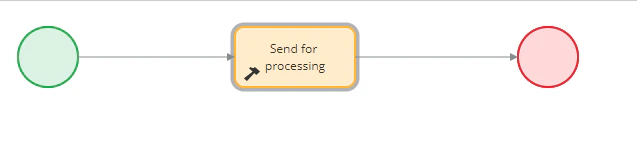
1. Add a new *Utility* step to the process, specify a name for it, and connect it to the *Start* and *End* steps.
2. On the **Diagram** tab, delete the existing step and add a [Utility step](#2), which will call the necessary activity during the scenario. You will also need to add a [Decision step](#3) that will be used to check the conditions at some of the stages.
## The Utility step
To set up an activity call:
1. Add a new *Utility* step to the process, specify a name for it, and connect it to the *Start* and *End* steps.
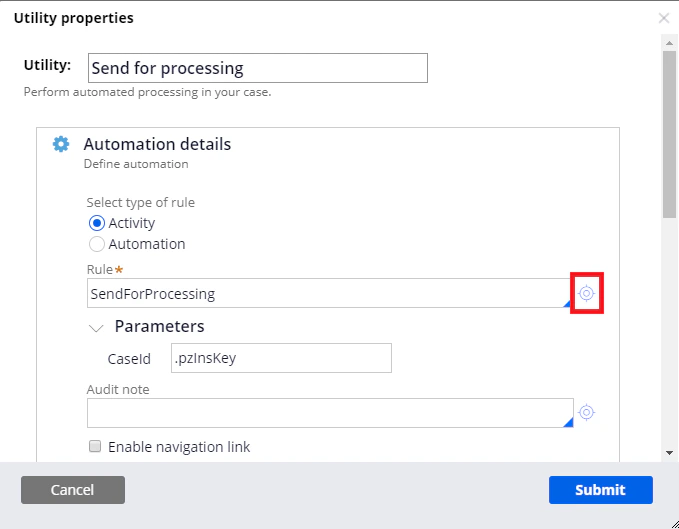
 2. Open the activity window and choose an **Activity** rule type.
3. In the **Rule** field, specify the name of the activity to be called. If the activity does not exist in the context of the case, it can be created by clicking the configuration button on the left. If the activity already exists, clicking the configuration button will open it. For more details about creating activities, see [Creating Pega activities](/flexi-capture/connectors/pega/pega-activities-set-create).
2. Open the activity window and choose an **Activity** rule type.
3. In the **Rule** field, specify the name of the activity to be called. If the activity does not exist in the context of the case, it can be created by clicking the configuration button on the left. If the activity already exists, clicking the configuration button will open it. For more details about creating activities, see [Creating Pega activities](/flexi-capture/connectors/pega/pega-activities-set-create).
 ## The Decision step
To set up a branch:
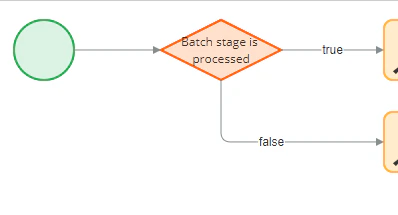
1. Add a *Decision* step to the process and specify a name for it.
## The Decision step
To set up a branch:
1. Add a *Decision* step to the process and specify a name for it.
 2. Double-click the step and select **Boolean Expression** in the **Type** field.
3. Click the configuration button to the left of the **Expression** field. In the **Expression builder** window, specify the required expression. To see a full list of available functions and properties, click **Browse**. Click **Test** to test your expression.
2. Double-click the step and select **Boolean Expression** in the **Type** field.
3. Click the configuration button to the left of the **Expression** field. In the **Expression builder** window, specify the required expression. To see a full list of available functions and properties, click **Browse**. Click **Test** to test your expression.
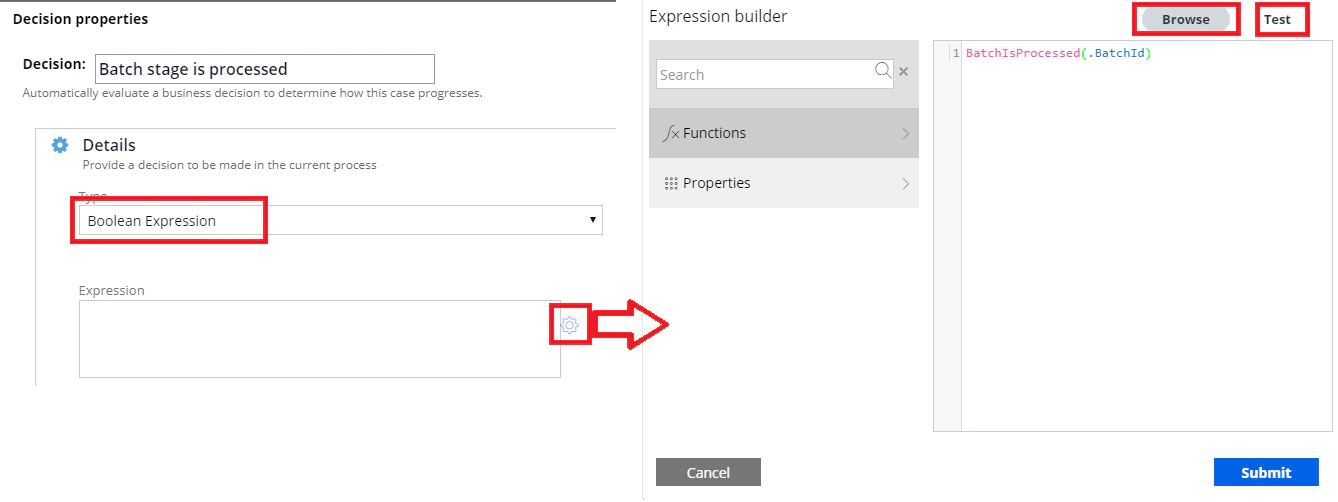 4. To apply the changes you have made, click **Submit**. The *Decision* step will now have two branches, *true* and *false*.