> ## Documentation Index
> Fetch the complete documentation index at: https://docs.abbyy.com/llms.txt
> Use this file to discover all available pages before exploring further.
# Customizing assets and credential names
> Create non-default Orchestrator asset and credential names for the Batch Sender, Monitor, Verifier, and Fetcher processes by editing UiPath Studio variables.
By default, the orchestrator assets have the following names:
* FlexiCapture Server Address
* FlexiCapture Company
* FlexiCapture Project Name
* FlexiCapture Credentials
If the need arises, assets with non-default names can be created. To do this, open all processes in UiPath Studio (Batch Sender, Batch Monitor, Batch Verifier, and Batch Fetcher) and modify the names of their assets.
## The Batch Sender process
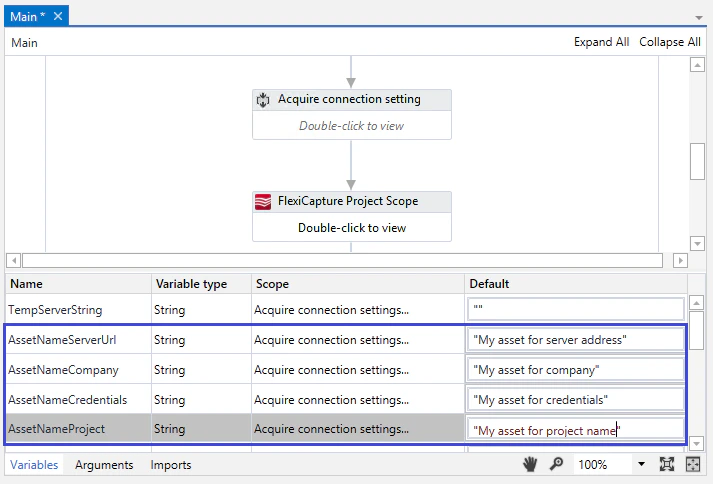
1. Open the process in UiPath Studio and navigate to the **Acquire connection settings from Orchestrator** area.
2. Expand the **Variables** pane.
3. Enter new asset names in the **Default** column for each of the following variables: **AssetNameServerUrl**, **AssetNameCompany**, **AssetNameCredentials**, and **AssetNameProject**.
 ## The Batch Monitor process
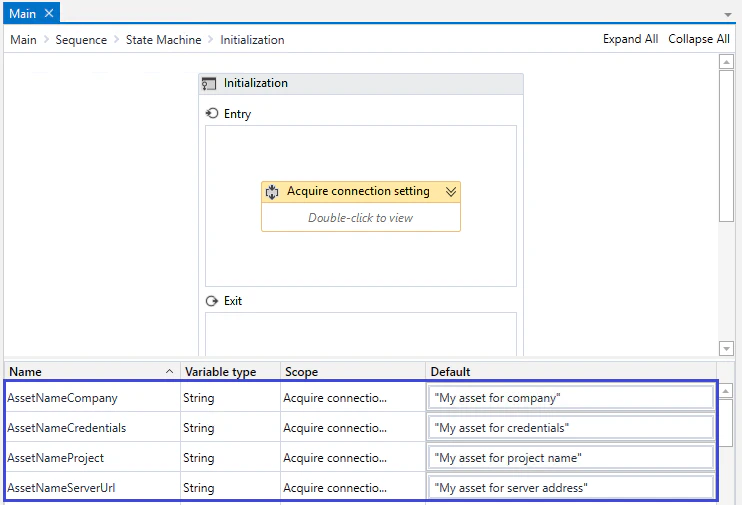
1. Open the process in UiPath Studio and navigate to the **State Machine** area. Select **Initialization → Acquire connection settings from Orchestrator**.
2. Expand the **Variables** tab.
3. Enter new asset names in the **Default** column for each of the following variables: **AssetNameServerUrl**, **AssetNameCompany**, **AssetNameCredentials**, and **AssetNameProject**.
## The Batch Monitor process
1. Open the process in UiPath Studio and navigate to the **State Machine** area. Select **Initialization → Acquire connection settings from Orchestrator**.
2. Expand the **Variables** tab.
3. Enter new asset names in the **Default** column for each of the following variables: **AssetNameServerUrl**, **AssetNameCompany**, **AssetNameCredentials**, and **AssetNameProject**.
 ## The Batch Verifier process
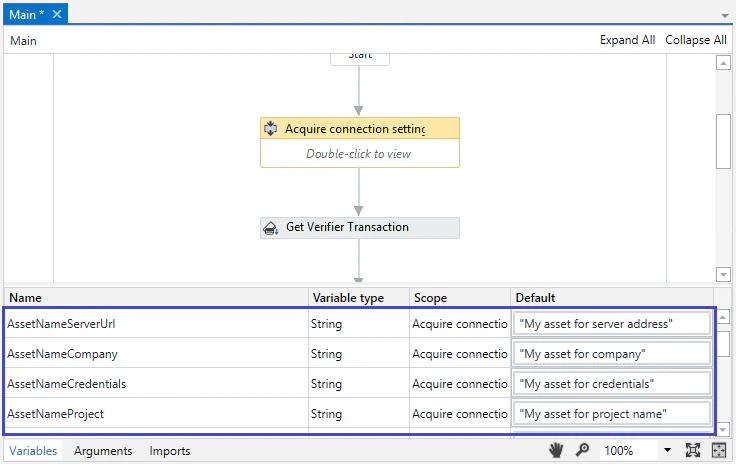
1. Open the process in UiPath Studio and navigate to the **Acquire connection settings from Orchestrator** area.
2. Expand the **Variables** tab.
3. Enter new asset names in the **Default** column for each of the following variables: **AssetNameServerUrl**, **AssetNameCompany**, **AssetNameCredentials**, and **AssetNameProject**.
## The Batch Verifier process
1. Open the process in UiPath Studio and navigate to the **Acquire connection settings from Orchestrator** area.
2. Expand the **Variables** tab.
3. Enter new asset names in the **Default** column for each of the following variables: **AssetNameServerUrl**, **AssetNameCompany**, **AssetNameCredentials**, and **AssetNameProject**.
 ## The Batch Fetcher process
1. Open the process in UiPath Studio and navigate to the **Acquire connection settings from Orchestrator** area.
2. Expand the **Variables** tab.
3. Enter new asset names in the **Default** column for each of the following variables: **AssetNameServerUrl**, **AssetNameCompany**, **AssetNameCredentials**, and **AssetNameProject**.
Once the changes have been made, publish all modified processes to Orchestrator again.
## The Batch Fetcher process
1. Open the process in UiPath Studio and navigate to the **Acquire connection settings from Orchestrator** area.
2. Expand the **Variables** tab.
3. Enter new asset names in the **Default** column for each of the following variables: **AssetNameServerUrl**, **AssetNameCompany**, **AssetNameCredentials**, and **AssetNameProject**.
Once the changes have been made, publish all modified processes to Orchestrator again.