> ## Documentation Index
> Fetch the complete documentation index at: https://docs.abbyy.com/llms.txt
> Use this file to discover all available pages before exploring further.
# Configuring ABBYY FlexiCapture project
> Upload an ABBYY FlexiCapture project to the Application Server from Project Setup Station and use the InvoiceDemoProject_Singletask sample to learn.
Before you can start setting up the project, you need to upload it to the ABBYY FlexiCapture Application Server.
Open the project in **Project Setup Station**. Click the "**Upload project to Server**..." icon on the toolbar. Specify the Application Server address and credentials to connect, click **OK,** and wait until the project is uploaded to the server.
If you are working with FC Cloud, you will also need the Project Setup Station desktop application to configure the project. For more information about the steps for uploading a project to the FlexiCapture Cloud server, see [Configuring ABBYY FlexiCapture project](/flexi-capture/connectors/ui-path/up-configuring-fc) for a Multi-Task package.
You can learn more about each scenario using the preconfigured sample project named InvoiceDemoProject\_Singletask (you can find this project in the **\Single-task package\Samples\FlexiCapture Projects** folder in the connector distribution package).
On the FlexiCapture Project Setup Station, open the sample InvoiceDemoProject\_Singletask and click **Upload Project to Server**. There are three types of batch in the project. Each batch type is intended to process documents in one of the usage scenarios. The export settings are specified in the "European Invoice" Document Definition. You will need to edit the script export profile, specifying your [connection settings for UiPath Orchestrator](/flexi-capture/connectors/up-configuring-a-script-exp-pr#connestion-settings) and the [queue name](/flexi-capture/connectors/up-configuring-a-script-exp-pr#queue).
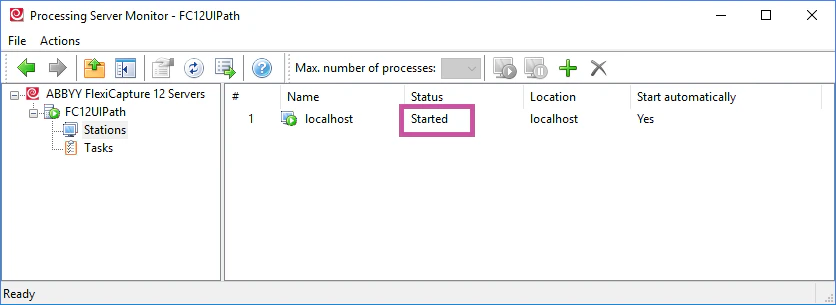
Verify that FC Processing Server is running and that Processing Stations have been added, set up, and started. To do this, launch the Processing Server Monitor by selecting **Start → All Programs → ABBYY FlexiCapture 12 Servers → Processing Server**. Both the server and the stations should have the **Started** status:
 For more information about configuring FC Processing Server, see [Set up the Processing Server](/flexi-capture/admin-guide/processing-server-setup).