> ## Documentation Index
> Fetch the complete documentation index at: https://docs.abbyy.com/llms.txt
> Use this file to discover all available pages before exploring further.
# Run the UiPath workflow
> Run a configured UiPath workflow against ABBYY FlexiCapture: place files in the input folder, select the input and output folders, and read the activity logs.
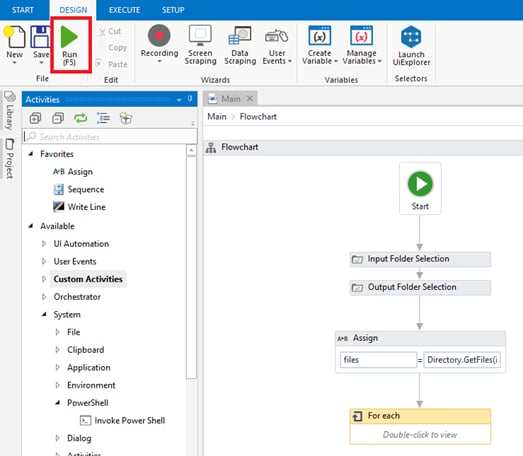
Run the workflow after it is created and the ABBYY FlexiCapture project is configured.
## Run the workflow
Place the files you want to process into the **input** folder before you start.
The workflow prompts you for an input folder and then an output folder. The workflow starts after you select both.
When the workflow completes, the result files appear in the output folder.
 ## View the activity logs
The logs created by the activity appear on the **Output** tab at the bottom of the screen.
## View the activity logs
The logs created by the activity appear on the **Output** tab at the bottom of the screen.