> ## Documentation Index
> Fetch the complete documentation index at: https://docs.abbyy.com/llms.txt
> Use this file to discover all available pages before exploring further.
# Options dialog box
> Configure FlexiLayout Studio with the Options dialog box: object and code colors, page orientation, measurement units, training, and keyboard shortcuts.
The **Options** dialog box lets you set the colors of objects and highlighted lexemes, the possible page orientation, the units of measurement used in FlexiLayout Studio, the settings applied when training a FlexiLayout, and several other options.
To open the **Options** dialog box, select **Tools → Options…** or press **F12**.
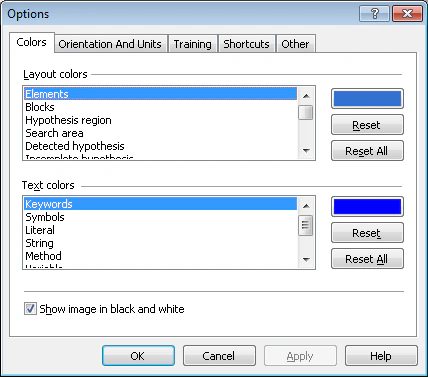 ## Colors tab
| Option | Description |
| --------------------------------- | ---------------------------------------------------------------------------------------------------------------------------------------------------------------------------------------------------------------------------------------------------------------------------------------------------------------------- |
| **Layout colors** | Sets the colors of objects in FlexiLayout Studio (elements, hypotheses, search area, and so on). Select the object, click the color button, and choose a color from the palette. Click **Reset** to restore the default color for the selected object, or **Reset All** to restore the default colors for all objects. |
| **Text colors** | Sets the color of lexemes in code (key words, variables, comments, and so on). Select the object, click the color button, and choose a color from the palette. Click **Reset** to restore the default color for the selected object, or **Reset All** to restore the default colors for all objects. |
| **Show image in black and white** | Select this option to display color images in black and white. Clear it to display color images. |
## Orientation and Units tab
### Orientation correction
The **Correct orientations of pages** option sets the possible orientations of pages in the batch.
| Option | Description |
| -------------------------------- | ---------------------------------------------------------------------------------- |
| **Rotated 180°** | Select this option if the batch may contain pages rotated by 180°. |
| **Rotated 90° clockwise** | Select this option if the batch may contain pages rotated by 90° clockwise. |
| **Rotated 90° counterclockwise** | Select this option if the batch may contain pages rotated by 90° counterclockwise. |
To correct page orientation automatically based on the selected pre-recognition language, select **Image → Correct Orientation**. If none of the orientation options is selected, orientation is not corrected automatically.
### Units
The **Units** group sets the units of measurement used in FlexiLayout Studio: dots, centimeters, millimeters, points, or inches. All measurements (element sizes and distances) use the units selected here.
## Training tab
### Navigation
The **Navigation** group sets the navigation mode used when training a FlexiLayout.
You can navigate to pages that contain:
* Any unmarked element
* Any unmarked field
* Any unmarked static element
* An unmarked selected element
For more information, see [Auto-create a FlexiLayout](/flexi-capture/fls/template/ftemplate-training).
### Draft layout prediction
| Option | Description |
| ---------------------------------------------------------- | ---------------------------------------------------------------------------------------- |
| **Predict layout automatically on navigation** | Select this option to match the draft layout on navigation. |
| **Replace existing regions of fields on batch prediction** | Select this option to remove existing boxes from the image when matching a draft layout. |
### Template generations
Select **Create Identifiers on Generation** to automatically create [identifiers](/flexi-capture/fls/template/ftemplate-training#identifiers) for layout alternatives during training.
## Shortcuts tab
Use the **Shortcuts** tab to specify keyboard shortcuts for specific commands, or to change existing shortcuts.
| Element | Description |
| ------------------------------ | ------------------------------------------------------------------------------------------------------------------------------------------------------------------------------------------------------------------------------------------------------------------------------------------------------------------------------------------------------------------------------------------------------------- |
| **Category** drop-down list | Lists all command categories. When you select a category, all of its commands appear. Select **All commands** to display every command in the command list. The category name usually matches the menu item that contains its commands. The **Elements tree** category contains commands from the **FlexiLayout** menu in a flexible layout project, or from the **Classifier** menu in a classifier project. |
| **Command list** | Lists all commands in the selected category. The **Action** column shows command names, and the **HotKey** column shows one of each command's keyboard shortcuts. A command can have several shortcuts. To sort commands by name or shortcut, click the **Action** or **HotKey** column heading. |
| **Current shortcuts** box | When you select a command, all of its keyboard shortcuts appear in the **Current shortcuts** box on the right. |
| **Description** area | Shows a short description of the selected command. |
| **Press new shortcut key** box | Used for entering keyboard shortcuts for commands. |
| **Reset all** | Resets the keyboard shortcuts for all commands to their default values. |
| **Delete shortcut** | Deletes a keyboard shortcut. |
| **Reset command** | Resets the keyboard shortcut for the selected command to its default value. If the default shortcut matches another command's shortcut, you are prompted to change one of them. |
| **Assign** | Assigns a keyboard shortcut to the selected command. |
### Assign a keyboard shortcut
Click the **Press new shortcut key** box.
Press the key or key combination on the keyboard.
Click **Assign** to assign the keys to the command.
To delete a keyboard shortcut, press **Backspace**.
If you try to assign a shortcut that is already in use, a message appears with the name of the command it is currently assigned to. Click **Yes** to reassign the shortcut, or **No** to cancel.
A keyboard shortcut can be assigned to multiple commands, provided that these commands are never available at the same time. For example, the **Match**, **Classify**, and **Generate Alternatives** commands from the training mode are assigned to **Ctrl+E** by default.
Some keyboard shortcuts are reserved for specific commands and cannot be assigned to other commands, such as **Ctrl+A**, **Ctrl+C**, **Ctrl+V**, **Ctrl+X**, **Ctrl+Y**, **Ctrl+Z**, **Ctrl+Ins**, **Shift+Ins**, and **Del**.
## Other tab
| Option | Description |
| ----------------------- | ------------------------------------------------------------------------------------------------------------------------- |
| **Export** | Select this option to increment the version automatically on export. |
| **Advanced code** | Sets the maximum number of characters allowed in each field on the **Advanced** tab. |
| **Search area** | Select this option to show the search area on the image. |
| **Prerecognition area** | Select this option to show the prerecognition area on the image. |
| **Appearance** | Select this option to use large toolbars in FlexiLayout Studio. Restart FlexiLayout Studio for the change to take effect. |
## Colors tab
| Option | Description |
| --------------------------------- | ---------------------------------------------------------------------------------------------------------------------------------------------------------------------------------------------------------------------------------------------------------------------------------------------------------------------- |
| **Layout colors** | Sets the colors of objects in FlexiLayout Studio (elements, hypotheses, search area, and so on). Select the object, click the color button, and choose a color from the palette. Click **Reset** to restore the default color for the selected object, or **Reset All** to restore the default colors for all objects. |
| **Text colors** | Sets the color of lexemes in code (key words, variables, comments, and so on). Select the object, click the color button, and choose a color from the palette. Click **Reset** to restore the default color for the selected object, or **Reset All** to restore the default colors for all objects. |
| **Show image in black and white** | Select this option to display color images in black and white. Clear it to display color images. |
## Orientation and Units tab
### Orientation correction
The **Correct orientations of pages** option sets the possible orientations of pages in the batch.
| Option | Description |
| -------------------------------- | ---------------------------------------------------------------------------------- |
| **Rotated 180°** | Select this option if the batch may contain pages rotated by 180°. |
| **Rotated 90° clockwise** | Select this option if the batch may contain pages rotated by 90° clockwise. |
| **Rotated 90° counterclockwise** | Select this option if the batch may contain pages rotated by 90° counterclockwise. |
To correct page orientation automatically based on the selected pre-recognition language, select **Image → Correct Orientation**. If none of the orientation options is selected, orientation is not corrected automatically.
### Units
The **Units** group sets the units of measurement used in FlexiLayout Studio: dots, centimeters, millimeters, points, or inches. All measurements (element sizes and distances) use the units selected here.
## Training tab
### Navigation
The **Navigation** group sets the navigation mode used when training a FlexiLayout.
You can navigate to pages that contain:
* Any unmarked element
* Any unmarked field
* Any unmarked static element
* An unmarked selected element
For more information, see [Auto-create a FlexiLayout](/flexi-capture/fls/template/ftemplate-training).
### Draft layout prediction
| Option | Description |
| ---------------------------------------------------------- | ---------------------------------------------------------------------------------------- |
| **Predict layout automatically on navigation** | Select this option to match the draft layout on navigation. |
| **Replace existing regions of fields on batch prediction** | Select this option to remove existing boxes from the image when matching a draft layout. |
### Template generations
Select **Create Identifiers on Generation** to automatically create [identifiers](/flexi-capture/fls/template/ftemplate-training#identifiers) for layout alternatives during training.
## Shortcuts tab
Use the **Shortcuts** tab to specify keyboard shortcuts for specific commands, or to change existing shortcuts.
| Element | Description |
| ------------------------------ | ------------------------------------------------------------------------------------------------------------------------------------------------------------------------------------------------------------------------------------------------------------------------------------------------------------------------------------------------------------------------------------------------------------- |
| **Category** drop-down list | Lists all command categories. When you select a category, all of its commands appear. Select **All commands** to display every command in the command list. The category name usually matches the menu item that contains its commands. The **Elements tree** category contains commands from the **FlexiLayout** menu in a flexible layout project, or from the **Classifier** menu in a classifier project. |
| **Command list** | Lists all commands in the selected category. The **Action** column shows command names, and the **HotKey** column shows one of each command's keyboard shortcuts. A command can have several shortcuts. To sort commands by name or shortcut, click the **Action** or **HotKey** column heading. |
| **Current shortcuts** box | When you select a command, all of its keyboard shortcuts appear in the **Current shortcuts** box on the right. |
| **Description** area | Shows a short description of the selected command. |
| **Press new shortcut key** box | Used for entering keyboard shortcuts for commands. |
| **Reset all** | Resets the keyboard shortcuts for all commands to their default values. |
| **Delete shortcut** | Deletes a keyboard shortcut. |
| **Reset command** | Resets the keyboard shortcut for the selected command to its default value. If the default shortcut matches another command's shortcut, you are prompted to change one of them. |
| **Assign** | Assigns a keyboard shortcut to the selected command. |
### Assign a keyboard shortcut
Click the **Press new shortcut key** box.
Press the key or key combination on the keyboard.
Click **Assign** to assign the keys to the command.
To delete a keyboard shortcut, press **Backspace**.
If you try to assign a shortcut that is already in use, a message appears with the name of the command it is currently assigned to. Click **Yes** to reassign the shortcut, or **No** to cancel.
A keyboard shortcut can be assigned to multiple commands, provided that these commands are never available at the same time. For example, the **Match**, **Classify**, and **Generate Alternatives** commands from the training mode are assigned to **Ctrl+E** by default.
Some keyboard shortcuts are reserved for specific commands and cannot be assigned to other commands, such as **Ctrl+A**, **Ctrl+C**, **Ctrl+V**, **Ctrl+X**, **Ctrl+Y**, **Ctrl+Z**, **Ctrl+Ins**, **Shift+Ins**, and **Del**.
## Other tab
| Option | Description |
| ----------------------- | ------------------------------------------------------------------------------------------------------------------------- |
| **Export** | Select this option to increment the version automatically on export. |
| **Advanced code** | Sets the maximum number of characters allowed in each field on the **Advanced** tab. |
| **Search area** | Select this option to show the search area on the image. |
| **Prerecognition area** | Select this option to show the prerecognition area on the image. |
| **Appearance** | Select this option to use large toolbars in FlexiLayout Studio. Restart FlexiLayout Studio for the change to take effect. |