> ## Documentation Index
> Fetch the complete documentation index at: https://docs.abbyy.com/llms.txt
> Use this file to discover all available pages before exploring further.
# ABBYY FlexiLayout™ Studio interface
> Explore the ABBYY FlexiLayout Studio main window, where you create elements and blocks, adjust properties, and view FlexiLayout matching results.
The GUI of ABBYY FlexiLayout Studio allows you to create FlexiLayout elements and blocks, specify and adjust their properties, and view the results of matching your newly created FlexiLayout with document images.
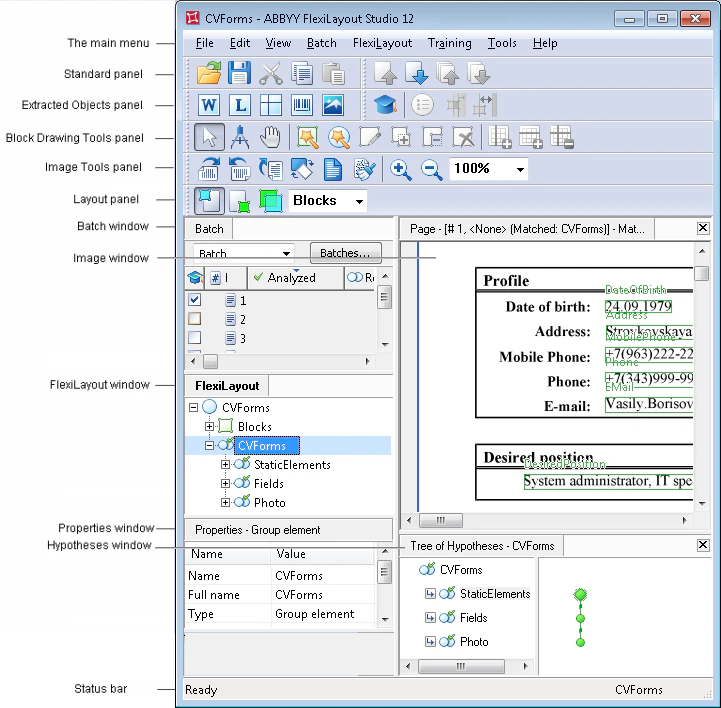 The layout of the main window in the preceding figure may differ from the layout on your screen.
To display the shortcut menu for a window, right-click inside it.
## Customize the main window layout
You can rearrange the windows and toolbars and toggle the status bar to suit your workflow.
* Click the title bar of a window or the border of a toolbar and drag it to a new location.
* Select **View → Status Bar** to show or hide the status bar at the bottom of the window.
The layout of the main window in the preceding figure may differ from the layout on your screen.
To display the shortcut menu for a window, right-click inside it.
## Customize the main window layout
You can rearrange the windows and toolbars and toggle the status bar to suit your workflow.
* Click the title bar of a window or the border of a toolbar and drag it to a new location.
* Select **View → Status Bar** to show or hide the status bar at the bottom of the window.