> ## Documentation Index
> Fetch the complete documentation index at: https://docs.abbyy.com/llms.txt
> Use this file to discover all available pages before exploring further.
# Hypotheses window
> Review the Hypotheses window in FlexiLayout Studio, which shows the tree of element hypotheses generated when a FlexiLayout matches a sample image.
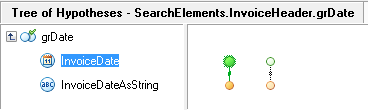 The **Hypotheses** window displays the tree of hypotheses generated when you match your FlexiLayout with a sample image. A hypothesis is generated for each FlexiLayout element.
The window has two panes:
* **Left-hand pane** – Lists the FlexiLayout elements in the order in which they occur in the tree.
* **Right-hand pane** – Displays the tree of hypotheses.
## Open the Hypotheses window
Select **FlexiLayout → Match**.
In the **Image** window, click the **Matched layout** button
The **Hypotheses** window displays the tree of hypotheses generated when you match your FlexiLayout with a sample image. A hypothesis is generated for each FlexiLayout element.
The window has two panes:
* **Left-hand pane** – Lists the FlexiLayout elements in the order in which they occur in the tree.
* **Right-hand pane** – Displays the tree of hypotheses.
## Open the Hypotheses window
Select **FlexiLayout → Match**.
In the **Image** window, click the **Matched layout** button  on the toolbar.