> ## Documentation Index
> Fetch the complete documentation index at: https://docs.abbyy.com/llms.txt
> Use this file to discover all available pages before exploring further.
# Properties window
> Edit element parameters in the Properties window of FlexiLayout Studio, from single-line text and drop-down lists to fuzzy intervals and recognition areas.
The **Properties** pane contains information about the currently selected element. This can be a page, tree node, or a marked-up element of an image. You can edit a parameter displayed in this pane by clicking its value in the **Value** column. The way a value is edited depends on the parameter type.
## Uneditable parameters
 The values of these parameters cannot be changed in the **Properties** pane. They are displayed in gray and can only be selected and copied. Uneditable parameters include element types, the number of child elements, and classification statistics.
## Single-line text
The values of these parameters cannot be changed in the **Properties** pane. They are displayed in gray and can only be selected and copied. Uneditable parameters include element types, the number of child elements, and classification statistics.
## Single-line text
 These parameters are edited in a single-line, unconstrained text box. New values are checked when you try to set them. If a new value is incorrect, an error message appears in the text box, unless you are editing an element's name. Incorrect element names are replaced with the default value.
## Multiple-line text
These parameters are edited in a single-line, unconstrained text box. New values are checked when you try to set them. If a new value is incorrect, an error message appears in the text box, unless you are editing an element's name. Incorrect element names are replaced with the default value.
## Multiple-line text
 The text box always contains the first line of a parameter's text. If there is more than one line of text, the
  button appears in the text box. To edit a multiple-line parameter, open the text editor by clicking the button. The value is set when you click the button again, or when you click another interface element.
## Drop-down list
button appears in the text box. To edit a multiple-line parameter, open the text editor by clicking the button. The value is set when you click the button again, or when you click another interface element.
## Drop-down list
 The value of these parameters can be selected from a drop-down list. You can type a value, but it is ignored if it does not match any of the items in the list.
## Complex parameters
The value of these parameters can be selected from a drop-down list. You can type a value, but it is ignored if it does not match any of the items in the list.
## Complex parameters
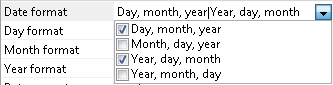 Complex parameters are edited by selecting items from a drop-down list. The value of a complex parameter can be made up of several pre-determined values. The text box contains the selected values separated by a vertical line. You can type values, but any incorrect values are ignored when the parameter value is set.
## Integers
Complex parameters are edited by selecting items from a drop-down list. The value of a complex parameter can be made up of several pre-determined values. The text box contains the selected values separated by a vertical line. You can type values, but any incorrect values are ignored when the parameter value is set.
## Integers
 Parameters of this type are edited in a text box with buttons for increasing and decreasing the value. You can type values, and new values are checked against a range of acceptable values. A notification appears if a value is incorrect.
## Numbers
Parameters of this type are edited in a text box with buttons for increasing and decreasing the value. You can type values, and new values are checked against a range of acceptable values. A notification appears if a value is incorrect.
## Numbers
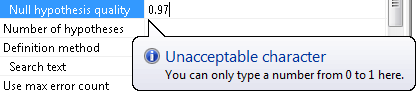 Parameters of this type are edited in a standard text box. New values are checked against a range of acceptable values. A notification appears if a value is incorrect.
## Percentages
Parameters of this type are edited in a standard text box. New values are checked against a range of acceptable values. A notification appears if a value is incorrect.
## Percentages
 The editor for percentages is the same as the editor for numbers, except the value is always followed by a percent sign.
## Distance in custom units
This editor looks exactly the same as the numbers editor. The value is updated if you change the measurement unit.
## FlexiLayout element
The editor for percentages is the same as the editor for numbers, except the value is always followed by a percent sign.
## Distance in custom units
This editor looks exactly the same as the numbers editor. The value is updated if you change the measurement unit.
## FlexiLayout element
 To edit parameters of this type, click the button next to the text box. A dialog box for selecting a tree node opens. Incorrect element names are ignored.
## File
To edit parameters of this type, click the button next to the text box. A dialog box for selecting a tree node opens. Incorrect element names are ignored.
## File
 To edit these parameters, click the button next to the text box. A dialog box for selecting a file opens. Manually specified values are not checked.
## Recognition language
To edit these parameters, click the button next to the text box. A dialog box for selecting a file opens. Manually specified values are not checked.
## Recognition language
 Click the button next to the text box to edit parameters of this type. A dialog box for selecting recognition languages opens. The text box contains languages separated by vertical lines, and you can type language names. Incorrect language names are ignored.
## Fuzzy interval
Click the button next to the text box to edit parameters of this type. A dialog box for selecting recognition languages opens. The text box contains languages separated by vertical lines, and you can type language names. Incorrect language names are ignored.
## Fuzzy interval
 To edit parameters of this type, open the editor by clicking the button next to the text box. You can type values. New values and their formats are not checked, and incorrect values are ignored.
## Recognition area
To edit parameters of this type, open the editor by clicking the button next to the text box. You can type values. New values and their formats are not checked, and incorrect values are ignored.
## Recognition area
 Click the button next to the text box to edit parameters of this type. A dialog box for specifying recognition area properties opens. Values cannot be typed.
## Named parameter
Click the button next to the text box to edit parameters of this type. A dialog box for specifying recognition area properties opens. Values cannot be typed.
## Named parameter
 Click the button next to the text box to open the properties dialog box of the FlexiLayout, batch, or page, where you can edit named parameters. For more information, see [Named parameters](/flexi-capture/fls/settings/named-param).
## Value validation
In most cases, all user-specified values are checked. Incorrect values are either changed back to the default value or displayed in the text box with an error notification. A separate dialog box with an error message is not displayed in these cases.
## Hidden and nested parameters
Parameters that have no meaning for the current properties of the element are hidden. For example, the **Search text**, **Database connection string**, and **File name** parameters cannot be displayed at the same time. One of these parameters is selected based on the search algorithm specified in the **Static Text** parameter, and the other two are hidden.
The names of child parameters are indented relative to the name of the parent parameter.
Click the button next to the text box to open the properties dialog box of the FlexiLayout, batch, or page, where you can edit named parameters. For more information, see [Named parameters](/flexi-capture/fls/settings/named-param).
## Value validation
In most cases, all user-specified values are checked. Incorrect values are either changed back to the default value or displayed in the text box with an error notification. A separate dialog box with an error message is not displayed in these cases.
## Hidden and nested parameters
Parameters that have no meaning for the current properties of the element are hidden. For example, the **Search text**, **Database connection string**, and **File name** parameters cannot be displayed at the same time. One of these parameters is selected based on the search algorithm specified in the **Static Text** parameter, and the other two are hidden.
The names of child parameters are indented relative to the name of the parent parameter.