> ## Documentation Index
> Fetch the complete documentation index at: https://docs.abbyy.com/llms.txt
> Use this file to discover all available pages before exploring further.
# Select a Table block and specify search constraints for columns
> Bind a Table element to its Table block and set column search constraints: keyword detection of column names, content type checks, and boundaries.
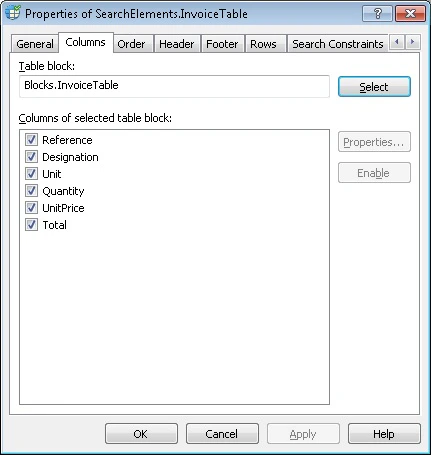
You can select the **Table** block to bind to the current **Table** element on the **Columns** tab of the element's **Properties** dialog box.
 ## Select a Table block
Each **Table** element must correspond to a **Table** block that it is meant to find. To select a **Table** block, click the **Select** button and select the **Table** block that corresponds to the current **Table** element. A list of all its columns appears in the **List1** field. Set the properties for each column. The program uses these properties as search constraints when it looks for the columns.
The list of columns displayed on the **Columns** tab in the element's **Properties** dialog box cannot be edited in this dialog box. To edit the list, open the block's **Properties** dialog box.
To understand how an element and its corresponding block are connected, consider the following. A **Table** block serves as an interface between the FlexiLayout and a data capture application, whereas a **Table** element is the implementation of that interface. A **Table** element contains the instructions about how to find the **Table** block. You can create several program implementations for any interface. Likewise, you can create several **Table** elements for a **Table** block, but not the other way round.
When you select a **Table** block on the **Columns** tab of an element, the program by default uses the names and order of the columns in the **Table** block to set the search constraints for each column and the order of the columns. For more information, see [Set search constraints for table columns](/flexi-capture/fls/tables/column#column) and [Order of table columns](/flexi-capture/fls/tables/order).
## Disable a table column
When testing your FlexiLayout, you might need to disable a column without removing it from the FlexiLayout altogether. Disabling a column retains all the information about the column in the FlexiLayout but tells the program to ignore the column when you test the FlexiLayout. To disable a column, select it in the **List1** field and click **Disable**. This clears the check mark next to the column name. To enable the column, select its name in the list and click **Enable**.
When you disable a column, it is automatically disabled in all of the order lists on the **Order** tab.
## Set search constraints for table columns
The search constraints for table columns are set in the column's **Properties** dialog box.
To open the **Properties** dialog box of a column, select the column in the **List1** field and then click the **Properties...** button next to the field.
## Select a Table block
Each **Table** element must correspond to a **Table** block that it is meant to find. To select a **Table** block, click the **Select** button and select the **Table** block that corresponds to the current **Table** element. A list of all its columns appears in the **List1** field. Set the properties for each column. The program uses these properties as search constraints when it looks for the columns.
The list of columns displayed on the **Columns** tab in the element's **Properties** dialog box cannot be edited in this dialog box. To edit the list, open the block's **Properties** dialog box.
To understand how an element and its corresponding block are connected, consider the following. A **Table** block serves as an interface between the FlexiLayout and a data capture application, whereas a **Table** element is the implementation of that interface. A **Table** element contains the instructions about how to find the **Table** block. You can create several program implementations for any interface. Likewise, you can create several **Table** elements for a **Table** block, but not the other way round.
When you select a **Table** block on the **Columns** tab of an element, the program by default uses the names and order of the columns in the **Table** block to set the search constraints for each column and the order of the columns. For more information, see [Set search constraints for table columns](/flexi-capture/fls/tables/column#column) and [Order of table columns](/flexi-capture/fls/tables/order).
## Disable a table column
When testing your FlexiLayout, you might need to disable a column without removing it from the FlexiLayout altogether. Disabling a column retains all the information about the column in the FlexiLayout but tells the program to ignore the column when you test the FlexiLayout. To disable a column, select it in the **List1** field and click **Disable**. This clears the check mark next to the column name. To enable the column, select its name in the list and click **Enable**.
When you disable a column, it is automatically disabled in all of the order lists on the **Order** tab.
## Set search constraints for table columns
The search constraints for table columns are set in the column's **Properties** dialog box.
To open the **Properties** dialog box of a column, select the column in the **List1** field and then click the **Properties...** button next to the field.
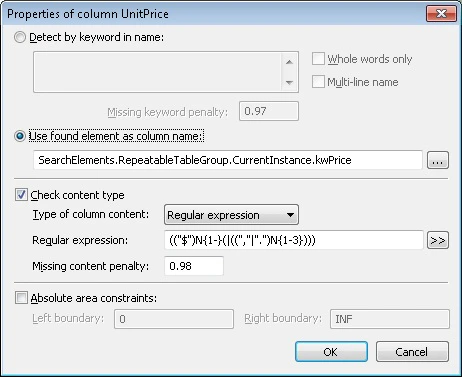 The names of the columns located in the table header play an important part in column detection. To help the program detect the column names, you can use keywords that appear in the header. Alternatively, the name of a column can be detected by relying on another element, whose region is then also considered the region of the column name.
### Use keywords to detect column names
To detect a column name with keywords, select the **Detect by keyword in name** option. In the field underneath, enter the keywords or phrases that occur in the column name on the test images. Press **Enter** after typing each keyword.
To make the program use only whole words when looking for column names, select the **Whole words only** option.
In a narrow column, words in the name are often carried over to the next line. Select the **Multi-line name** option to detect column names like that.
Since the same column can have different names on different images, the list of keywords must include all the variants that can actually occur. However, on some images the column can have no name at all or can be absent altogether. For this reason, the name of a column is always optional. This means that the name of a column need not be found when matching the FlexiLayout with the images. If a keyword is not found (either because it is actually absent or because the image quality is inadequate for OCR), the hypothesis is penalized: its quality is multiplied by the quality of the null hypothesis for the undetected keyword. The penalty for the hypothesis is set in the **Missing keyword penalty** field. The default value is 0.97.
### Use another element's region to detect column names
You can use an already-found element to find the name of a column. This lets you set additional search constraints on the keyword. This method also lets you look not only for **Static Text**, but also for a **Character String**, for **Inverted Text**, or just for a region.
To find a column name by means of an already-found element, select the **Use found element as column name** option, and then click
The names of the columns located in the table header play an important part in column detection. To help the program detect the column names, you can use keywords that appear in the header. Alternatively, the name of a column can be detected by relying on another element, whose region is then also considered the region of the column name.
### Use keywords to detect column names
To detect a column name with keywords, select the **Detect by keyword in name** option. In the field underneath, enter the keywords or phrases that occur in the column name on the test images. Press **Enter** after typing each keyword.
To make the program use only whole words when looking for column names, select the **Whole words only** option.
In a narrow column, words in the name are often carried over to the next line. Select the **Multi-line name** option to detect column names like that.
Since the same column can have different names on different images, the list of keywords must include all the variants that can actually occur. However, on some images the column can have no name at all or can be absent altogether. For this reason, the name of a column is always optional. This means that the name of a column need not be found when matching the FlexiLayout with the images. If a keyword is not found (either because it is actually absent or because the image quality is inadequate for OCR), the hypothesis is penalized: its quality is multiplied by the quality of the null hypothesis for the undetected keyword. The penalty for the hypothesis is set in the **Missing keyword penalty** field. The default value is 0.97.
### Use another element's region to detect column names
You can use an already-found element to find the name of a column. This lets you set additional search constraints on the keyword. This method also lets you look not only for **Static Text**, but also for a **Character String**, for **Inverted Text**, or just for a region.
To find a column name by means of an already-found element, select the **Use found element as column name** option, and then click  and, in the **Select Element** dialog box, select the element whose region is then also considered the region of the column name.
The element you use to detect a column name must be located above the described **Table** element in the FlexiLayout tree. When describing a multi-page table, use repeating elements to search for a column name. For more information about multi-page tables, see [Detect multi-page tables](/flexi-capture/fls/tables/multipage-table).
### Check whether the column was detected correctly
When looking for columns, the program uses not only information about their names, but also information about their content. So if you know that a particular column contains a particular type of data, you can specify this to help the program detect the column more reliably. To let FlexiLayout Studio check the data type in a column, select the **Check content type** option and, in the **Type of column content** field, specify one of the available data types that the column is likely to contain:
* **Text**
* **Currency**
* **Date**
* **Regular expression**
* **Number**
If the data type in the column does not match the data type in the **Type of column content** field, the hypothesis is penalized. The **Missing content penalty** field contains the coefficient by which the quality of the hypothesis is multiplied if the column content does not correspond to the data type you specified.
### Regular expression alphabet
If you selected the **Regular expression** type, enter the code of the regular expression that describes the format of the data in the column. The following table lists the symbols you can use in the expression.
| Name in the list | Symbol in the field | Example |
| ------------------------------------------------------------------------------- | ------------------- | ----------------------------------------------------------------- |
| Any character | \* | "k"\*"t" – allows 'kit', 'kat', and so on. |
| Letter | C | C"at" – allows cat, bat, Rat, mat, and so on. |
| Upper case letter | A | A"at" – allows Cat, Bat, Rat, Mat, and so on. |
| Lower case letter | a | a"at" – allows cat, bat, rat, mat, and so on. |
| Letter or digit | X | X – allows any single letter or digit. |
| Digit | N | N"th" allows 5th, 4th, 6th, and so on. |
| String | "" | "cat" |
| Or | \| | "dr"("i"\|"u")"nk" – allows "drink" or "drunk". |
| Character from the set | \[] | \[hm]"at" – allows 'hat' or 'mat'. |
| Character not from the set | \[^] | \[^b]"at" – allows 'cat', 'mat', 'rat', but does not allow bat. |
| Any number of repeats (applies to the expression or sub-expression to the left) | \{-} | \[AB74]\{-} – allows any combination of A, B, 7, 4 of any length. |
| Number of repeats is n | \{n} | N\{2}"th" allows 25th, 84th, 11th, and so on. |
| n to m repeats | \{n-m} | N\{1-3}"th" allows 5th, 84th, 111th, and so on. |
| 0 to n repeats | \{-n} | N\{-2}"th" allows th, 84th, 4th, and so on. |
| n or more repeats | \{n-} | N\{2-}"th" allows 25th, 834th, 311th, 34576th, and so on. |
| Subexpression | () | |
### Specify the search area coordinates
You can specify the coordinates of the search areas for the left and right boundaries of a column. In the **Absolute area constraints** property, enter the coordinates of each search area in the **Left boundary** and **Right boundary** fields respectively.
and, in the **Select Element** dialog box, select the element whose region is then also considered the region of the column name.
The element you use to detect a column name must be located above the described **Table** element in the FlexiLayout tree. When describing a multi-page table, use repeating elements to search for a column name. For more information about multi-page tables, see [Detect multi-page tables](/flexi-capture/fls/tables/multipage-table).
### Check whether the column was detected correctly
When looking for columns, the program uses not only information about their names, but also information about their content. So if you know that a particular column contains a particular type of data, you can specify this to help the program detect the column more reliably. To let FlexiLayout Studio check the data type in a column, select the **Check content type** option and, in the **Type of column content** field, specify one of the available data types that the column is likely to contain:
* **Text**
* **Currency**
* **Date**
* **Regular expression**
* **Number**
If the data type in the column does not match the data type in the **Type of column content** field, the hypothesis is penalized. The **Missing content penalty** field contains the coefficient by which the quality of the hypothesis is multiplied if the column content does not correspond to the data type you specified.
### Regular expression alphabet
If you selected the **Regular expression** type, enter the code of the regular expression that describes the format of the data in the column. The following table lists the symbols you can use in the expression.
| Name in the list | Symbol in the field | Example |
| ------------------------------------------------------------------------------- | ------------------- | ----------------------------------------------------------------- |
| Any character | \* | "k"\*"t" – allows 'kit', 'kat', and so on. |
| Letter | C | C"at" – allows cat, bat, Rat, mat, and so on. |
| Upper case letter | A | A"at" – allows Cat, Bat, Rat, Mat, and so on. |
| Lower case letter | a | a"at" – allows cat, bat, rat, mat, and so on. |
| Letter or digit | X | X – allows any single letter or digit. |
| Digit | N | N"th" allows 5th, 4th, 6th, and so on. |
| String | "" | "cat" |
| Or | \| | "dr"("i"\|"u")"nk" – allows "drink" or "drunk". |
| Character from the set | \[] | \[hm]"at" – allows 'hat' or 'mat'. |
| Character not from the set | \[^] | \[^b]"at" – allows 'cat', 'mat', 'rat', but does not allow bat. |
| Any number of repeats (applies to the expression or sub-expression to the left) | \{-} | \[AB74]\{-} – allows any combination of A, B, 7, 4 of any length. |
| Number of repeats is n | \{n} | N\{2}"th" allows 25th, 84th, 11th, and so on. |
| n to m repeats | \{n-m} | N\{1-3}"th" allows 5th, 84th, 111th, and so on. |
| 0 to n repeats | \{-n} | N\{-2}"th" allows th, 84th, 4th, and so on. |
| n or more repeats | \{n-} | N\{2-}"th" allows 25th, 834th, 311th, 34576th, and so on. |
| Subexpression | () | |
### Specify the search area coordinates
You can specify the coordinates of the search areas for the left and right boundaries of a column. In the **Absolute area constraints** property, enter the coordinates of each search area in the **Left boundary** and **Right boundary** fields respectively.