> ## Documentation Index
> Fetch the complete documentation index at: https://docs.abbyy.com/llms.txt
> Use this file to discover all available pages before exploring further.
# Table footer
> Configure the Footer tab of a Table element in FlexiLayout Studio to locate the table's bottom boundary by keywords, an element, or absolute coordinates.
The table footer helps the program locate the bottom boundary of the table body. The program extracts no data from the table footer. Since the table footer can be absent on some images, the program does not look for it by default. You can use keywords or phrases to look for a footer. Alternatively, you can use an element to look for a footer. The region of this element is also considered the region of the footer.
The footer properties are located on the **Footer** tab of the **Table** element's **Properties** dialog box.
To open the **Properties** dialog box, in the **FlexiLayout** window, right-click the **Table** element and select **Properties...** on the shortcut menu.
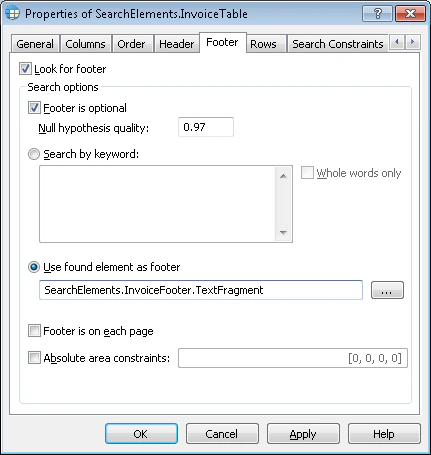 The following properties can be specified for a table footer:
* **Look for footer** tells the program whether to look for a footer when matching the FlexiLayout. This option is not selected by default.
* **Footer is optional** tells the program that the table can have no footer. This does not prevent the FlexiLayout from matching. This option is selected by default.
* The **Null hypothesis quality** field sets the quality of the null hypothesis for the footer (the program generates this hypothesis if it does not find the footer). The default value is 0.97.
## Configure the footer search
The **Search by keyword** option lets you use keywords or phrases to look for the footer. To use keywords, select this option, and then enter the keywords in the field next to it. Press **Enter** after typing each word.
To restrict the search for the table footer, select the **Whole words only** option. When this option is selected, the program must find the specified keywords or phrases as whole words when it searches for the table footer by keywords. For example, if you specify "*Pages*" as a keyword, the program does not consider the word "*Page*".
The **Use found element as footer** option lets you use an element to look for the footer. The region of the found element is also considered the region of the footer. You can use an element of any type to look for the footer. For example, you can find a horizontal **White Gap** and use it as the bottom boundary of the table.
To use an element, select this option, and then click
The following properties can be specified for a table footer:
* **Look for footer** tells the program whether to look for a footer when matching the FlexiLayout. This option is not selected by default.
* **Footer is optional** tells the program that the table can have no footer. This does not prevent the FlexiLayout from matching. This option is selected by default.
* The **Null hypothesis quality** field sets the quality of the null hypothesis for the footer (the program generates this hypothesis if it does not find the footer). The default value is 0.97.
## Configure the footer search
The **Search by keyword** option lets you use keywords or phrases to look for the footer. To use keywords, select this option, and then enter the keywords in the field next to it. Press **Enter** after typing each word.
To restrict the search for the table footer, select the **Whole words only** option. When this option is selected, the program must find the specified keywords or phrases as whole words when it searches for the table footer by keywords. For example, if you specify "*Pages*" as a keyword, the program does not consider the word "*Page*".
The **Use found element as footer** option lets you use an element to look for the footer. The region of the found element is also considered the region of the footer. You can use an element of any type to look for the footer. For example, you can find a horizontal **White Gap** and use it as the bottom boundary of the table.
To use an element, select this option, and then click  . In the **Select Element** dialog box, select the element whose region is used as the region of the footer.
The element you use for the footer must be located above the current **Table** element in the FlexiLayout tree.
**Footer is on each page** specifies that the footer of a multi-page table occurs on every page. If this option is not selected, the footer can occur only on the last page. Once the program detects the footer, it stops looking for the other parts of the table. This option is selected by default.
The **Absolute area constraints** option lets you specify the coordinates of the footer search area. To enter the coordinates, select this option, and then in the field next to it, enter the coordinates in the following format: `[left, top, right, bottom]`. You can enter the coordinates of only one rectangle in this field.
. In the **Select Element** dialog box, select the element whose region is used as the region of the footer.
The element you use for the footer must be located above the current **Table** element in the FlexiLayout tree.
**Footer is on each page** specifies that the footer of a multi-page table occurs on every page. If this option is not selected, the footer can occur only on the last page. Once the program detects the footer, it stops looking for the other parts of the table. This option is selected by default.
The **Absolute area constraints** option lets you specify the coordinates of the footer search area. To enter the coordinates, select this option, and then in the field next to it, enter the coordinates in the following format: `[left, top, right, bottom]`. You can enter the coordinates of only one rectangle in this field.