> ## Documentation Index
> Fetch the complete documentation index at: https://docs.abbyy.com/llms.txt
> Use this file to discover all available pages before exploring further.
# Work with tables
> Describe tables in ABBYY FlexiLayout Studio, from header, body, and footer structure to the workflow of creating Table blocks and Table elements.
ABBYY FlexiLayout Studio allows you to create formalized descriptions of documents with tables, including tables on financial documents. More generally, the program can be used to describe any data that have a table-like structure, even if there are no explicit grid lines. Your table must not contain merged cells. Tables with merged cells can be described by means of a [Repeating Group element](/flexi-capture/fls/template/repeatable-group).
Tables may spread over several pages, starting and ending anywhere on a page.
For the purposes of creating a FlexiLayout, a table can be divided into three logical parts: header, body, and footer. The body of a table contains the data that must be recognized and extracted.
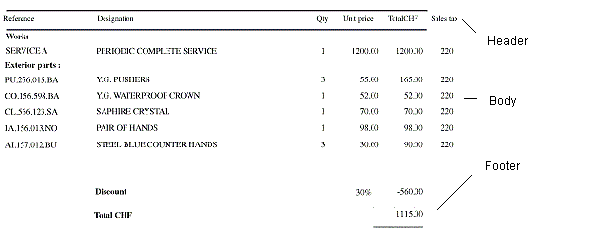 The header and footer function as the top and bottom boundaries of the body. Additionally, the header contains the names of the columns. The program uses this information to correctly divide the table into columns.
The program detects cells by relying on the black separator lines and white gaps which may divide a table into columns and rows.
## Create a FlexiLayout for a table
[Create a Table block](/flexi-capture/fls/tables/table-block) and list the columns that the table may contain.
[Create a Table element](/flexi-capture/fls/tables/table-element) and configure it:
1. [Select the Table block](/flexi-capture/fls/tables/column#tableblock) that corresponds to the Table element.
2. [Set the search constraints for each column](/flexi-capture/fls/tables/column#column) of the table.
3. [Set the order of the columns](/flexi-capture/fls/tables/order) in the table.
4. [Set the search constraints for the header](/flexi-capture/fls/tables/header) of the table.
5. [Set the search constraints for the footer](/flexi-capture/fls/tables/footer) of the table.
6. [Specify how the table is divided into rows](/flexi-capture/fls/tables/rows).
7. [Set the search area for the entire table](/flexi-capture/fls/template/search-constraints).
8. [Set additional search constraints](/flexi-capture/fls/template/advanced-constraints) if required.
## Related topics
* [Table](/flexi-capture/fls/language/table-language)
The header and footer function as the top and bottom boundaries of the body. Additionally, the header contains the names of the columns. The program uses this information to correctly divide the table into columns.
The program detects cells by relying on the black separator lines and white gaps which may divide a table into columns and rows.
## Create a FlexiLayout for a table
[Create a Table block](/flexi-capture/fls/tables/table-block) and list the columns that the table may contain.
[Create a Table element](/flexi-capture/fls/tables/table-element) and configure it:
1. [Select the Table block](/flexi-capture/fls/tables/column#tableblock) that corresponds to the Table element.
2. [Set the search constraints for each column](/flexi-capture/fls/tables/column#column) of the table.
3. [Set the order of the columns](/flexi-capture/fls/tables/order) in the table.
4. [Set the search constraints for the header](/flexi-capture/fls/tables/header) of the table.
5. [Set the search constraints for the footer](/flexi-capture/fls/tables/footer) of the table.
6. [Specify how the table is divided into rows](/flexi-capture/fls/tables/rows).
7. [Set the search area for the entire table](/flexi-capture/fls/template/search-constraints).
8. [Set additional search constraints](/flexi-capture/fls/template/advanced-constraints) if required.
## Related topics
* [Table](/flexi-capture/fls/language/table-language)