> ## Documentation Index
> Fetch the complete documentation index at: https://docs.abbyy.com/llms.txt
> Use this file to discover all available pages before exploring further.
# Order of table columns
> Specify the order of table columns on the Order tab of a Table element: list fixed column orders or write rules when arrangement varies across images.
Since the order and composition of columns can vary from image to image, you need to list all the possible orders of the columns in the table.
If an element describes all the possible columns of a table and you can find all the possible orders of columns by analyzing the images, specify all the possible orders in the properties of the element.
If you cannot provide an exhaustive list of all the possible column orders, or if the columns are interspersed with other columns that need not be detected, you can write a rule to describe multiple column orders.
You specify column order on the **Order** tab of a **Table** element's **Properties** dialog box.
To open the **Properties** dialog box, in the **FlexiLayout** window, right-click the **Table** element and select **Properties...** on the shortcut menu.
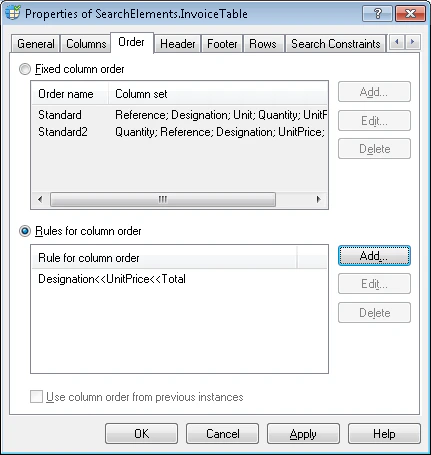 * If you simply list possible column orders, you can specify contradictory column orders, for example: "Column1; Column2; Column3" and "Column3; Column2; Column1". When matching the FlexiLayout with an image, the program selects the column order that best suits the image.
* If you use a rule to describe multiple column orders, you cannot specify contradictory orders. When matching the FlexiLayout with an image, the program looks for a column order that meets all the conditions. If two rules specify contradictory conditions (for example, "Column1 \<\< Column2 \<\< Column3" and "Column3 \<\< Column2 \<\< Column1"), the program fails to match the FlexiLayout.
## List fixed column orders
If the columns have exactly the same order on all of the test images, this order is said to be *fixed*. For example, a table may contain three columns, say, *Date*, *Quantity*, and *Price*, which are always arranged in this order.
Sometimes, you will be able to find several different column orders on the test images. For example, on some of the images the order might be *Date*, *Quantity*, *Price*, while on others the order might be *Date*, *Price*, *Quantity*.
You can specify any number of such orders.
To specify fixed column orders, select the **Fixed column order** option. By default, when you create a **Table** element the program specifies one fixed order of columns by listing all of the columns in the same order as you specified when creating the table block. This order is given the default name of **Standard**.
You can make changes to the **Standard** order to adjust it to the column order on the test images. You can also add new orders or delete orders from the list.
### Edit a fixed column order
Select the column order to edit and click **Edit...**.
In the **Order name** field, enter a new name for the column order. This name is only used to identify the order in the FlexiLayout and is displayed in the properties of the hypothesis for the current **Table** element. This name helps you identify which of the column orders the program has selected.
The **List1** field contains a list of all table columns. Select the column and click
* If you simply list possible column orders, you can specify contradictory column orders, for example: "Column1; Column2; Column3" and "Column3; Column2; Column1". When matching the FlexiLayout with an image, the program selects the column order that best suits the image.
* If you use a rule to describe multiple column orders, you cannot specify contradictory orders. When matching the FlexiLayout with an image, the program looks for a column order that meets all the conditions. If two rules specify contradictory conditions (for example, "Column1 \<\< Column2 \<\< Column3" and "Column3 \<\< Column2 \<\< Column1"), the program fails to match the FlexiLayout.
## List fixed column orders
If the columns have exactly the same order on all of the test images, this order is said to be *fixed*. For example, a table may contain three columns, say, *Date*, *Quantity*, and *Price*, which are always arranged in this order.
Sometimes, you will be able to find several different column orders on the test images. For example, on some of the images the order might be *Date*, *Quantity*, *Price*, while on others the order might be *Date*, *Price*, *Quantity*.
You can specify any number of such orders.
To specify fixed column orders, select the **Fixed column order** option. By default, when you create a **Table** element the program specifies one fixed order of columns by listing all of the columns in the same order as you specified when creating the table block. This order is given the default name of **Standard**.
You can make changes to the **Standard** order to adjust it to the column order on the test images. You can also add new orders or delete orders from the list.
### Edit a fixed column order
Select the column order to edit and click **Edit...**.
In the **Order name** field, enter a new name for the column order. This name is only used to identify the order in the FlexiLayout and is displayed in the properties of the hypothesis for the current **Table** element. This name helps you identify which of the column orders the program has selected.
The **List1** field contains a list of all table columns. Select the column and click  to add it to the **List2** list. Clicking
  adds all the columns to the list.
Clicking
adds all the columns to the list.
Clicking  removes a column from the **List2** list, and clicking
  removes all the columns from the **List2** list. The
  and
and  buttons move columns up and down in the **List2** list. Use these buttons to change the order of columns as required and click **OK**.
### Create a new column order
Click **Add...**.
In the **Order name** field, enter a name for the new column order.
The **List1** field contains a list of all table columns. Select the column and click to add it to the **List2** list. Clicking adds all the columns to the list.
Clicking removes a column from the **List2** list, and clicking removes all the columns from the **List2** list. The and buttons move columns up and down in the **List2** list. Use these buttons to change the order of columns as required and click **OK**.
To delete a fixed column order, select the order in the list and click **Delete**.
## Use rules to specify column order
If analyzing the test images does not allow you to determine one or more fixed column orders, you can write a rule to describe the possible orders.
Each rule sets a condition like the following: "The *Date* column always precedes the *Item* column" or "The *Price* column always follows the *Item* column". Rules allow you to limit the search areas of columns and reduce the number of possible combinations.
To specify the order of columns by means of a rule, select the **Rules for column order** option.
### Create a rule
Click **Add...**.
The **List1** field contains a list of all table columns. Select the column and click to add it to the **List2** list. Next, select the column that always goes after the previously selected column (but does not necessarily immediately follow it). Clicking adds all the columns to the list.
Clicking removes a column from the **List2** list, and clicking removes all the columns from the **List2** list. The and buttons move columns up and down in the **List2** list. Use these buttons to change the order of columns as required and click **OK**.
The created rule appears in the **Rules for column order** field. The `<<` symbol indicates that one field always precedes the other.
### Edit a rule
Click **Edit...**.
Use the , , , and buttons to arrange the columns, and click **OK**.
To delete a rule, click **Delete**.
buttons move columns up and down in the **List2** list. Use these buttons to change the order of columns as required and click **OK**.
### Create a new column order
Click **Add...**.
In the **Order name** field, enter a name for the new column order.
The **List1** field contains a list of all table columns. Select the column and click to add it to the **List2** list. Clicking adds all the columns to the list.
Clicking removes a column from the **List2** list, and clicking removes all the columns from the **List2** list. The and buttons move columns up and down in the **List2** list. Use these buttons to change the order of columns as required and click **OK**.
To delete a fixed column order, select the order in the list and click **Delete**.
## Use rules to specify column order
If analyzing the test images does not allow you to determine one or more fixed column orders, you can write a rule to describe the possible orders.
Each rule sets a condition like the following: "The *Date* column always precedes the *Item* column" or "The *Price* column always follows the *Item* column". Rules allow you to limit the search areas of columns and reduce the number of possible combinations.
To specify the order of columns by means of a rule, select the **Rules for column order** option.
### Create a rule
Click **Add...**.
The **List1** field contains a list of all table columns. Select the column and click to add it to the **List2** list. Next, select the column that always goes after the previously selected column (but does not necessarily immediately follow it). Clicking adds all the columns to the list.
Clicking removes a column from the **List2** list, and clicking removes all the columns from the **List2** list. The and buttons move columns up and down in the **List2** list. Use these buttons to change the order of columns as required and click **OK**.
The created rule appears in the **Rules for column order** field. The `<<` symbol indicates that one field always precedes the other.
### Edit a rule
Click **Edit...**.
Use the , , , and buttons to arrange the columns, and click **OK**.
To delete a rule, click **Delete**.