> ## Documentation Index
> Fetch the complete documentation index at: https://docs.abbyy.com/llms.txt
> Use this file to discover all available pages before exploring further.
# Additional search constraints
> Write additional search constraints in the FlexiLayout language on the Advanced tab, using a code editor with full stop suggestions and element fields.
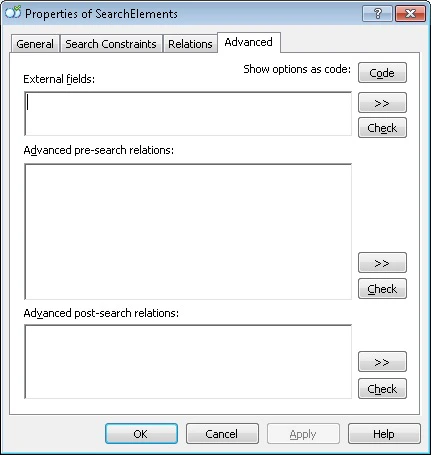
You can specify additional search constraints in the [FlexiLayout language](/flexi-capture/fls/code/general-code) on the **Advanced** tab of the element's **Properties** dialog box.
To open the **Properties** dialog box, in the **FlexiLayout** window, right-click the element and select **Properties...** on the shortcut menu.
 For a **Repeating Group** element, an **Advanced for All Instances** tab is also available. For more information, see [Additional search constraints for a Repeating Group element](/flexi-capture/fls/template/advanced-repeatable-group).
ABBYY FlexiLayout Studio provides a code editor for entering additional search constraints. The code editor can [highlight different types of tokens](/flexi-capture/fls/interface/menu), suggest available methods and properties (full stop suggestions), and [find and replace any strings](/flexi-capture/fls/template/findin-advanced-code).
## Full stop suggestions
ABBYY FlexiLayout Studio offers full stop suggestions as you write code in the [FlexiLayout object-oriented language](/flexi-capture/fls/code/general-code). The suggestions make it easier to enter the names of methods and fields for the various object types available in the language.
When the expression you type is the name of an object, entering a full stop (".") after the name opens a drop-down list of the methods and fields available for that object.
When you start typing, the selection automatically moves to the first name that starts with the characters you type after the full stop.
A separator character is any character that cannot be used in the names of methods or fields (\~!#%^&\*()-=+|/?>\<\{}\[];:.,'").
The following keys and actions control the suggestion list:
| Key or action | Result |
| --------------------------------------------------------------------------------------------------------------------------------------------------------------------------------------- | --------------------------------------------------------------------------------------------------------------------- |
| **Space**, **Tab**, **Enter**, a separator character, or a double-click on a name in the list | Replaces the text typed after the full stop with the name selected in the list. |
| **Up arrow** or **Down arrow** | Moves through the list of suggestions. |
| **Left arrow**, **Right arrow**, **Insert**, **Delete**, **Home**, **End**, **Page Up**, **Page Down**, **Escape**, a click outside the list, or a keyboard shortcut such as **Ctrl+V** | Closes the list without making any substitutions. |
| **Backspace** | Deletes characters typed after the full stop without closing the list. Deleting the full stop itself closes the list. |
## Types of additional search constraints
Additional search constraints can be of two types:
| Constraint type | Description |
| ---------------------------------------------------------------------------------- | ------------------------------------------------------------------------------------- |
| [Advanced pre-search relations](/flexi-capture/fls/template/advanced-pre-search) | Sets search constraints for an element and creates a search area. |
| [Advanced post-search relations](/flexi-capture/fls/template/advanced-post-search) | Penalizes generated hypotheses based on the properties of the corresponding elements. |
## Element fields
An element field is a typed variable that belongs to an element. Element fields are defined in the **External fields** section on the **Advanced** tab and are used in additional search constraints. The value of a field can be changed only in the element to which it belongs, but it can be used in the additional search constraints of that element and of the elements beneath it in the tree. For more information, see [User-defined properties](/flexi-capture/fls/language/element-fields).
For a **Repeating Group** element, an **Advanced for All Instances** tab is also available. For more information, see [Additional search constraints for a Repeating Group element](/flexi-capture/fls/template/advanced-repeatable-group).
ABBYY FlexiLayout Studio provides a code editor for entering additional search constraints. The code editor can [highlight different types of tokens](/flexi-capture/fls/interface/menu), suggest available methods and properties (full stop suggestions), and [find and replace any strings](/flexi-capture/fls/template/findin-advanced-code).
## Full stop suggestions
ABBYY FlexiLayout Studio offers full stop suggestions as you write code in the [FlexiLayout object-oriented language](/flexi-capture/fls/code/general-code). The suggestions make it easier to enter the names of methods and fields for the various object types available in the language.
When the expression you type is the name of an object, entering a full stop (".") after the name opens a drop-down list of the methods and fields available for that object.
When you start typing, the selection automatically moves to the first name that starts with the characters you type after the full stop.
A separator character is any character that cannot be used in the names of methods or fields (\~!#%^&\*()-=+|/?>\<\{}\[];:.,'").
The following keys and actions control the suggestion list:
| Key or action | Result |
| --------------------------------------------------------------------------------------------------------------------------------------------------------------------------------------- | --------------------------------------------------------------------------------------------------------------------- |
| **Space**, **Tab**, **Enter**, a separator character, or a double-click on a name in the list | Replaces the text typed after the full stop with the name selected in the list. |
| **Up arrow** or **Down arrow** | Moves through the list of suggestions. |
| **Left arrow**, **Right arrow**, **Insert**, **Delete**, **Home**, **End**, **Page Up**, **Page Down**, **Escape**, a click outside the list, or a keyboard shortcut such as **Ctrl+V** | Closes the list without making any substitutions. |
| **Backspace** | Deletes characters typed after the full stop without closing the list. Deleting the full stop itself closes the list. |
## Types of additional search constraints
Additional search constraints can be of two types:
| Constraint type | Description |
| ---------------------------------------------------------------------------------- | ------------------------------------------------------------------------------------- |
| [Advanced pre-search relations](/flexi-capture/fls/template/advanced-pre-search) | Sets search constraints for an element and creates a search area. |
| [Advanced post-search relations](/flexi-capture/fls/template/advanced-post-search) | Penalizes generated hypotheses based on the properties of the corresponding elements. |
## Element fields
An element field is a typed variable that belongs to an element. Element fields are defined in the **External fields** section on the **Advanced** tab and are used in additional search constraints. The value of a field can be changed only in the element to which it belongs, but it can be used in the additional search constraints of that element and of the elements beneath it in the tree. For more information, see [User-defined properties](/flexi-capture/fls/language/element-fields).