> ## Documentation Index
> Fetch the complete documentation index at: https://docs.abbyy.com/llms.txt
> Use this file to discover all available pages before exploring further.
# Barcode
> Barcode elements locate supported barcode types on document images in ABBYY FlexiLayout Studio, with settings for barcode type and reading orientation.
**Barcode** is an element of a FlexiLayout that describes barcodes used to encode various information in a series of black-and-white lines.
**Barcode** elements are marked with  in the FlexiLayout tree.
**Barcode** elements are used to find barcodes of the types [supported by ABBYY FlexiLayout Studio](/flexi-capture/fls/appendix/barcode-types). The program considers the **Barcode** objects that were detected during [pre-recognition](/flexi-capture/fls/batch/prerecognition) and that fall within the search area.
## Barcode element properties
Use the **Barcode** tab of the **Properties** dialog box to describe the corresponding object.
To open the **Properties** dialog box, right-click the element in the FlexiLayout tree and select **Properties...** on the shortcut menu.
in the FlexiLayout tree.
**Barcode** elements are used to find barcodes of the types [supported by ABBYY FlexiLayout Studio](/flexi-capture/fls/appendix/barcode-types). The program considers the **Barcode** objects that were detected during [pre-recognition](/flexi-capture/fls/batch/prerecognition) and that fall within the search area.
## Barcode element properties
Use the **Barcode** tab of the **Properties** dialog box to describe the corresponding object.
To open the **Properties** dialog box, right-click the element in the FlexiLayout tree and select **Properties...** on the shortcut menu.
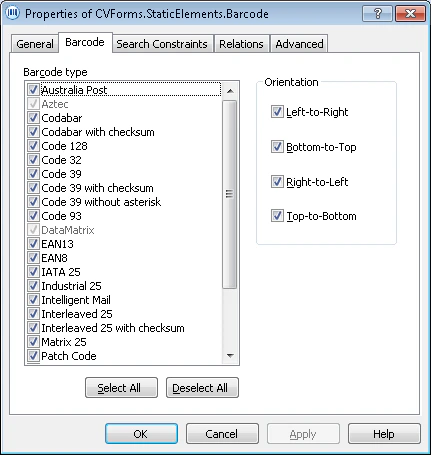 **Barcode type** — the [type of barcode](/flexi-capture/fls/appendix/barcode-types). To make certain types available, configure the corresponding options in the [Pre-recognition parameters](/flexi-capture/fls/batch/prerecognition-param) dialog box:
* To make the **QRCode**, **Aztec**, and **DataMatrix** types available, select **Extract 2D barcodes: Data Matrix, Aztec, QR Code**.
* To make postal barcodes available, select **Extract post barcodes**.
**Orientation** sets the orientation of a barcode:
* **Left-to-Right**
* **Bottom-to-Top**
* **Right-to-Left**
* **Top-to-Bottom**
You can select more than one option.
## Related topics
* [Create, copy, and delete elements](/flexi-capture/fls/template/elements-simple)
* [An overview of element properties](/flexi-capture/fls/template/elements-properties)
* [Search area](/flexi-capture/fls/template/search-constraints)
* [Barcode](/flexi-capture/fls/language/barcode-language)
**Barcode type** — the [type of barcode](/flexi-capture/fls/appendix/barcode-types). To make certain types available, configure the corresponding options in the [Pre-recognition parameters](/flexi-capture/fls/batch/prerecognition-param) dialog box:
* To make the **QRCode**, **Aztec**, and **DataMatrix** types available, select **Extract 2D barcodes: Data Matrix, Aztec, QR Code**.
* To make postal barcodes available, select **Extract post barcodes**.
**Orientation** sets the orientation of a barcode:
* **Left-to-Right**
* **Bottom-to-Top**
* **Right-to-Left**
* **Top-to-Bottom**
You can select more than one option.
## Related topics
* [Create, copy, and delete elements](/flexi-capture/fls/template/elements-simple)
* [An overview of element properties](/flexi-capture/fls/template/elements-properties)
* [Search area](/flexi-capture/fls/template/search-constraints)
* [Barcode](/flexi-capture/fls/language/barcode-language)