> ## Documentation Index
> Fetch the complete documentation index at: https://docs.abbyy.com/llms.txt
> Use this file to discover all available pages before exploring further.
# Character String
> Character String elements search for unspecified text using regular expressions or alphabets, with word count, character count, and space length controls.
**Character String** is an element of a FlexiLayout that describes a string of characters written in one line from left to right. Character strings can consist of words or parts of words.
**Character String** elements are marked with  in the **FlexiLayout** tree.
**Character String** elements are used to look for unspecified text. The program considers as candidates the **Recognized Words** objects detected during [pre-recognition](/flexi-capture/fls/batch/prerecognition) in the element's search area.
Usually, character strings are located next to static text. For example, to find the Ref. No. of a document, FlexiLayout Studio first finds the static text "Ref. No." and then looks for the digits next to it.
## Describe the search text
Click the **Character String** tab in the **Properties** dialog box to describe the corresponding object.
To open the **Properties** dialog box, right-click the element in the **FlexiLayout** tree and select **Properties...** on the shortcut menu.
in the **FlexiLayout** tree.
**Character String** elements are used to look for unspecified text. The program considers as candidates the **Recognized Words** objects detected during [pre-recognition](/flexi-capture/fls/batch/prerecognition) in the element's search area.
Usually, character strings are located next to static text. For example, to find the Ref. No. of a document, FlexiLayout Studio first finds the static text "Ref. No." and then looks for the digits next to it.
## Describe the search text
Click the **Character String** tab in the **Properties** dialog box to describe the corresponding object.
To open the **Properties** dialog box, right-click the element in the **FlexiLayout** tree and select **Properties...** on the shortcut menu.
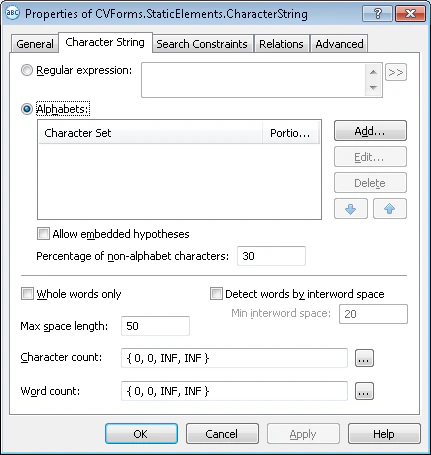 You can describe the text to find with a regular expression or an alphabet.
## Describe search text with a regular expression
A regular expression defines possible combinations of characters. If you use one, the hypothesis must meet its conditions. Use this method on good-quality documents that are recognized without errors.
To enter a regular expression, select the **Regular expression** option and enter the expression in the field next to it. You can also click the
You can describe the text to find with a regular expression or an alphabet.
## Describe search text with a regular expression
A regular expression defines possible combinations of characters. If you use one, the hypothesis must meet its conditions. Use this method on good-quality documents that are recognized without errors.
To enter a regular expression, select the **Regular expression** option and enter the expression in the field next to it. You can also click the  button, which opens a drop-down list of options (**Any Letter**, **Character From Set**, and so on). Select the option to enter the corresponding regular expression into the field.
### Regular expression syntax
| Name in the list | Symbol in the field | Example |
| ------------------------------------------------------------------------------- | ------------------- | ----------------------------------------------------------------- |
| Any character | \* | "k"\*"t" – allows 'kit', 'kat', and so on. |
| Letter | C | C"at" – allows cat, bat, Rat, mat, and so on. |
| Upper case letter | A | A"at" – allows Cat, Bat, Rat, Mat, and so on. |
| Lower case letter | a | a"at" – allows cat, bat, rat, mat, and so on. |
| Letter or digit | X | X – allows any single letter or digit. |
| Digit | N | N"th" allows 5th, 4th, 6th, and so on. |
| String | "" | "cat" |
| Or | \| | "dr"("i"\|"u")"nk" – allows "drink" or "drunk". |
| Character from the set | \[] | \[hm]"at" – allows 'hat' or 'mat'. |
| Character not from the set | \[^] | \[^b]"at" – allows 'cat', 'mat', 'rat', but does not allow bat. |
| Any number of repeats (applies to the expression or sub-expression to the left) | \{-} | \[AB74]\{-} – allows any combination of A, B, 7, 4 of any length. |
| Number of repeats is n | \{n} | N\{2}"th" allows 25th, 84th, 11th, and so on. |
| n to m repeats | \{n-m} | N\{1-3}"th" allows 5th, 84th, 111th, and so on. |
| 0 to n repeats | \{-n} | N\{-2}"th" allows th, 84th, 4th, and so on. |
| n or more repeats | \{n-} | N\{2-}"th" allows 25th, 834th, 311th, 34576th, and so on. |
| Subexpression | () | |
## Describe search text with an alphabet
An **alphabet** lists the characters that can occur in the search text. Use this method when the character string cannot be described with a regular expression, or when the recognized text contains too many errors because of poor image quality.
You can specify several alphabets for a **Character String** element. If the format of the text is unknown, specify no alphabets. In that case, FlexiLayout Studio considers all possible characters when looking for the object that corresponds to the element.
To use the characters in the search area to generate all the possible hypotheses, including intersecting and embedded hypotheses, select **Allow embedded hypotheses**. To generate hypotheses of maximum length, clear **Allow embedded hypotheses**.
For each alphabet:
1. Click **Add...**.
2. In the **Add New Alphabet** dialog box, select the required code page from the **Code page** list.
3. In the **Character map**, select the characters that occur in the search text. The selected characters and their number are displayed in the **Selected on screen/selected in all** field.
4. In the **Percentage of alphabet characters** field, specify the required percentage of alphabet characters in the search text.
You can specify several alphabets, but they must not overlap, that is, include the same characters.
To delete an alphabet, select it in the **Alphabets** list and click **Delete**. To add or delete alphabet characters, select the alphabet in the **Alphabets** list and click **Edit...**.
In the **Percentage of non-alphabet characters** field, specify the allowed percentage of characters that do not belong to any of the alphabets.
## Additional Character String properties
Depending on the method used to describe the search text, you might need to specify the following properties:
* **Whole words only** – Finds whole words only.
* **Detect words by interword space** – Specifies how lines are divided into words. Disable this option to detect words automatically. Enabling it divides a line into words whenever the space between neighboring characters is greater than or equal to the value entered in **Min interword space**.
In the case of automatic word detection, word ends are detected based on spaces, on other symbols that separate words (for example, `,`, `;`, `/`, or `?`), or on other attributes. The exact set of separator symbols depends on the selected pre-recognition language. To make sure that FlexiLayout Studio correctly divides lines into words, review the text objects on the test images (**View → Images → Objects → Recognized Words**).
* **Word count** – Specifies the number of words in the character string, using a [fuzzy interval](/flexi-capture/fls/template/fuzzy-interval). The default interval is `{-1,-1,INF,INF}` (that is, hypotheses with any number of words are matched).
* **Max space length** – Specifies the maximum length of the space inside the object, measured in the user-defined [units of measurement](/flexi-capture/fls/template/units). You can estimate the space length by looking at the coordinates of neighboring objects: rest the mouse cursor on a neighboring object to display its coordinates in the status bar. When looking for text, characters are added to the character string until the distance between neighboring elements exceeds **Max space length**.
* **Character count** – Specifies the length of the character string (the number of characters), using a [fuzzy interval](/flexi-capture/fls/template/fuzzy-interval), which also assesses the quality of the hypothesis based on its length. Use the
button, which opens a drop-down list of options (**Any Letter**, **Character From Set**, and so on). Select the option to enter the corresponding regular expression into the field.
### Regular expression syntax
| Name in the list | Symbol in the field | Example |
| ------------------------------------------------------------------------------- | ------------------- | ----------------------------------------------------------------- |
| Any character | \* | "k"\*"t" – allows 'kit', 'kat', and so on. |
| Letter | C | C"at" – allows cat, bat, Rat, mat, and so on. |
| Upper case letter | A | A"at" – allows Cat, Bat, Rat, Mat, and so on. |
| Lower case letter | a | a"at" – allows cat, bat, rat, mat, and so on. |
| Letter or digit | X | X – allows any single letter or digit. |
| Digit | N | N"th" allows 5th, 4th, 6th, and so on. |
| String | "" | "cat" |
| Or | \| | "dr"("i"\|"u")"nk" – allows "drink" or "drunk". |
| Character from the set | \[] | \[hm]"at" – allows 'hat' or 'mat'. |
| Character not from the set | \[^] | \[^b]"at" – allows 'cat', 'mat', 'rat', but does not allow bat. |
| Any number of repeats (applies to the expression or sub-expression to the left) | \{-} | \[AB74]\{-} – allows any combination of A, B, 7, 4 of any length. |
| Number of repeats is n | \{n} | N\{2}"th" allows 25th, 84th, 11th, and so on. |
| n to m repeats | \{n-m} | N\{1-3}"th" allows 5th, 84th, 111th, and so on. |
| 0 to n repeats | \{-n} | N\{-2}"th" allows th, 84th, 4th, and so on. |
| n or more repeats | \{n-} | N\{2-}"th" allows 25th, 834th, 311th, 34576th, and so on. |
| Subexpression | () | |
## Describe search text with an alphabet
An **alphabet** lists the characters that can occur in the search text. Use this method when the character string cannot be described with a regular expression, or when the recognized text contains too many errors because of poor image quality.
You can specify several alphabets for a **Character String** element. If the format of the text is unknown, specify no alphabets. In that case, FlexiLayout Studio considers all possible characters when looking for the object that corresponds to the element.
To use the characters in the search area to generate all the possible hypotheses, including intersecting and embedded hypotheses, select **Allow embedded hypotheses**. To generate hypotheses of maximum length, clear **Allow embedded hypotheses**.
For each alphabet:
1. Click **Add...**.
2. In the **Add New Alphabet** dialog box, select the required code page from the **Code page** list.
3. In the **Character map**, select the characters that occur in the search text. The selected characters and their number are displayed in the **Selected on screen/selected in all** field.
4. In the **Percentage of alphabet characters** field, specify the required percentage of alphabet characters in the search text.
You can specify several alphabets, but they must not overlap, that is, include the same characters.
To delete an alphabet, select it in the **Alphabets** list and click **Delete**. To add or delete alphabet characters, select the alphabet in the **Alphabets** list and click **Edit...**.
In the **Percentage of non-alphabet characters** field, specify the allowed percentage of characters that do not belong to any of the alphabets.
## Additional Character String properties
Depending on the method used to describe the search text, you might need to specify the following properties:
* **Whole words only** – Finds whole words only.
* **Detect words by interword space** – Specifies how lines are divided into words. Disable this option to detect words automatically. Enabling it divides a line into words whenever the space between neighboring characters is greater than or equal to the value entered in **Min interword space**.
In the case of automatic word detection, word ends are detected based on spaces, on other symbols that separate words (for example, `,`, `;`, `/`, or `?`), or on other attributes. The exact set of separator symbols depends on the selected pre-recognition language. To make sure that FlexiLayout Studio correctly divides lines into words, review the text objects on the test images (**View → Images → Objects → Recognized Words**).
* **Word count** – Specifies the number of words in the character string, using a [fuzzy interval](/flexi-capture/fls/template/fuzzy-interval). The default interval is `{-1,-1,INF,INF}` (that is, hypotheses with any number of words are matched).
* **Max space length** – Specifies the maximum length of the space inside the object, measured in the user-defined [units of measurement](/flexi-capture/fls/template/units). You can estimate the space length by looking at the coordinates of neighboring objects: rest the mouse cursor on a neighboring object to display its coordinates in the status bar. When looking for text, characters are added to the character string until the distance between neighboring elements exceeds **Max space length**.
* **Character count** – Specifies the length of the character string (the number of characters), using a [fuzzy interval](/flexi-capture/fls/template/fuzzy-interval), which also assesses the quality of the hypothesis based on its length. Use the  button to specify fuzzy intervals in a separate window that visualizes them.
## Related topics
* [Create, copy, and delete elements](/flexi-capture/fls/template/elements-simple)
* [An overview of element properties](/flexi-capture/fls/template/elements-properties)
* [Search area](/flexi-capture/fls/template/search-constraints)
* [Character String](/flexi-capture/fls/language/character-string)
button to specify fuzzy intervals in a separate window that visualizes them.
## Related topics
* [Create, copy, and delete elements](/flexi-capture/fls/template/elements-simple)
* [An overview of element properties](/flexi-capture/fls/template/elements-properties)
* [Search area](/flexi-capture/fls/template/search-constraints)
* [Character String](/flexi-capture/fls/language/character-string)