> ## Documentation Index
> Fetch the complete documentation index at: https://docs.abbyy.com/llms.txt
> Use this file to discover all available pages before exploring further.
# Date
> Date elements locate dates in many formats on document images, with FlexiLayout settings for digit counts, separators, languages, and date intervals.
**Date** is a FlexiLayout element that describes a date.
**Date** elements are marked with  in the **FlexiLayout** tree.
Dates can appear in many formats, but the day and year must always be written in figures, whereas the month can be written either in figures or as a word. You select the format.
## Date element properties
Configure the **Date** element on the **Date** tab of the **Properties** dialog box.
To open the **Properties** dialog box, right-click the element in the **FlexiLayout** tree and select **Properties...** on the shortcut menu.
in the **FlexiLayout** tree.
Dates can appear in many formats, but the day and year must always be written in figures, whereas the month can be written either in figures or as a word. You select the format.
## Date element properties
Configure the **Date** element on the **Date** tab of the **Properties** dialog box.
To open the **Properties** dialog box, right-click the element in the **FlexiLayout** tree and select **Properties...** on the shortcut menu.
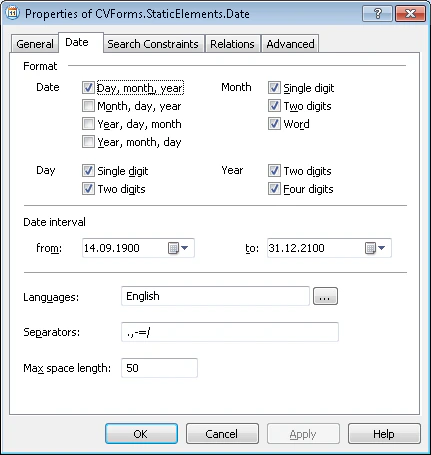 ### Format group
The **Format** group defines the date formats that the element locates.
**Date** – Sets the order of the day, month, and year. You can select more than one of the following orders:
* Day, month, year
* Month, day, year
* Year, day, month
* Year, month, day
**Day** – Sets the number of digits in the day field:
* If **Single digit** is selected, only dates where the day is a single digit are found (for example, 1.09.2005).
* If **Two digits** is selected, only dates where the day is two digits are found (for example, 01.09.2005).
* If both are selected, single-digit and double-digit dates are found (for example, 1.09.2005 and 01.09.2005).
**Month** – Sets the number of digits in the month field:
* If **Single digit** is selected, only dates where the month is a single digit are found (for example, 1.9.2005).
* If **Two digits** is selected, only dates where the month is two digits are found (for example, 1.09.2005).
* If both are selected, single-digit and double-digit dates are found (for example, 1.9.2005 and 1.09.2005).
* If **Word** is selected, the month can be spelled out as a word.
If you select the **Word** option, specify the language in which the name of the month is written.
**Year** – Sets the number of digits in the year field:
* If **Two digits** is selected, only dates where the year is two digits are found (for example, 01.09.95).
* If **Four digits** is selected, only dates where the year is four digits are found (for example, 01.09.1995).
* If both are selected, two-digit and four-digit years are found (for example, 01.09.95 and 01.09.1995).
### Date interval
The **Date interval** property specifies a time period. FlexiLayout Studio ignores dates outside the interval during the search.
For example, if the interval runs from 01.09.1995 to 1.09.2005, the program ignores the date 1.05.1945 during the search.
### Languages for the month name
The **Languages** property specifies the language or languages to use when searching for the month in a date.
Supported languages: English, Czech, Danish, Dutch, Estonian, Finnish, French, German, Greek, Hungarian, Italian, Latvian, Lithuanian, Norwegian, Polish, Portuguese, Russian, Spanish, Swedish, Turkish.
This property is available only if the **Word** option is selected for the **Month** property.
### Separators
The **Separators** property specifies the symbols that can separate the day, month, and year. When specifying more than one symbol, do not separate them with commas or spaces. A space can also serve as a date separator, but you need not specify it. FlexiLayout Studio detects the date anyway.
For example: `.,/`
### Max space length
In the **Max space length** field, enter the maximum allowed absolute length of the space inside the detected object. The space length is measured in the user-defined [units of measurement](/flexi-capture/fls/template/units). When searching, FlexiLayout Studio adds characters to the string until the distance between neighboring characters reaches the value in the **Max space length** field.
## Date element recommendations
When matching the FlexiLayout, the search for dates is strict: dates must not contain errors or excess characters. As a result, dates can be found only on good-quality images. The exception is when the name of the month is spelled out as a word, in which case up to 20% errors are allowed.
If the name of the month is written in a language other than a [supported](/flexi-capture/fls/template/date#languagedate) one, you can create the following three elements to find such dates:
* In a **Static Text** element, specify the names of all the months, separated by `|` in the **Search Text** property. Be sure to enter all the possible grammatical forms.
* In two **Character String** elements, specify digits as the alphabet, and specify the areas to the right and left of the month as search areas. As an additional search constraint, specify that the program looks for the **Character String** elements only if it has already found the **Static Text** element corresponding to the name of the month.
## Related topics
* [Create, copy, and delete elements](/flexi-capture/fls/template/elements-simple)
* [An overview of element properties](/flexi-capture/fls/template/elements-properties)
* [Search area](/flexi-capture/fls/template/search-constraints)
* [Date](/flexi-capture/fls/language/date-language)
### Format group
The **Format** group defines the date formats that the element locates.
**Date** – Sets the order of the day, month, and year. You can select more than one of the following orders:
* Day, month, year
* Month, day, year
* Year, day, month
* Year, month, day
**Day** – Sets the number of digits in the day field:
* If **Single digit** is selected, only dates where the day is a single digit are found (for example, 1.09.2005).
* If **Two digits** is selected, only dates where the day is two digits are found (for example, 01.09.2005).
* If both are selected, single-digit and double-digit dates are found (for example, 1.09.2005 and 01.09.2005).
**Month** – Sets the number of digits in the month field:
* If **Single digit** is selected, only dates where the month is a single digit are found (for example, 1.9.2005).
* If **Two digits** is selected, only dates where the month is two digits are found (for example, 1.09.2005).
* If both are selected, single-digit and double-digit dates are found (for example, 1.9.2005 and 1.09.2005).
* If **Word** is selected, the month can be spelled out as a word.
If you select the **Word** option, specify the language in which the name of the month is written.
**Year** – Sets the number of digits in the year field:
* If **Two digits** is selected, only dates where the year is two digits are found (for example, 01.09.95).
* If **Four digits** is selected, only dates where the year is four digits are found (for example, 01.09.1995).
* If both are selected, two-digit and four-digit years are found (for example, 01.09.95 and 01.09.1995).
### Date interval
The **Date interval** property specifies a time period. FlexiLayout Studio ignores dates outside the interval during the search.
For example, if the interval runs from 01.09.1995 to 1.09.2005, the program ignores the date 1.05.1945 during the search.
### Languages for the month name
The **Languages** property specifies the language or languages to use when searching for the month in a date.
Supported languages: English, Czech, Danish, Dutch, Estonian, Finnish, French, German, Greek, Hungarian, Italian, Latvian, Lithuanian, Norwegian, Polish, Portuguese, Russian, Spanish, Swedish, Turkish.
This property is available only if the **Word** option is selected for the **Month** property.
### Separators
The **Separators** property specifies the symbols that can separate the day, month, and year. When specifying more than one symbol, do not separate them with commas or spaces. A space can also serve as a date separator, but you need not specify it. FlexiLayout Studio detects the date anyway.
For example: `.,/`
### Max space length
In the **Max space length** field, enter the maximum allowed absolute length of the space inside the detected object. The space length is measured in the user-defined [units of measurement](/flexi-capture/fls/template/units). When searching, FlexiLayout Studio adds characters to the string until the distance between neighboring characters reaches the value in the **Max space length** field.
## Date element recommendations
When matching the FlexiLayout, the search for dates is strict: dates must not contain errors or excess characters. As a result, dates can be found only on good-quality images. The exception is when the name of the month is spelled out as a word, in which case up to 20% errors are allowed.
If the name of the month is written in a language other than a [supported](/flexi-capture/fls/template/date#languagedate) one, you can create the following three elements to find such dates:
* In a **Static Text** element, specify the names of all the months, separated by `|` in the **Search Text** property. Be sure to enter all the possible grammatical forms.
* In two **Character String** elements, specify digits as the alphabet, and specify the areas to the right and left of the month as search areas. As an additional search constraint, specify that the program looks for the **Character String** elements only if it has already found the **Static Text** element corresponding to the name of the month.
## Related topics
* [Create, copy, and delete elements](/flexi-capture/fls/template/elements-simple)
* [An overview of element properties](/flexi-capture/fls/template/elements-properties)
* [Search area](/flexi-capture/fls/template/search-constraints)
* [Date](/flexi-capture/fls/language/date-language)