> ## Documentation Index
> Fetch the complete documentation index at: https://docs.abbyy.com/llms.txt
> Use this file to discover all available pages before exploring further.
# Dependency browser
> Search FlexiLayout elements in the dependency browser (Reference browser tab) to view their dependencies and references and jump to the related properties.
The dependency browser allows you to search for an element and view its dependencies and references.
## Open the Reference browser tab
Select **Reference browser** on the **View** menu or press **Ctrl+Alt+R**.
 ## View element dependencies and references
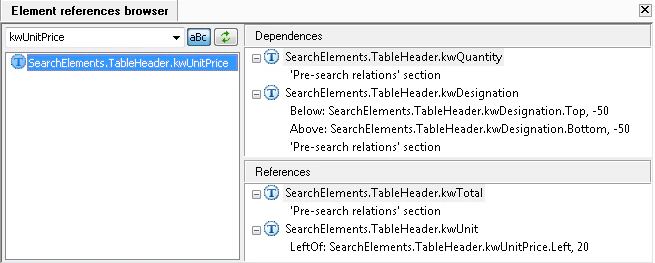
Enter an element name or select a previously entered element from the list. Click the **aBc** button to toggle between case-sensitive and case-insensitive search modes.
The found elements will be shown in the pane on the left. Click an element to view its dependencies or references.
The **Dependencies** pane shows the elements referred to by the selected element. The **References** pane shows the elements which refer to the selected element.
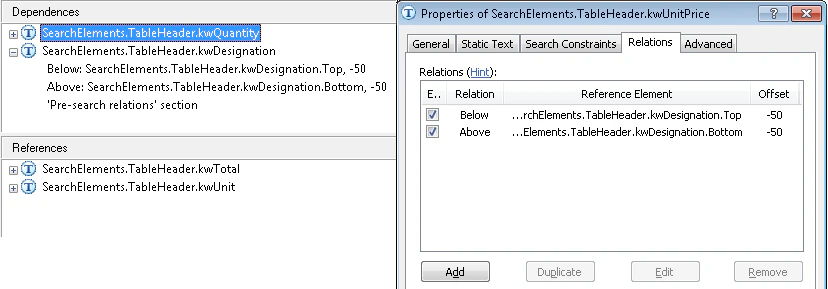
You can expand the lists to view all the dependencies or references. Double-click a dependency or reference to display the properties of the corresponding element.
For example, for a dependency of the "relation" type, the **Relations** tab of the **Properties** dialog box will open and the corresponding relation of the element will be highlighted.
## View element dependencies and references
Enter an element name or select a previously entered element from the list. Click the **aBc** button to toggle between case-sensitive and case-insensitive search modes.
The found elements will be shown in the pane on the left. Click an element to view its dependencies or references.
The **Dependencies** pane shows the elements referred to by the selected element. The **References** pane shows the elements which refer to the selected element.
You can expand the lists to view all the dependencies or references. Double-click a dependency or reference to display the properties of the corresponding element.
For example, for a dependency of the "relation" type, the **Relations** tab of the **Properties** dialog box will open and the corresponding relation of the element will be highlighted.
 For a reference from the **Pre-search relations** or **Post-search relations** section, the **Advanced** tab of the **Properties** dialog box will open and the corresponding code fragment will be highlighted.