> ## Documentation Index
> Fetch the complete documentation index at: https://docs.abbyy.com/llms.txt
> Use this file to discover all available pages before exploring further.
# Repeating Group
> Repeating Group elements detect recurring sets of elements in a FlexiLayout, with document or page search modes and minimum and maximum repetition counts.
**Repeating Group** is an element used to detect repeating groups of elements (the number of repetitions might not be known in advance). A group can repeat either on the same page or on a multi-page sheet.
In the project tree, **Repeating Group** elements are marked with  .
If a group of elements recurs within a document, you can describe its properties only once and specify the number of possible repetitions rather than describe each group separately.
Possible uses:
* Searching for a running name on each page of a multi-page document
* Searching for repeating data, where the exact number of repeating instances is not known in advance (for example, tables with complex rows)
A **Repeating Group** element differs from a **Group** element in that it has additional search constraints and a repetition parameter.
After a FlexiLayout is applied and a repeating group of elements is detected, the captions of some elements can overlap with the image. To hide the captions, right-click anywhere in the **Image** window and clear the **Show Captions of Regions on Image** option on the shortcut menu.
## Properties that define the object to be detected
Specify the properties of the object to detect on the **Repeating Group** tab of the element's **Properties** dialog box.
To open the **Properties** dialog box, right-click the element in the **FlexiLayout** window and select **Properties...** on the shortcut menu.
.
If a group of elements recurs within a document, you can describe its properties only once and specify the number of possible repetitions rather than describe each group separately.
Possible uses:
* Searching for a running name on each page of a multi-page document
* Searching for repeating data, where the exact number of repeating instances is not known in advance (for example, tables with complex rows)
A **Repeating Group** element differs from a **Group** element in that it has additional search constraints and a repetition parameter.
After a FlexiLayout is applied and a repeating group of elements is detected, the captions of some elements can overlap with the image. To hide the captions, right-click anywhere in the **Image** window and clear the **Show Captions of Regions on Image** option on the shortcut menu.
## Properties that define the object to be detected
Specify the properties of the object to detect on the **Repeating Group** tab of the element's **Properties** dialog box.
To open the **Properties** dialog box, right-click the element in the **FlexiLayout** window and select **Properties...** on the shortcut menu.
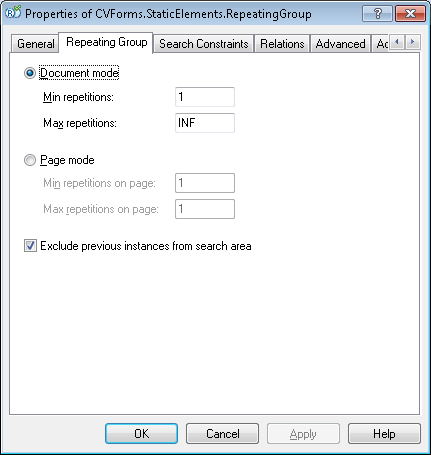 There are two ways to search for instances of a repeating group: either in the entire document or on individual pages. Correspondingly, you specify the minimum and maximum number of group instances either for the entire document or for individual pages.
If a repeating group contains a [required](/flexi-capture/fls/template/elements-optional) element, it serves as the identifier for matching the instance. For example, if you specify the name of a repeating group of fields as a required element, the program creates as many instances as the number of names it detects.
The quality of the null hypothesis is specified for one instance and not for the entire set of instances. This parameter also serves as a criterion for forming an instance: if the quality of the generated hypothesis is lower than the quality of the null hypothesis, no instance is formed.
### Document mode
To search for group instances in the entire document, select the **Document mode** option and specify the following:
* **Min repetitions** – The minimum number of group instances in the document.
* **Max repetitions** – The maximum number of group instances in the document.
If the minimum number of group instances is not detected in the document, the **Repeating Group** is considered not detected. If the maximum number of instances is detected, the search stops. In this default search mode, a group instance (which, just like the usual **Group** element, consists of hypotheses for its subelements) can stretch over several pages of the document.
### Page mode
To search for group instances on individual pages, select the **Page mode** option. In this mode, each instance can occur on only one page of the document. You can use this mode to search for a running name, for example.
The search runs top to bottom, from the first possible page to the last.
The following search parameters are available in this mode:
* **Min repetitions on page** – Specifies the minimum number of instances per page. If the minimum number of instances is not detected on the current page, the **Repeating Group** is considered not detected.
* **Max repetitions on page** – Specifies the maximum number of instances per page. If the required number of instances is detected on the current page, the search stops on the current page and continues on the next one.
## Location of instances
The following constraint is imposed on the instances of an element: no two instances can intersect. This is achieved by forcibly excluding (**Exclude**) the already detected instances. On the **Relations** tab, you can set constraints for the next instance based on already detected instances.
For example, you can tell the program that it must look for each next instance below the previous one. On the **Relations** tab, set the **Below** constraint for your **Repeating Group**:
There are two ways to search for instances of a repeating group: either in the entire document or on individual pages. Correspondingly, you specify the minimum and maximum number of group instances either for the entire document or for individual pages.
If a repeating group contains a [required](/flexi-capture/fls/template/elements-optional) element, it serves as the identifier for matching the instance. For example, if you specify the name of a repeating group of fields as a required element, the program creates as many instances as the number of names it detects.
The quality of the null hypothesis is specified for one instance and not for the entire set of instances. This parameter also serves as a criterion for forming an instance: if the quality of the generated hypothesis is lower than the quality of the null hypothesis, no instance is formed.
### Document mode
To search for group instances in the entire document, select the **Document mode** option and specify the following:
* **Min repetitions** – The minimum number of group instances in the document.
* **Max repetitions** – The maximum number of group instances in the document.
If the minimum number of group instances is not detected in the document, the **Repeating Group** is considered not detected. If the maximum number of instances is detected, the search stops. In this default search mode, a group instance (which, just like the usual **Group** element, consists of hypotheses for its subelements) can stretch over several pages of the document.
### Page mode
To search for group instances on individual pages, select the **Page mode** option. In this mode, each instance can occur on only one page of the document. You can use this mode to search for a running name, for example.
The search runs top to bottom, from the first possible page to the last.
The following search parameters are available in this mode:
* **Min repetitions on page** – Specifies the minimum number of instances per page. If the minimum number of instances is not detected on the current page, the **Repeating Group** is considered not detected.
* **Max repetitions on page** – Specifies the maximum number of instances per page. If the required number of instances is detected on the current page, the search stops on the current page and continues on the next one.
## Location of instances
The following constraint is imposed on the instances of an element: no two instances can intersect. This is achieved by forcibly excluding (**Exclude**) the already detected instances. On the **Relations** tab, you can set constraints for the next instance based on already detected instances.
For example, you can tell the program that it must look for each next instance below the previous one. On the **Relations** tab, set the **Below** constraint for your **Repeating Group**:
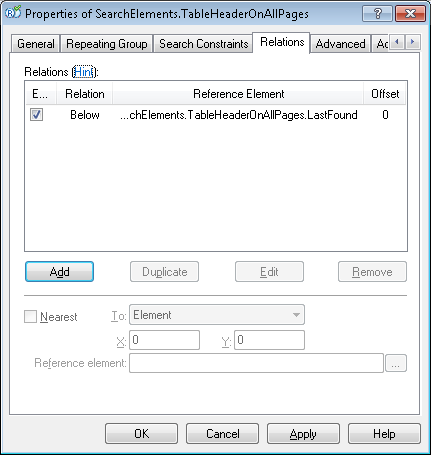 Specify a **Nearest** relation for a subelement in the group, defining its position relative to the top edge of the page.
Otherwise, the program selects the next instance of the group by applying the best quality criterion to all the instances in the search area (below the last detected instance). The program then looks for the next instance below the current instance, whose quality is higher.
As a result, poor-quality instances located above the higher-quality instance might not be detected at all.
## Related topics
* [Create, copy, and delete elements](/flexi-capture/fls/template/elements-simple)
* [An overview of element properties](/flexi-capture/fls/template/elements-properties)
* [Search area](/flexi-capture/fls/template/search-constraints)
* [Repeating Group](/flexi-capture/fls/language/repeatable-group-language)
* [Additional search constraints for a Repeating Group element](/flexi-capture/fls/template/advanced-repeatable-group)
Specify a **Nearest** relation for a subelement in the group, defining its position relative to the top edge of the page.
Otherwise, the program selects the next instance of the group by applying the best quality criterion to all the instances in the search area (below the last detected instance). The program then looks for the next instance below the current instance, whose quality is higher.
As a result, poor-quality instances located above the higher-quality instance might not be detected at all.
## Related topics
* [Create, copy, and delete elements](/flexi-capture/fls/template/elements-simple)
* [An overview of element properties](/flexi-capture/fls/template/elements-properties)
* [Search area](/flexi-capture/fls/template/search-constraints)
* [Repeating Group](/flexi-capture/fls/language/repeatable-group-language)
* [Additional search constraints for a Repeating Group element](/flexi-capture/fls/template/advanced-repeatable-group)