> ## Documentation Index
> Fetch the complete documentation index at: https://docs.abbyy.com/llms.txt
> Use this file to discover all available pages before exploring further.
# White Gap
> White Gap element in FlexiLayout Studio finds empty rectangular areas using object histograms, with orientation, size, and threshold properties.
**White Gap** is an element of a FlexiLayout that describes a rectangular area on the image that contains almost no objects of the specified type.
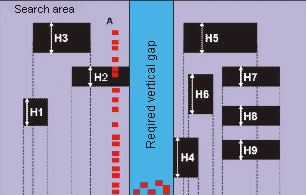
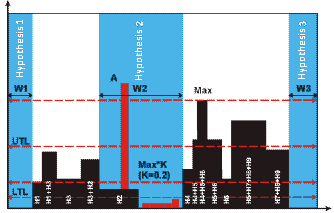
To look for White Gaps, the program creates [histograms](/flexi-capture/fls/hypotheses/hyp-white-gap) for objects. When creating histograms for the objects in the search area, the program calculates the sum of the projections of all the objects on the horizontal axis (to look for a vertical gap) or on the vertical axis (to look for a horizontal gap).
If the sum of the projections is smaller than the specified threshold, the program considers the area to be a White Gap.
 For more information about histograms, see [Hypotheses for White Gap elements](/flexi-capture/fls/hypotheses/hyp-white-gap).
The search area can contain stray objects. The maximum allowed number of such objects is specified in the properties of the element.
**White Gap** elements are marked with
For more information about histograms, see [Hypotheses for White Gap elements](/flexi-capture/fls/hypotheses/hyp-white-gap).
The search area can contain stray objects. The maximum allowed number of such objects is specified in the properties of the element.
**White Gap** elements are marked with  in the FlexiLayout tree.
## White Gap element properties
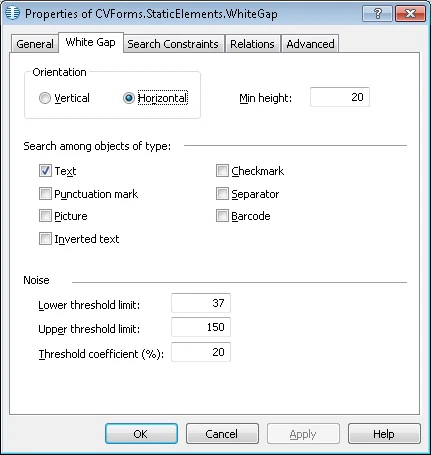
To open the **Properties** dialog box, right-click the element in the FlexiLayout tree and select **Properties...** on the shortcut menu.
To describe the corresponding object, click the **White Gap** tab.
in the FlexiLayout tree.
## White Gap element properties
To open the **Properties** dialog box, right-click the element in the FlexiLayout tree and select **Properties...** on the shortcut menu.
To describe the corresponding object, click the **White Gap** tab.
 | Property | Description |
| -------------------------------- | ------------------------------------------------------------------------------------------------------------------------------------------------------------------------------------------------------------------------------------------------------------------- |
| **Orientation** | Sets the orientation of a **White Gap**. The two orientation values are described in the following table. |
| **Min width/height** | Sets the minimum width/height of a **White Gap** in the direction perpendicular to **Orientation**. Gaps of smaller width/height are ignored. Measured in the user-defined [units of measurement](/flexi-capture/fls/template/units). The default value is 20 dots. |
| **Search among objects of type** | Sets the type of objects among which to look for the **White Gap**. Select the objects by checking the boxes next to them. |
The **Orientation** property has two values:
| Orientation | Description |
| -------------- | ------------------------------------------------------------------------------------------------------------------------------------------------------------------------------------------------------------------------------- |
| **Vertical** | The top and bottom boundaries coincide with the top and bottom boundaries of the search area. The left and right boundaries must be detected. An example of a vertical White Gap is the space between two text columns. |
| **Horizontal** | The left and right boundaries coincide with the left and right boundaries of the search area. The top and bottom boundaries must be detected. An example of a horizontal White Gap is the space between two paragraphs of text. |
### Histogram properties for objects in the search area
| Property | Description |
| ----------------------------- | ---------------------------------------------------------------------------------------------------------------------------------------------------------------------------------------------------------------------------------------------------------------------------------------------------------------------------------------------------------------------------------------------------------------- |
| **Lower threshold limit** | Sets the minimum level of the histogram. This property allows other objects in the search area. If the height of the histogram of the objects is greater than the number specified in this field, the program considers the search area to contain no gaps. Measured in the user-defined [units of measurement](/flexi-capture/fls/template/units). The default value is 37 dots. |
| **Upper threshold limit** | Sets the maximum level of the histogram. This property excludes false histogram maximums that can be caused by large numbers of vertically arranged stray objects in the search area when looking for a vertical gap, or horizontally arranged objects when looking for a horizontal gap. Measured in the user-defined [units of measurement](/flexi-capture/fls/template/units). The default value is 150 dots. |
| **Threshold coefficient (%)** | Sets the maximum relative level of the histogram. The relative level of the histogram is calculated as `[level of histogram] / [histogram maximum in search area]`. The default value is 20. |
The values of **Lower threshold limit**, **Upper threshold limit**, and **Threshold coefficient (%)** can only be selected by trial and error. Start with the default values. If the results are unsatisfactory, try to find values that enable the program to detect the **White Gap** on all of the test images.
If the value of the **Threshold coefficient (%)** is smaller than the value of the **Lower threshold limit**, the **Lower threshold limit** is used. If the **Threshold coefficient (%)** is greater than the **Upper threshold limit**, the **Upper threshold limit** is used (that is, the program uses the strictest criterion).
## Related topics
* [Create, copy, and delete elements](/flexi-capture/fls/template/elements-simple)
* [An overview of element properties](/flexi-capture/fls/template/elements-properties)
* [Search area](/flexi-capture/fls/template/search-constraints)
* [White Gap](/flexi-capture/fls/language/white-gap-language)
* [Hypotheses for White Gap elements](/flexi-capture/fls/hypotheses/hyp-white-gap)
| Property | Description |
| -------------------------------- | ------------------------------------------------------------------------------------------------------------------------------------------------------------------------------------------------------------------------------------------------------------------- |
| **Orientation** | Sets the orientation of a **White Gap**. The two orientation values are described in the following table. |
| **Min width/height** | Sets the minimum width/height of a **White Gap** in the direction perpendicular to **Orientation**. Gaps of smaller width/height are ignored. Measured in the user-defined [units of measurement](/flexi-capture/fls/template/units). The default value is 20 dots. |
| **Search among objects of type** | Sets the type of objects among which to look for the **White Gap**. Select the objects by checking the boxes next to them. |
The **Orientation** property has two values:
| Orientation | Description |
| -------------- | ------------------------------------------------------------------------------------------------------------------------------------------------------------------------------------------------------------------------------- |
| **Vertical** | The top and bottom boundaries coincide with the top and bottom boundaries of the search area. The left and right boundaries must be detected. An example of a vertical White Gap is the space between two text columns. |
| **Horizontal** | The left and right boundaries coincide with the left and right boundaries of the search area. The top and bottom boundaries must be detected. An example of a horizontal White Gap is the space between two paragraphs of text. |
### Histogram properties for objects in the search area
| Property | Description |
| ----------------------------- | ---------------------------------------------------------------------------------------------------------------------------------------------------------------------------------------------------------------------------------------------------------------------------------------------------------------------------------------------------------------------------------------------------------------- |
| **Lower threshold limit** | Sets the minimum level of the histogram. This property allows other objects in the search area. If the height of the histogram of the objects is greater than the number specified in this field, the program considers the search area to contain no gaps. Measured in the user-defined [units of measurement](/flexi-capture/fls/template/units). The default value is 37 dots. |
| **Upper threshold limit** | Sets the maximum level of the histogram. This property excludes false histogram maximums that can be caused by large numbers of vertically arranged stray objects in the search area when looking for a vertical gap, or horizontally arranged objects when looking for a horizontal gap. Measured in the user-defined [units of measurement](/flexi-capture/fls/template/units). The default value is 150 dots. |
| **Threshold coefficient (%)** | Sets the maximum relative level of the histogram. The relative level of the histogram is calculated as `[level of histogram] / [histogram maximum in search area]`. The default value is 20. |
The values of **Lower threshold limit**, **Upper threshold limit**, and **Threshold coefficient (%)** can only be selected by trial and error. Start with the default values. If the results are unsatisfactory, try to find values that enable the program to detect the **White Gap** on all of the test images.
If the value of the **Threshold coefficient (%)** is smaller than the value of the **Lower threshold limit**, the **Lower threshold limit** is used. If the **Threshold coefficient (%)** is greater than the **Upper threshold limit**, the **Upper threshold limit** is used (that is, the program uses the strictest criterion).
## Related topics
* [Create, copy, and delete elements](/flexi-capture/fls/template/elements-simple)
* [An overview of element properties](/flexi-capture/fls/template/elements-properties)
* [Search area](/flexi-capture/fls/template/search-constraints)
* [White Gap](/flexi-capture/fls/language/white-gap-language)
* [Hypotheses for White Gap elements](/flexi-capture/fls/hypotheses/hyp-white-gap)