> ## Documentation Index
> Fetch the complete documentation index at: https://docs.abbyy.com/llms.txt
> Use this file to discover all available pages before exploring further.
# Exclude regions from a search area
> Remove unwanted regions from an element's search area with the Exclude function, demonstrated on address fields in the Exclude.fsp sample project.
When creating a FlexiLayout, you cannot always define the search areas purely in terms of relative position, such as above, below, to the left of, or to the right of another object. This is particularly true when the search area contains unwanted objects, for example, objects that may have been introduced during scanning. These objects should not be included in the recognition block, so they have to be excluded when creating the corresponding element.
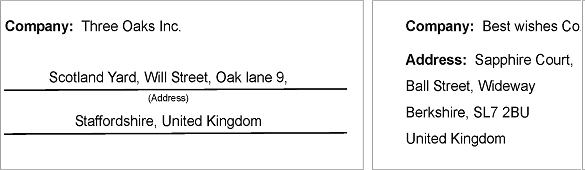
The address field in the following figures is a good example. Note the relative positions of the field names **Address:** and **(Address)** (which must be excluded from recognition) and the address itself (which should be recognized).
## How the Exclude function removes regions from a search area
The `Exclude` function excludes a region from the search area of an element. The region to exclude is specified when calling the function.
The excluded region can be any of the following:
* The region of a hypothesis (detected or not)
* A rectangle or an array of rectangles of the found elements
* A region built from the regions of objects that are part of a found hypothesis (see the `ExcludeSet` method)
 ## The Exclude.fsp sample project
The `Exclude.fsp` project (folder `%public%\ABBYY\FlexiCapture\12.0\Samples\FLS\Tips and Tricks\Exclude`) shows how the `Exclude` function works.
The project has four pages:
* **Page 1** – The address field spans several lines. The name **Address:** is in the first line, so the data field cannot be described as located to the right of or below the field name. However, the name still has to be excluded from recognition.
* **Page 2** – The address field has no name.
* **Pages 3 and 4** – The line **(Address)** lies within the data field. However, it has to be excluded from recognition.
On all the pages the address field is below the field with the company name.
## Create elements for the field names and the address field
First, create a **Static Text** element, name it **CompanyHeader**, and specify its value. This element is used to detect the name of the field.
Next, create a **Static Text** element and name it **AddressHeader**. This element is used to detect the name of the field. Specify the following static text values: **Address:|(Address)**, that is, list all the variants of this line that should be detected and then excluded from recognition in the address field.
Describe the search constraints for these lines in the **Relations** field and specify that these lines should be looked for below (**Below**) the **CompanyHeader** element.
The element for the name must be created before the element for the address field, because the `Exclude` function only allows referring to elements that are higher up in the FlexiLayout tree than the current element.
Launch the FlexiLayout matching procedure (**Match FlexiLayout**) to make sure that the name of the address is found on all the pages where it occurs.
Since the address field in this example has multiple lines, create a **Paragraph** element to search for it. Name it **Address** and, as in the previous example, specify that it should be looked for below (**Below**) the **CompanyHeader** element.
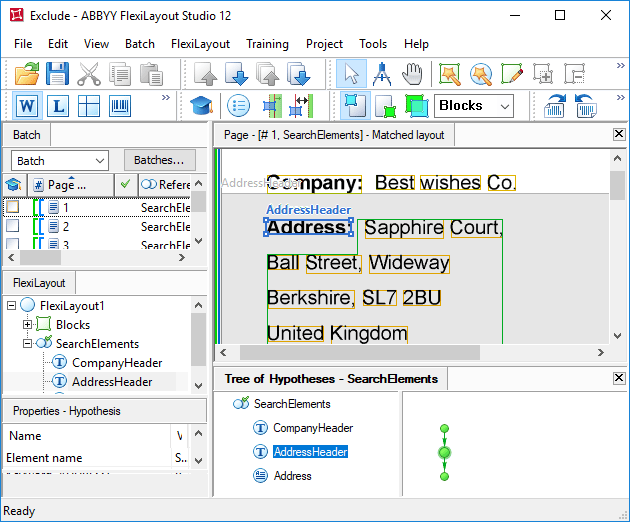
Once you have run the FlexiLayout matching procedure, you will see that on pages 1, 3, and 4 the line with the name has also been included in the address field.
## The Exclude.fsp sample project
The `Exclude.fsp` project (folder `%public%\ABBYY\FlexiCapture\12.0\Samples\FLS\Tips and Tricks\Exclude`) shows how the `Exclude` function works.
The project has four pages:
* **Page 1** – The address field spans several lines. The name **Address:** is in the first line, so the data field cannot be described as located to the right of or below the field name. However, the name still has to be excluded from recognition.
* **Page 2** – The address field has no name.
* **Pages 3 and 4** – The line **(Address)** lies within the data field. However, it has to be excluded from recognition.
On all the pages the address field is below the field with the company name.
## Create elements for the field names and the address field
First, create a **Static Text** element, name it **CompanyHeader**, and specify its value. This element is used to detect the name of the field.
Next, create a **Static Text** element and name it **AddressHeader**. This element is used to detect the name of the field. Specify the following static text values: **Address:|(Address)**, that is, list all the variants of this line that should be detected and then excluded from recognition in the address field.
Describe the search constraints for these lines in the **Relations** field and specify that these lines should be looked for below (**Below**) the **CompanyHeader** element.
The element for the name must be created before the element for the address field, because the `Exclude` function only allows referring to elements that are higher up in the FlexiLayout tree than the current element.
Launch the FlexiLayout matching procedure (**Match FlexiLayout**) to make sure that the name of the address is found on all the pages where it occurs.
Since the address field in this example has multiple lines, create a **Paragraph** element to search for it. Name it **Address** and, as in the previous example, specify that it should be looked for below (**Below**) the **CompanyHeader** element.
Once you have run the FlexiLayout matching procedure, you will see that on pages 1, 3, and 4 the line with the name has also been included in the address field.
 ## Exclude the field name from the Address search area
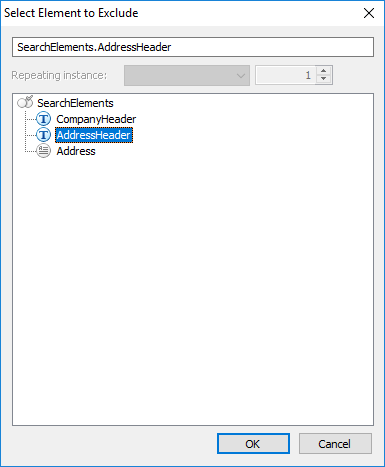
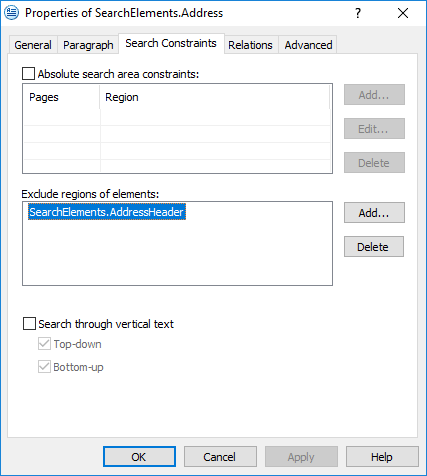
Now go back to the **Properties** dialog box of the **Address** element and click the **Search Constraints** tab. Click **Add...** next to the **Exclude regions of elements** section and choose the **AddressHeader** element from the list.
|
## Exclude the field name from the Address search area
Now go back to the **Properties** dialog box of the **Address** element and click the **Search Constraints** tab. Click **Add...** next to the **Exclude regions of elements** section and choose the **AddressHeader** element from the list.
|  |
|  |
| ---------------------------------------------------------------------------------------------------------------------------------------------------------------------------------------------------------------------------------------------------------------------------------------------------------------------------------------------------------------------------------------------------------------------------------------------------------------------------------------------------------------------------------------------------------------------------------------------------------------------------------------------------------------------------------------------------------------------------------------------------------------------------------------------------------------------------------------------------------------------------------------------------------------------------------------------------------------------------------------------------------------------------------------------------------------------------------------------------------------------------------------------------------------------------------------------------------------------------------------------------------------------------------------------------------------------------------------------------------------------------------------------------------------------------------------------------------------------------------------------------------------------------------------------------------------------------------------------------------------------------------------------------------------------------------------------------------- | ------------------------------------------------------------------------------------------------------------------------------------------------------------------------------------------------------------------------------------------------------------------------------------------------------------------------------------------------------------------------------------------------------------------------------------------------------------------------------------------------------------------ |
After saving the properties of the element, run the FlexiLayout matching procedure again. You will see that the region of the block which corresponds to the address field acquires a non-rectangular shape because the region of the name has been cut from it.
|
| ---------------------------------------------------------------------------------------------------------------------------------------------------------------------------------------------------------------------------------------------------------------------------------------------------------------------------------------------------------------------------------------------------------------------------------------------------------------------------------------------------------------------------------------------------------------------------------------------------------------------------------------------------------------------------------------------------------------------------------------------------------------------------------------------------------------------------------------------------------------------------------------------------------------------------------------------------------------------------------------------------------------------------------------------------------------------------------------------------------------------------------------------------------------------------------------------------------------------------------------------------------------------------------------------------------------------------------------------------------------------------------------------------------------------------------------------------------------------------------------------------------------------------------------------------------------------------------------------------------------------------------------------------------------------------------------------------------- | ------------------------------------------------------------------------------------------------------------------------------------------------------------------------------------------------------------------------------------------------------------------------------------------------------------------------------------------------------------------------------------------------------------------------------------------------------------------------------------------------------------------ |
After saving the properties of the element, run the FlexiLayout matching procedure again. You will see that the region of the block which corresponds to the address field acquires a non-rectangular shape because the region of the name has been cut from it.
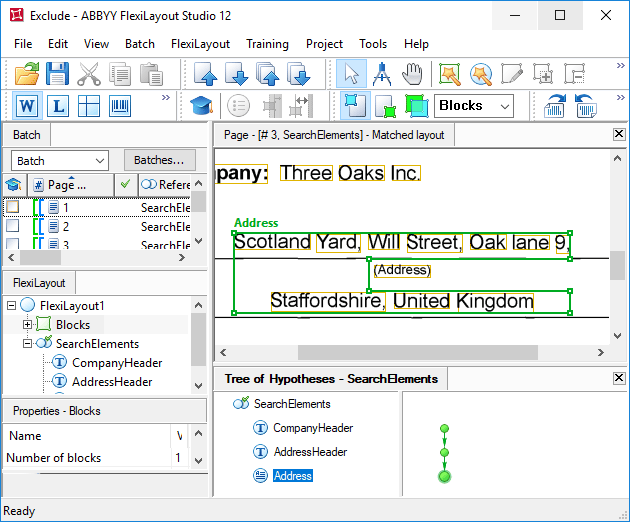 The **Exclude regions of elements** section allows you to exclude the region of a found hypothesis for another element from the search area of the current element. To exclude a more geometrically complex area, or to detect a region first and then exclude it from the recognition process, use the functions `Exclude`, `ExcludeRect`, and `ExcludeSet` in the **Advanced pre-search relations** field.
The region of a block by definition consists of rectangles placed one upon another, so any horizontal line can cross the region only once, that is, there can be no vertical "teeth" jutting out.
Therefore, if the line to be excluded and the required information are located on the same or roughly the same level, the name cannot be excluded at the stage of FlexiLayout creation. In that case, the name can be excluded after recognition in FlexiCapture by using the **Substitute from the list** rule.
The **Exclude regions of elements** section allows you to exclude the region of a found hypothesis for another element from the search area of the current element. To exclude a more geometrically complex area, or to detect a region first and then exclude it from the recognition process, use the functions `Exclude`, `ExcludeRect`, and `ExcludeSet` in the **Advanced pre-search relations** field.
The region of a block by definition consists of rectangles placed one upon another, so any horizontal line can cross the region only once, that is, there can be no vertical "teeth" jutting out.
Therefore, if the line to be excluded and the required information are located on the same or roughly the same level, the name cannot be excluded at the stage of FlexiLayout creation. In that case, the name can be excluded after recognition in FlexiCapture by using the **Substitute from the list** rule.