> ## Documentation Index
> Fetch the complete documentation index at: https://docs.abbyy.com/llms.txt
> Use this file to discover all available pages before exploring further.
# Restrict the search area with RestrictSearchArea
> Use RestrictSearchArea in FlexiLayout Studio to set a search area as a rectangle, rectangle array, or region and avoid duplicating element constraints.
The function `RestrictSearchArea` allows you to specify the search area as a rectangle, an array of rectangles, or a region.
## When to use RestrictSearchArea
On different pages of the document the sought field is often located differently relative to its name. For example, on some pages the field can be to the right of the name, on others it can be under the name. In such cases it is advisable to specify the search area as an array of rectangles.
For more information about using the `RestrictSearchArea` function in such cases, see [Search for elements with Nearest and FuzzyQuality](/flexi-capture/fls/tips-tricks/date9).
It may also be advisable to use the `RestrictSearchArea` function instead of duplicating search constraints that are identical for several elements.
Use this function to describe the search area of the date field or any other field when, for some reason (for example, low image quality or layout peculiarities), the use of an element of one type is not enough.
## The SearchOfDate.fsp project with duplicated constraints
The `RestrictSearchArea` function can also be used to search for a date field. As a rule, search for date fields using at least two types of elements: **Date** and **Character String**. However, if the image quality is very low, these two elements may not be enough. For more information on how to organize a search for date fields, see [Date search after high or low-quality recognition](/flexi-capture/fls/tips-tricks/date2).
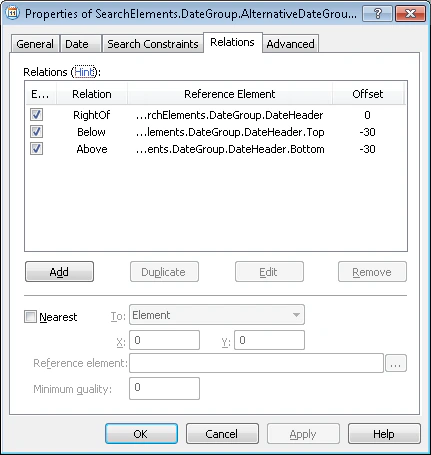
To see this function at work, run the sample project `SearchOfDate.fsp` (folder `%public%\ABBYY\FlexiCapture\12.0\Samples\FLS\Tips and Tricks\RestrictSearchArea`). This project is a copy of the project of the same name from the `Date\FCS` project folder. The search constraints for all the elements in it (**DateField**, **DateAsString**, and **DateAsObjectCollection**) were identical, as shown in the following figure.
 ## Replace duplicated constraints with RestrictSearchArea
In the current project, however, instead of duplicating the search constraints in the **Relations** tab for the **DateAsString** and **DateAsObjectCollection** elements, the `RestrictSearchArea` function is used, with the following code in the **Advanced pre-search relations** field on the **Advanced** tab:
```text theme={null}
if (DateField.IsNull == FALSE) then Dontfind();
else RestrictSearchArea (DateField.Rect);
```
This code means that searching for the date field as a string or as an object collection will be attempted only if FlexiLayout Studio fails to detect it by means of the **Date** element. Both elements will then be looked for in the same area where the **DateField** element was not detected.
This happens because the `DateField.Rect` method returns the rectangle enclosing the hypothesis of the **DateField** element. Since the hypothesis has not been found, the enclosing rectangle will coincide with the search area.
Therefore, the search area specified for the **DateAsString** and **DateAsObjectCollection** elements coincides with the rectangle enclosing the search area of the undetected **DateField** element.
## Replace duplicated constraints with RestrictSearchArea
In the current project, however, instead of duplicating the search constraints in the **Relations** tab for the **DateAsString** and **DateAsObjectCollection** elements, the `RestrictSearchArea` function is used, with the following code in the **Advanced pre-search relations** field on the **Advanced** tab:
```text theme={null}
if (DateField.IsNull == FALSE) then Dontfind();
else RestrictSearchArea (DateField.Rect);
```
This code means that searching for the date field as a string or as an object collection will be attempted only if FlexiLayout Studio fails to detect it by means of the **Date** element. Both elements will then be looked for in the same area where the **DateField** element was not detected.
This happens because the `DateField.Rect` method returns the rectangle enclosing the hypothesis of the **DateField** element. Since the hypothesis has not been found, the enclosing rectangle will coincide with the search area.
Therefore, the search area specified for the **DateAsString** and **DateAsObjectCollection** elements coincides with the rectangle enclosing the search area of the undetected **DateField** element.