> ## Documentation Index
> Fetch the complete documentation index at: https://docs.abbyy.com/llms.txt
> Use this file to discover all available pages before exploring further.
# Search for single-line fields of known or unknown format on documents of varying OCR quality
> Detect single-line fields like invoice numbers across varying OCR quality by combining Character String elements with regular expressions and alphabets.
To detect single-line fields, FlexiLayout Studio provides a special **Character String** element. If the field has a known format, you can describe it in the element properties on the **Character String** tab, in the **Regular expression** field.
However, using a regular expression requires printed documents and good image quality, because a regular expression does not permit any errors in the field. Otherwise, the element will not be detected.
Regular expressions also must not be used if the document is filled in by hand, even if its layout can be described. Nevertheless, such a field can be detected.
## The StructuredStrings.fsp sample project
The sample project `StructuredStrings.fsp` shows how to search for a single-line **Invoice number** field that has a similar format on all pages (folder `%public%\ABBYY\FlexiCapture\12.0\Samples\FLS\Tips and Tricks\Structured strings`).
The project has four pages:
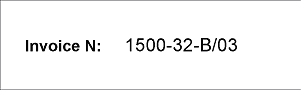
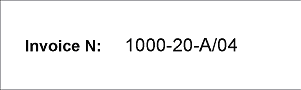
* **Pages 1 and 2** – The **Invoice number** field is printed at good quality.
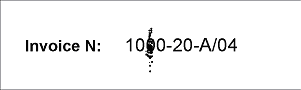
* **Page 3** – The **Invoice number** field is printed, but the image is noisy.
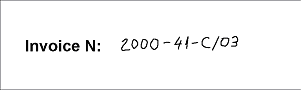
* **Page 4** – The image quality is good, but the **Invoice number** field is filled in by hand.
|  |
|  |
| ------------------------------------------------------------------------------------------------------------------------------------------------------------------------------------------------------------------------------------------------------------------------------------------------------------------------------------------------------------------------------- | ------------------------------------------------------------------------------------------------------------------------------------------------------------------------------------------------------------------------------------------------------------------------------------------------------------------------------------------------------------------------------ |
|
|
| ------------------------------------------------------------------------------------------------------------------------------------------------------------------------------------------------------------------------------------------------------------------------------------------------------------------------------------------------------------------------------- | ------------------------------------------------------------------------------------------------------------------------------------------------------------------------------------------------------------------------------------------------------------------------------------------------------------------------------------------------------------------------------ |
|  |
|  |
## Describe the invoice number with a regular expression
The search for the **Invoice number** field relies on the field name. First, you need an element that describes the search constraints of the field name. In the project, this is a **Static Text** element named **InvoiceNumberHeader** with the value `InvoiceN:`.
The **Invoice number** field is a single-line field. To detect it, the project uses a **Character String** element named **NumAsRegularExpression**. As the project pages show, the format of the **Invoice number** field can be described with the following regular expression:
```text theme={null}
NNNN"-"NN"-"[A-Z]"/"NN
```
or (which is the same)
```text theme={null}
[0-9]{4}"-"[0-9]{2}"-"[A-Z]"/" [0-9]{2}
```
It means that the number is a sequence: "four digits - two digits - one Latin capital letter/two digits".
As the project shows, after running the FlexiLayout matching procedure by selecting the **Match** command, null hypotheses were generated for the **NumAsRegularExpression** element on pages 3 and 4, that is, the element was not detected.
On page 3, the noise caused a mismatch between the field and the regular expression. If you open page 3 and click **L** (**Show Recognized Lines**) on the toolbar, the pre-recognition of the invoice number on the page looks like `10&0-20-A/04`.
On page 4, the invoice number is filled in by hand. The pre-recognition result (`Z.OOO-41-C/03`) does not match the described format either.
## Add a fallback Character String element with an alphabet
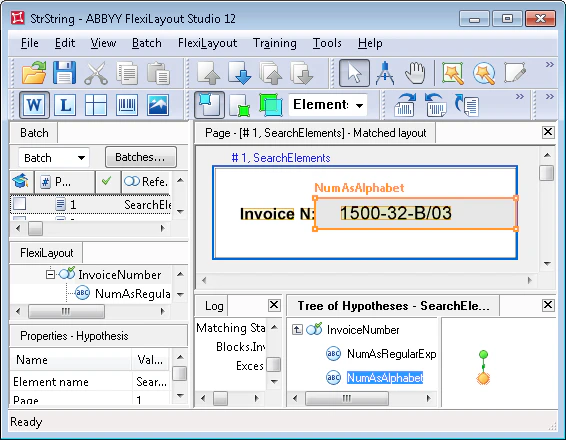
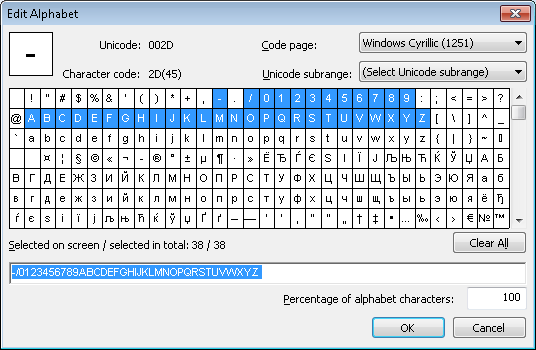
The recommended solution is as follows. Create one more **Character String** element and name it **NumAsAlphabet**. Specify for it the same search constraints as for the **NumAsRegularExpression** element. Then group the two elements into one **Group** element, **InvoiceNumber**.
However, describe the **NumAsAlphabet** element not as a regular expression but as a list of all valid characters.
|
## Describe the invoice number with a regular expression
The search for the **Invoice number** field relies on the field name. First, you need an element that describes the search constraints of the field name. In the project, this is a **Static Text** element named **InvoiceNumberHeader** with the value `InvoiceN:`.
The **Invoice number** field is a single-line field. To detect it, the project uses a **Character String** element named **NumAsRegularExpression**. As the project pages show, the format of the **Invoice number** field can be described with the following regular expression:
```text theme={null}
NNNN"-"NN"-"[A-Z]"/"NN
```
or (which is the same)
```text theme={null}
[0-9]{4}"-"[0-9]{2}"-"[A-Z]"/" [0-9]{2}
```
It means that the number is a sequence: "four digits - two digits - one Latin capital letter/two digits".
As the project shows, after running the FlexiLayout matching procedure by selecting the **Match** command, null hypotheses were generated for the **NumAsRegularExpression** element on pages 3 and 4, that is, the element was not detected.
On page 3, the noise caused a mismatch between the field and the regular expression. If you open page 3 and click **L** (**Show Recognized Lines**) on the toolbar, the pre-recognition of the invoice number on the page looks like `10&0-20-A/04`.
On page 4, the invoice number is filled in by hand. The pre-recognition result (`Z.OOO-41-C/03`) does not match the described format either.
## Add a fallback Character String element with an alphabet
The recommended solution is as follows. Create one more **Character String** element and name it **NumAsAlphabet**. Specify for it the same search constraints as for the **NumAsRegularExpression** element. Then group the two elements into one **Group** element, **InvoiceNumber**.
However, describe the **NumAsAlphabet** element not as a regular expression but as a list of all valid characters.
 The following code should be written in the **Advanced pre-search relations** field:
```text theme={null}
if (NumAsRegularExpression.IsNull == FALSE) then Dontfind();
```
This means that the search for a string of an unknown format, described by the **NumAsAlphabet** element, will be attempted only if FlexiLayout Studio fails to detect it by means of the **NumAsRegularExpression** element, which describes a string of fixed format.
When specifying search constraints for the **NumAsAlphabet** element, you can use drag-and-drop to copy the settings from the **Relations** section of the **NumAsRegularExpression** element into the same section of the current element. Alternatively, the following code can be written in the **Advanced pre-search relations** field:
```text theme={null}
if (NumAsRegularExpression.IsNull == FALSE) then Dontfind();
else RestrictSearchArea (NumAsRegularExpression.Rect);
```
This code means that a search for the **NumAsAlphabet** element will be attempted only if the structure of the invoice number does not match the specified format, that is, FlexiLayout Studio failed to detect the **NumAsRegularExpression** element. The **NumAsAlphabet** element will then be looked for in the same area where the **NumAsRegularExpression** element was not found.
Now run the FlexiLayout matching procedure again on all the pages. As the project shows, the **Invoice number** field is now successfully found on each of the pages.
The project tree contains a text block named **InvoiceNum**. The group `SearchElements.InvoiceNumber` is specified as its **Source element**. At this stage, the FlexiLayout for detecting **Invoice number** fields is complete.
If, for some reason, the method described earlier is not sufficient for detecting the data field (whether its format is known or unknown), one more element (of type **Object Collection**) can be created in the group. In this project, it is an **Object Collection** element named **NumAsObjectCollection**.
It is not actually needed given the good quality of the images in this project and is only shown as an example (the **Disable** command is specified for it).
An additional **Object Collection** element might be needed when it is difficult to predict pre-recognition results on different pages, but the search area can be accurately described, preventing unwanted information from getting into the hypotheses.
## Why the regular expression improves reliability
The following question may arise: why is a regular expression needed if the field can sometimes be detected without it? The answer is that the use of a regular expression makes the search more reliable.
If this element is found, then you can be sure that you have found the very line that you need. This information can then be safely used to detect further elements and their relations. When the search constraints are lax, you cannot be absolutely sure that you have found exactly what you need.
This may happen if the image is very noisy. In such cases, using a **Character String** element with a specified alphabet can lead to an excessive percentage of errors (the **Percentage of non-alphabet characters** parameter).
As a result, the element will either not be detected at all or be detected only partially. The following figure shows an example of such a situation.
The following code should be written in the **Advanced pre-search relations** field:
```text theme={null}
if (NumAsRegularExpression.IsNull == FALSE) then Dontfind();
```
This means that the search for a string of an unknown format, described by the **NumAsAlphabet** element, will be attempted only if FlexiLayout Studio fails to detect it by means of the **NumAsRegularExpression** element, which describes a string of fixed format.
When specifying search constraints for the **NumAsAlphabet** element, you can use drag-and-drop to copy the settings from the **Relations** section of the **NumAsRegularExpression** element into the same section of the current element. Alternatively, the following code can be written in the **Advanced pre-search relations** field:
```text theme={null}
if (NumAsRegularExpression.IsNull == FALSE) then Dontfind();
else RestrictSearchArea (NumAsRegularExpression.Rect);
```
This code means that a search for the **NumAsAlphabet** element will be attempted only if the structure of the invoice number does not match the specified format, that is, FlexiLayout Studio failed to detect the **NumAsRegularExpression** element. The **NumAsAlphabet** element will then be looked for in the same area where the **NumAsRegularExpression** element was not found.
Now run the FlexiLayout matching procedure again on all the pages. As the project shows, the **Invoice number** field is now successfully found on each of the pages.
The project tree contains a text block named **InvoiceNum**. The group `SearchElements.InvoiceNumber` is specified as its **Source element**. At this stage, the FlexiLayout for detecting **Invoice number** fields is complete.
If, for some reason, the method described earlier is not sufficient for detecting the data field (whether its format is known or unknown), one more element (of type **Object Collection**) can be created in the group. In this project, it is an **Object Collection** element named **NumAsObjectCollection**.
It is not actually needed given the good quality of the images in this project and is only shown as an example (the **Disable** command is specified for it).
An additional **Object Collection** element might be needed when it is difficult to predict pre-recognition results on different pages, but the search area can be accurately described, preventing unwanted information from getting into the hypotheses.
## Why the regular expression improves reliability
The following question may arise: why is a regular expression needed if the field can sometimes be detected without it? The answer is that the use of a regular expression makes the search more reliable.
If this element is found, then you can be sure that you have found the very line that you need. This information can then be safely used to detect further elements and their relations. When the search constraints are lax, you cannot be absolutely sure that you have found exactly what you need.
This may happen if the image is very noisy. In such cases, using a **Character String** element with a specified alphabet can lead to an excessive percentage of errors (the **Percentage of non-alphabet characters** parameter).
As a result, the element will either not be detected at all or be detected only partially. The following figure shows an example of such a situation.