> ## Documentation Index
> Fetch the complete documentation index at: https://docs.abbyy.com/llms.txt
> Use this file to discover all available pages before exploring further.
# Sample 1. Step 11: Describing the YOUR PLANET NAME field with a PlanetNameHeader element
> Build the PlanetNameHeader Static Text element in Sample 1, searching for YOURPLANETNAME without spaces and allowing a 20 percent error rate.
Even though the **YOUR PLANET NAME** field is preceded by the **NAME** field, the FlexiLayout must search for the **YOUR PLANET NAME** field first. This excludes the ambiguity that can arise if the FlexiLayout looks for the **NAME** field first. Because the word NAME appears in both field names, the program formulates several hypotheses if you instruct it to look only for the word NAME without additional constraints. To avoid this ambiguity, the program must look for the **YOUR PLANET NAME** field first and only then for the **NAME** field. In [Step 15](/flexi-capture/fls/tutorial/step15), you impose additional constraints on the **NAME** field.
## Create the PlanetNameHeader element
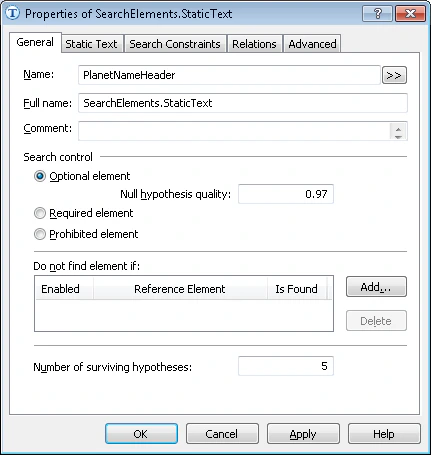
Create an element of type [Static Text](/flexi-capture/fls/template/static-text) and name it **PlanetNameHeader**.
Do not select **Required element**, which is not selected by default. Unlike the document heading, which is used as a document identifier and for this reason was specified as a required element, all the other elements are optional. This allows the program to formulate [null hypotheses](/flexi-capture/fls/hypotheses/hyp-general) even for elements for which it fails to find the corresponding objects on the images.
 Click the **Static Text** tab.
In the **Search text** field, type the text to search for. Because the field name appears on a single line in all the test images, you can type it without spaces: **YOURPLANETNAME**.
Set **Max error percentage** to **20**, because the field name has more than one word and is fairly long.
## Match the FlexiLayout against the test images
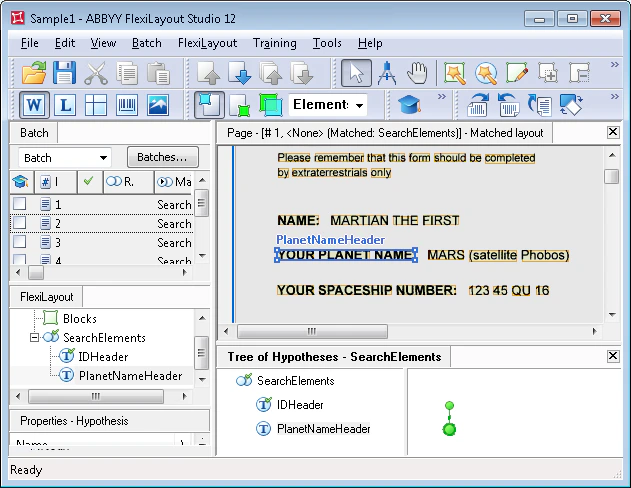
Try matching the FlexiLayout with the test images and make sure that the program successfully finds the **YOUR PLANET NAME** field on all the images.
Click the **Static Text** tab.
In the **Search text** field, type the text to search for. Because the field name appears on a single line in all the test images, you can type it without spaces: **YOURPLANETNAME**.
Set **Max error percentage** to **20**, because the field name has more than one word and is fairly long.
## Match the FlexiLayout against the test images
Try matching the FlexiLayout with the test images and make sure that the program successfully finds the **YOUR PLANET NAME** field on all the images.