> ## Documentation Index
> Fetch the complete documentation index at: https://docs.abbyy.com/llms.txt
> Use this file to discover all available pages before exploring further.
# Sample 1. Step 13: Testing the YOUR PLANET NAME field
> Verify the PlanetName element in Sample 1 by matching the FlexiLayout against each batch image and checking the YOUR PLANET NAME field is found.
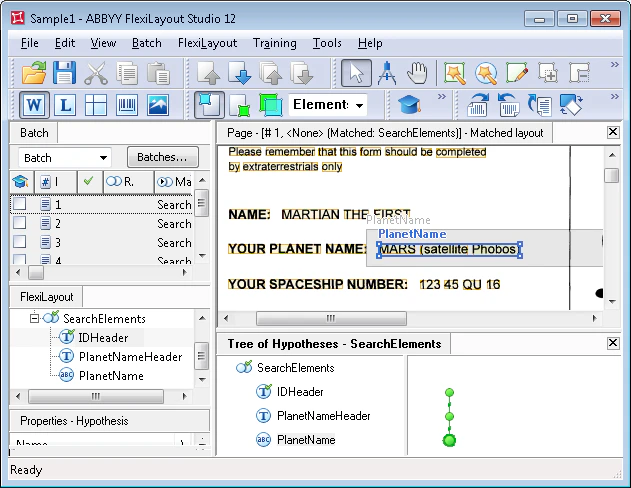
To check that the program can correctly find the field described by the **PlanetName** element, activate the **Batch** tab in the FlexiLayout Studio main window and try matching the FlexiLayout with each image in the batch:
1. Open an image.
2. Select the **Match** command in the **FlexiLayout** menu or on the shortcut menu of each image.
To perform a fast check, select all the required images in the batch, and then select the **Match** command on the shortcut menu of the batch. You can view the results in the **Image** window in [Matched Layout](/flexi-capture/fls/settings/etalon) mode. To perform a more thorough check, which takes more time but lets you view the formulated hypotheses, select the **Match** command for each open image separately.
Once you have matched the FlexiLayout with the images, you can see that the YOUR PLANET NAME field corresponding to the **PlanetName** element has been found successfully on all the images.