> ## Documentation Index
> Fetch the complete documentation index at: https://docs.abbyy.com/llms.txt
> Use this file to discover all available pages before exploring further.
# Sample 1. Step 22: Opening the FlexiLayout in ABBYY FlexiCapture
> Load the exported AFL FlexiLayout into an ABBYY FlexiCapture Document Definition and let the editor create the matching blocks automatically.
The FlexiLayout saved in \*.afl format can be opened in ABBYY FlexiCapture:
1. Launch ABBYY FlexiCapture.
2. Create a new project or open an existing project.
3. Create a new Document Definition or open an existing Document Definition in the Document Definition Editor.
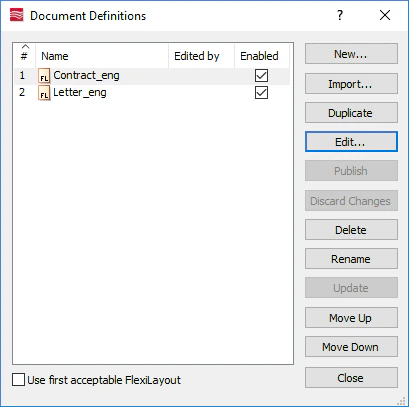
To open an existing Document Definition, go to **Project → Document Definitions...**, select the required Document Definition from the list of available Document Definitions and click **Edit...**
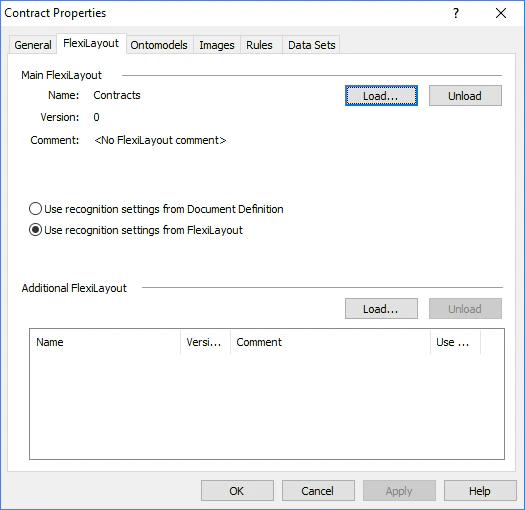
 1. In the Document Definition Editor, open the **Section Properties** dialog box (**View → Properties...**).
2. Click the **FlexiLayout** tab.
3. Click the **Load...** button.
1. In the Document Definition Editor, open the **Section Properties** dialog box (**View → Properties...**).
2. Click the **FlexiLayout** tab.
3. Click the **Load...** button.
 1. In the **Open** dialog box, select the required \*.afl file.
The required Document Definition blocks will be created automatically based on the FlexiLayout. To view the blocks, select the Match Section command in the Tools menu.
1. In the **Open** dialog box, select the required \*.afl file.
The required Document Definition blocks will be created automatically based on the FlexiLayout. To view the blocks, select the Match Section command in the Tools menu.