> ## Documentation Index
> Fetch the complete documentation index at: https://docs.abbyy.com/llms.txt
> Use this file to discover all available pages before exploring further.
# Sample 1. Step 3: Setting the FlexiLayout properties
> Rename the FlexiLayout and set its properties in Sample 1: pre-recognition language, text type, Fast mode, and the minimum and maximum page counts.
By default, the program names the new FlexiLayout **FlexiLayout1** (see the **FlexiLayout** tab in the **FlexiLayout Properties** dialog box).
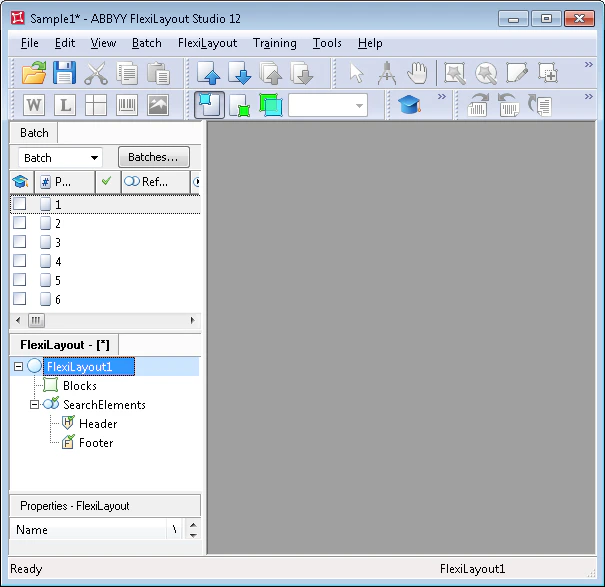 For convenience, rename the FlexiLayout and give it a meaningful name. The name you give your FlexiLayout also appears in ABBYY FlexiCapture after you create a FlexiCapture FlexiLayout based on it.
To set the FlexiLayout properties (which also include the name of the FlexiLayout):
Double-click the name of the FlexiLayout (that is, **FlexiLayout1**), or right-click the FlexiLayout and select **Properties...** on the shortcut menu.
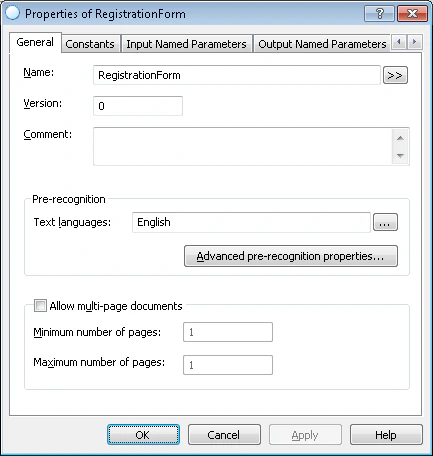
In the **Name** field, type a new name for the FlexiLayout, such as **RegistrationForm**.
* From the **Text languages** list, select **English** as the pre-recognition language (the documents contain text in English).
* Select **Typographic** in the **Text type** group (the default setting), assuming that neither a dot-matrix printer nor a typewriter was used to fill in the document.
* In the **Mode** group, select **Fast** or **Normal** pre-recognition mode, depending on the quality of the images to be processed. Because the sample images are good quality, contain no noise, and have almost no small print, select **Fast** mode. This speeds up pre-recognition, both when creating the FlexiLayout in FlexiLayout Studio and when processing it in FlexiCapture.
**Multi-page parameters** — the document contains one page, so specify **1** for both **Minimum number of pages** and **Maximum number of pages**.
For convenience, rename the FlexiLayout and give it a meaningful name. The name you give your FlexiLayout also appears in ABBYY FlexiCapture after you create a FlexiCapture FlexiLayout based on it.
To set the FlexiLayout properties (which also include the name of the FlexiLayout):
Double-click the name of the FlexiLayout (that is, **FlexiLayout1**), or right-click the FlexiLayout and select **Properties...** on the shortcut menu.
In the **Name** field, type a new name for the FlexiLayout, such as **RegistrationForm**.
* From the **Text languages** list, select **English** as the pre-recognition language (the documents contain text in English).
* Select **Typographic** in the **Text type** group (the default setting), assuming that neither a dot-matrix printer nor a typewriter was used to fill in the document.
* In the **Mode** group, select **Fast** or **Normal** pre-recognition mode, depending on the quality of the images to be processed. Because the sample images are good quality, contain no noise, and have almost no small print, select **Fast** mode. This speeds up pre-recognition, both when creating the FlexiLayout in FlexiLayout Studio and when processing it in FlexiCapture.
**Multi-page parameters** — the document contains one page, so specify **1** for both **Minimum number of pages** and **Maximum number of pages**.
 There is no need to specify the beginning and end of documents, so you can delete the predefined **Header** and **Footer** elements from the list of elements of your FlexiLayout.
You can add **Header** and **Footer** elements to a FlexiLayout to help the program detect the beginning and end of documents. If the program cannot find both the **Header** and **Footer** elements when matching the FlexiLayout, it uses the maximum number of pages specified in the FlexiLayout for document separation. For the document in this example, the maximum number of pages is set to 1.
There is no need to specify the beginning and end of documents, so you can delete the predefined **Header** and **Footer** elements from the list of elements of your FlexiLayout.
You can add **Header** and **Footer** elements to a FlexiLayout to help the program detect the beginning and end of documents. If the program cannot find both the **Header** and **Footer** elements when matching the FlexiLayout, it uses the maximum number of pages specified in the FlexiLayout for document separation. For the document in this example, the maximum number of pages is set to 1.