> ## Documentation Index
> Fetch the complete documentation index at: https://docs.abbyy.com/llms.txt
> Use this file to discover all available pages before exploring further.
# Sample 1. Step 4: Pre-recognition
> Run pre-recognition on the batch images in FlexiLayout Studio Sample 1 to find objects that can serve as signposts when searching for field blocks.
Before you start creating document elements, you need to know which objects on the document can be used as "signposts" when looking for fields ([blocks](/flexi-capture/fls/template/blocks)). These are usually pictures and/or text fragments that are consistently detected during [pre-recognition.](/flexi-capture/fls/batch/prerecognition)
To start pre-recognition:
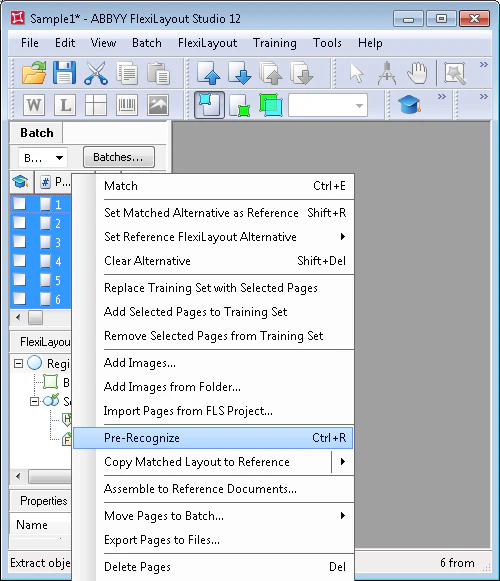
1. Select all the images in the batch.
2. Select the Pre-Recognize command in the **Batch** menu or in the shortcut menu of each image.
 If you change images in the batch or add new images, restart the pre-recognition procedure. If an image has not been pre-recognized, it will be pre-recognized when it is matched against the FlexiLayout.