> ## Documentation Index
> Fetch the complete documentation index at: https://docs.abbyy.com/llms.txt
> Use this file to discover all available pages before exploring further.
# Sample 1. Step 5: Viewing images and pre-recognition results
> View images and pre-recognition results in Sample 1 using the Show Image Objects command or the Extracted Objects toolbar in FlexiLayout Studio.
To open the first page in the batch, double-click the corresponding line in the **Batch** window.
The image will be displayed in the **Image** window in [Matched Layout](/flexi-capture/fls/settings/etalon) mode.
By default, the pre-recognition results are not displayed on the image.
To view the pre-recognition results:
* Select the **Show Image Objects** command in the Image window and then select the type of [image object](/flexi-capture/fls/batch/prerecognition) you want to see.
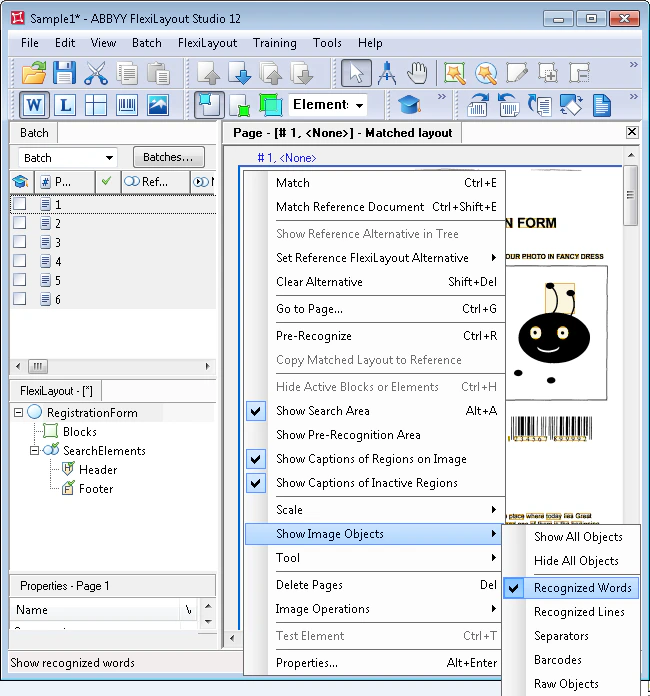 *or*
* Click the corresponding icon on the [Extracted Objects](/flexi-capture/fls/interface/toolbars#extractedobjects) toolbar.
You can also view all the objects by selecting the Show All Objects command.
*or*
* Click the corresponding icon on the [Extracted Objects](/flexi-capture/fls/interface/toolbars#extractedobjects) toolbar.
You can also view all the objects by selecting the Show All Objects command.