> ## Documentation Index
> Fetch the complete documentation index at: https://docs.abbyy.com/llms.txt
> Use this file to discover all available pages before exploring further.
# Sample 1. Step 7: Creating a form identifier
> Identify documents in Sample 1 by adding a required Static Text element, IDHeader, that finds the HALLOWEEN REGISTRATION FORM document heading.
When processing semi-structured documents in ABBYY FlexiCapture, you will typically want to exclude documents that do not belong to the current type. One way to identify a document is to mark at least one element as [required](/flexi-capture/fls/glossary/glossary-main-body#r). A required element must be consistently detected on all the documents of a given type (otherwise, the program will not be able to match the document and its FlexiLayout).
In this particular case, the document heading (HALLOWEEN REGISTRATION FORM) will make a good identifier element, since it contains distinct text that can be easily read by the OCR engine.
You can specify an identifier element or set of elements in a predefined compound Header element (not described in this tutorial).
The document heading will be used solely to identify the document as belonging to the given type. In the FlexiLayout, specify the document heading as an element of type [Static Text](/flexi-capture/fls/template/static-text).
To create an ID element:
1. Click the FlexiLayout tab in the program main window.
2. Select **SearchElements** in the FlexiLayout tree.
3. Select the **Static Text** command in **FlexiLayout → Add element** or in the shortcut menu of the element (**New → Static Text**).
4. In the Name field, type a name for the element, for example, **IDHeader**.
5. Select **Required element** on the General tab to make the document heading a required element.
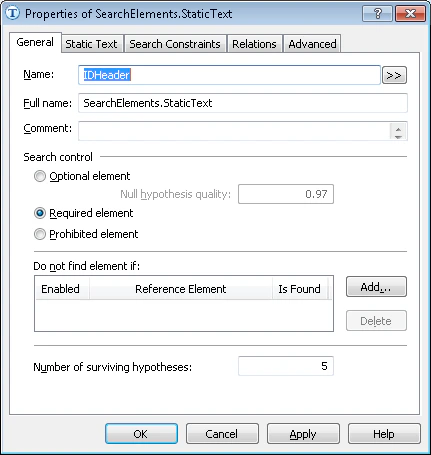 1. Click the Static Text tab.
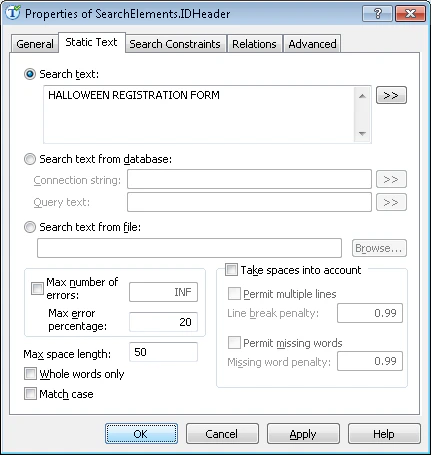 1. In the Search text field, type the text to find: HALLOWEEN REGISTRATION FORM.\
Judging by the first image in the batch, you can assume that the document heading is written in one line. Therefore, you can type the heading without spaces to speed up the search for single-line static text.
2. Set the maximum number of errors that may occur in the found text (either in percentage points or as a number). In this particular case, set the Max error percentage to 20, which allows 5 errors for the 25 characters of the document heading.
The optimal percentage of allowed errors can only be found by trial and error.
1. In the Search text field, type the text to find: HALLOWEEN REGISTRATION FORM.\
Judging by the first image in the batch, you can assume that the document heading is written in one line. Therefore, you can type the heading without spaces to speed up the search for single-line static text.
2. Set the maximum number of errors that may occur in the found text (either in percentage points or as a number). In this particular case, set the Max error percentage to 20, which allows 5 errors for the 25 characters of the document heading.
The optimal percentage of allowed errors can only be found by trial and error.