> ## Documentation Index
> Fetch the complete documentation index at: https://docs.abbyy.com/llms.txt
> Use this file to discover all available pages before exploring further.
# Sample 1. Step 9: Adjusting the properties of the identifier element
> Adjust the IDHeader identifier in Sample 1 so multi-line headings match: keep spaces, permit multiple lines, and set the line break penalty to 1.
For the identifier element to be detected consistently on all the documents, adjust its properties:
1. Open the element's Properties dialog box.
2. Click the Static Text tab.
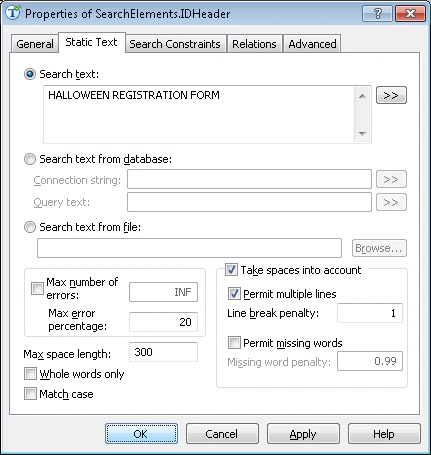 1. In the Search text field, type the text to find, preserving the spaces: HALLOWEEN REGISTRATION FORM. This means that the program will look for a phrase that may span more than one line.
2. Select Take spaces into account and Permit multiple lines to specify that the search phrase may be written on more than one line.
3. Set the Line break penalty to 1. This will preserve the quality of the hypothesis when the phrase wraps to the next line. If you set a smaller value, the hypothesis will be penalized.
Now if you try matching the FlexiLayout and the images, the program will detect the identifier element on all the test images.
1. In the Search text field, type the text to find, preserving the spaces: HALLOWEEN REGISTRATION FORM. This means that the program will look for a phrase that may span more than one line.
2. Select Take spaces into account and Permit multiple lines to specify that the search phrase may be written on more than one line.
3. Set the Line break penalty to 1. This will preserve the quality of the hypothesis when the phrase wraps to the next line. If you set a smaller value, the hypothesis will be penalized.
Now if you try matching the FlexiLayout and the images, the program will detect the identifier element on all the test images.