> ## Documentation Index
> Fetch the complete documentation index at: https://docs.abbyy.com/llms.txt
> Use this file to discover all available pages before exploring further.
# Sample 2. Step 11: Creating a RecipeNumber element
> Describe the RecipeNumber Character String element: define its alphabet, character count range, and Relations that anchor it to the Recipe field name.
Assume that the Recipe # field always contains only one line. Since, unlike the field name, the data in this field are not fixed, you must describe it as an element of type [Character String](/flexi-capture/fls/template/character-chain).
To create the RecipeNumber element:
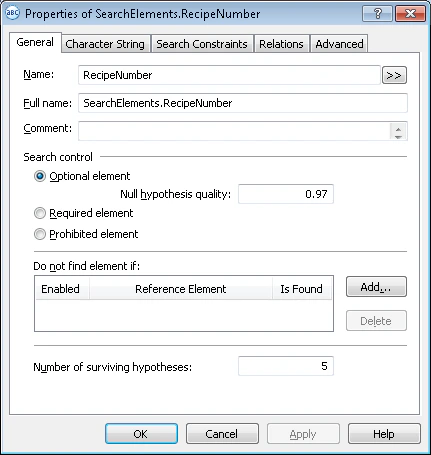
1. Create an element of type Character String and name it **RecipeNumber**.
 2. Click the Character String tab.
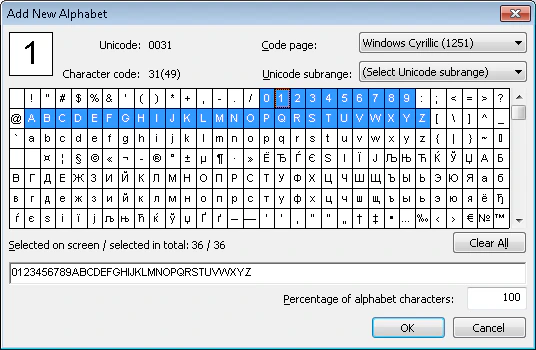
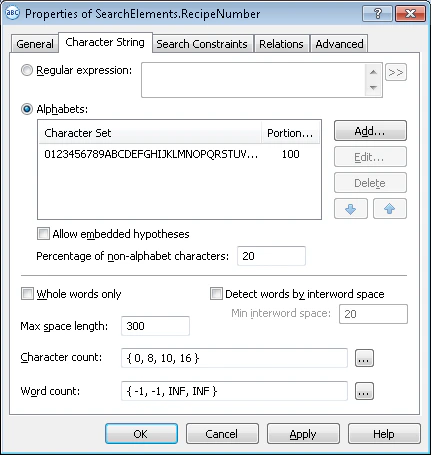 3. Set the alphabet, that is, all the characters that may be encountered in the recipe numbers. Judging by the test images, the alphabet includes digits and capital letters of the English alphabet. The order of letters and digits is not known beforehand. To set the alphabet, click the Add... button and select the required characters in the **Add New Alphabet** dialog box.
The selected characters will be displayed in the Character Set column (Character String tab, Alphabets field).
4. Set the Percentage of alphabet characters to 1. This means that the program will take into account only the characters of this alphabet when looking for the **RecipeNumber** element.
3. Set the alphabet, that is, all the characters that may be encountered in the recipe numbers. Judging by the test images, the alphabet includes digits and capital letters of the English alphabet. The order of letters and digits is not known beforehand. To set the alphabet, click the Add... button and select the required characters in the **Add New Alphabet** dialog box.
The selected characters will be displayed in the Character Set column (Character String tab, Alphabets field).
4. Set the Percentage of alphabet characters to 1. This means that the program will take into account only the characters of this alphabet when looking for the **RecipeNumber** element.
 You can specify several alphabets for one element. In this case, set the Percentage of alphabet characters for each alphabet used in the element.
5. Clear the Allow embedded hypotheses box. This will allow the program to formulate hypotheses which have the maximum length and meet all the search criteria. Otherwise the program may formulate several embedded hypotheses, each consisting of portions of one of the selected alphabets (taking into account the allowed percentage of non-alphabet characters).
6. Set the Percentage of non-alphabet characters to 20%.
This value can only be selected by trial and error and can be changed when adjusting the FlexiLayout.
7. In the Character count field, specify this fuzzy range: `{ 0, 8, 10, 16 }`. This is an estimate of the length of the character string. Assume that the number is always 8 digits long. To be on the safe side, tell the program that the number may have from 8 to 10 digits. Any hypotheses outside this range will be penalized.
This value can only be selected by trial and error and can be changed when adjusting the FlexiLayout.
8. Click the Relations tab.
You can specify several alphabets for one element. In this case, set the Percentage of alphabet characters for each alphabet used in the element.
5. Clear the Allow embedded hypotheses box. This will allow the program to formulate hypotheses which have the maximum length and meet all the search criteria. Otherwise the program may formulate several embedded hypotheses, each consisting of portions of one of the selected alphabets (taking into account the allowed percentage of non-alphabet characters).
6. Set the Percentage of non-alphabet characters to 20%.
This value can only be selected by trial and error and can be changed when adjusting the FlexiLayout.
7. In the Character count field, specify this fuzzy range: `{ 0, 8, 10, 16 }`. This is an estimate of the length of the character string. Assume that the number is always 8 digits long. To be on the safe side, tell the program that the number may have from 8 to 10 digits. Any hypotheses outside this range will be penalized.
This value can only be selected by trial and error and can be changed when adjusting the FlexiLayout.
8. Click the Relations tab.
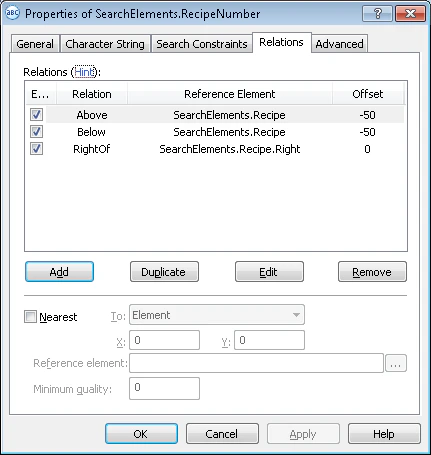 9. Use the Recipe element as the reference element for the RecipeNumber element. The number of the recipe will always be located to the right of the field name and will be located on the same level as the name. Therefore, you must specify the location of the element relative to the name and to the name’s top and bottom boundaries.
Otherwise, the program will formulate a valid hypothesis for any text fragment that consists of characters of the set alphabet, even if it is located higher or lower than the field name.
To sum up: The program must look for the recipe number described by the **RecipeNumber** element to the right of the field name described by the **Recipe** element and located on the same level as the Recipe heading.
10. Specify that the RecipeNumber element is located to the right of the right boundary of the Recipe element.\
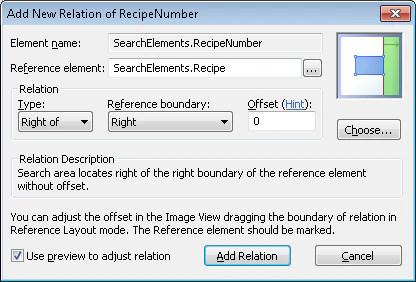
For this, click the Add button and in the dialog box that opens select **Recipe** in the Reference element field. From the Type drop-down list, select Right of. In the Reference boundary drop-down list, select **Right**, and leave the value of the Offset field unchanged (the default value is 0). Click the Add Relation button.
9. Use the Recipe element as the reference element for the RecipeNumber element. The number of the recipe will always be located to the right of the field name and will be located on the same level as the name. Therefore, you must specify the location of the element relative to the name and to the name’s top and bottom boundaries.
Otherwise, the program will formulate a valid hypothesis for any text fragment that consists of characters of the set alphabet, even if it is located higher or lower than the field name.
To sum up: The program must look for the recipe number described by the **RecipeNumber** element to the right of the field name described by the **Recipe** element and located on the same level as the Recipe heading.
10. Specify that the RecipeNumber element is located to the right of the right boundary of the Recipe element.\
For this, click the Add button and in the dialog box that opens select **Recipe** in the Reference element field. From the Type drop-down list, select Right of. In the Reference boundary drop-down list, select **Right**, and leave the value of the Offset field unchanged (the default value is 0). Click the Add Relation button.
 11. Specify that the **RecipeNumber** element is located not lower than the **Recipe** element.\
For this, click the Add button and in the dialog box that opens select **Recipe** in the Reference element field. In the Type drop-down list, select Above and set Offset to -50 (this value can only be selected by trial and error).
This will give the program some leeway when detecting the position of the element relative to the top boundary of the field name. Negative Offset values allow you to specify that the bottom element boundary is located below the bottom boundary of the name. Click the Add Relation button.
12. Specify that the **RecipeNumber** element is located not higher than the **Recipe** element.\
For this, click the Add button and in the dialog box that opens select **Recipe** in the Reference element field. In the Type drop-down list, select Below and set Offset to -50 (this value can only be selected by trial and error).
This will give the program some leeway when detecting the position of the element relative to the top boundary of the field name. Negative Offset values allow you to specify that the top element boundary is located above the top boundary of the name. Click the Add Relation button.
If you select **\** in the Reference boundary field, positive Offset values allow you to specify only the following locations: to the right of the right-hand boundary of the element, to the left of the left-hand boundary of the element, higher than the top boundary of the element, or lower than the bottom boundary of the element.
If you select Top and Bottom in the Reference boundary field, positive Offset values will limit the search zone by the top and bottom boundaries of the element and exclude hypotheses which go beyond the left and right boundaries of the name of the field.
Try matching the FlexiLayout with the test images and make sure that the program successfully finds the field containing the number of the recipe on all the images.
11. Specify that the **RecipeNumber** element is located not lower than the **Recipe** element.\
For this, click the Add button and in the dialog box that opens select **Recipe** in the Reference element field. In the Type drop-down list, select Above and set Offset to -50 (this value can only be selected by trial and error).
This will give the program some leeway when detecting the position of the element relative to the top boundary of the field name. Negative Offset values allow you to specify that the bottom element boundary is located below the bottom boundary of the name. Click the Add Relation button.
12. Specify that the **RecipeNumber** element is located not higher than the **Recipe** element.\
For this, click the Add button and in the dialog box that opens select **Recipe** in the Reference element field. In the Type drop-down list, select Below and set Offset to -50 (this value can only be selected by trial and error).
This will give the program some leeway when detecting the position of the element relative to the top boundary of the field name. Negative Offset values allow you to specify that the top element boundary is located above the top boundary of the name. Click the Add Relation button.
If you select **\** in the Reference boundary field, positive Offset values allow you to specify only the following locations: to the right of the right-hand boundary of the element, to the left of the left-hand boundary of the element, higher than the top boundary of the element, or lower than the bottom boundary of the element.
If you select Top and Bottom in the Reference boundary field, positive Offset values will limit the search zone by the top and bottom boundaries of the element and exclude hypotheses which go beyond the left and right boundaries of the name of the field.
Try matching the FlexiLayout with the test images and make sure that the program successfully finds the field containing the number of the recipe on all the images.