> ## Documentation Index
> Fetch the complete documentation index at: https://docs.abbyy.com/llms.txt
> Use this file to discover all available pages before exploring further.
# Sample 2. Step 18: Creating a CookingTime block
> Define the CookingTime block with a FlexiLayout language expression that merges the element rectangles and inflates the result by 3 mm for leeway.
To create the CookingTime block:
1. Activate the **FlexiLayout** window in the program main window.
2. Select the **Blocks** object in the FlexiLayout tree.
3. Select **Add Block →** Text in the **FlexiLayout** menu or **Add Block →** Text in the shortcut menu.
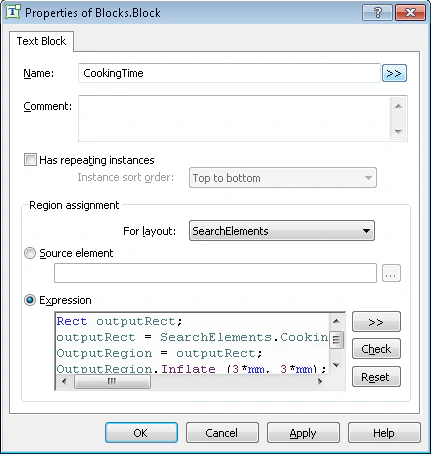
4. In the Properties dialog box, type a name for the block in the Name field, for example, **CookingTime**.
5. To describe the location of the block, select Expression.
6. Describe the block as a rectangle created by merging the rectangles around the [CookingTimeHeader and CookingTime](/flexi-capture/fls/template/blocks-region) elements. To give the program some leeway, enlarge the height and width of the resulting rectangle by 3mm.\
In the FlexiLayout language this must be written as follows:\
`Rect outputRect;`\
`outputRect = SearchElements.Cooking.CookingTime.Rect Or SearchElements.Cooking.CookingTimeHeader.Rect;`\
`OutputRegion = outputRect;`\
`OutputRegion.Inflate (3*mm, 3*mm);`