> ## Documentation Index
> Fetch the complete documentation index at: https://docs.abbyy.com/llms.txt
> Use this file to discover all available pages before exploring further.
# Sample 2. Step 19: Creating an InvertedHeader element
> Step 19 of FlexiLayout Studio Sample 2: create an InvertedHeader Object Collection element to detect inverted text - light text on a dark background.
The name Cooking is inverted text (that is, light text against a dark background).
To create the InvertedHeader element:
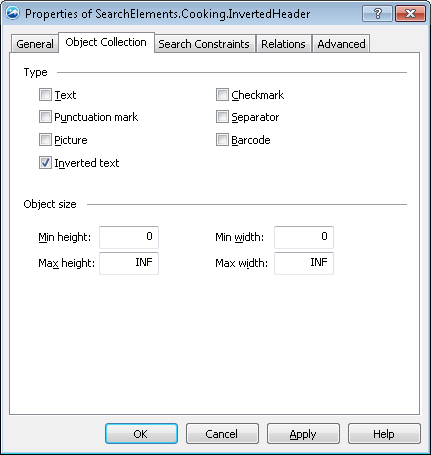
1. Create an element of type [Object Collection](/flexi-capture/fls/template/object-collection) and name it **InvertedHeader**.
2. Click the Object Collection tab.
3. Select the Inverted text option in the **Type** group.
 Try matching the FlexiLayout with the test images and make sure that the program successfully finds the inverted text on all the images.