> ## Documentation Index
> Fetch the complete documentation index at: https://docs.abbyy.com/llms.txt
> Use this file to discover all available pages before exploring further.
# Sample 2. Step 3: Setting the FlexiLayout properties
> Set FlexiLayout properties in ABBYY FlexiLayout Studio for the recipe sample: rename the layout, pick pre-recognition language, text type, and page count.
## Set the FlexiLayout properties
By default, the program names the new FlexiLayout **FlexiLayout1** (see the **FlexiLayout** tab in the **FlexiLayout Properties** dialog box). For convenience, rename the FlexiLayout and give it a meaningful name. The FlexiLayout properties include the name of the FlexiLayout.
Double-click the name of the **FlexiLayout** (that is, **FlexiLayout1**), or right-click the **FlexiLayout** and select **Properties...** on the shortcut menu.
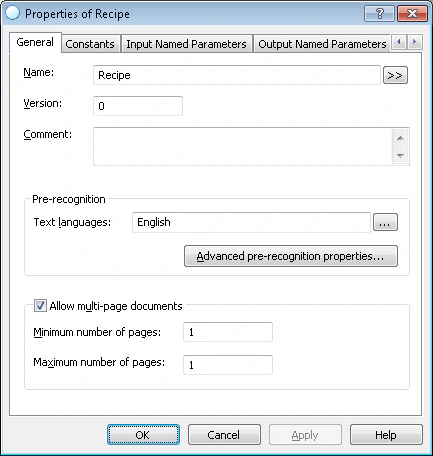
In the **Name** field, type a new name for the FlexiLayout, for example, **Recipe**.
* From the **Text languages** list, select **English** as the pre-recognition language. The documents contain text in English.
* Select **Typographic** in the **Text type** group. This is the default setting.
* Select the **Fast** pre-recognition mode.
The document consists of one page. Set **Minimum number of pages** and **Maximum number of pages** to 1.
The following shows the configured properties for the **Recipe** FlexiLayout.
 For more information about selecting the right parameters, see [Sample 1. Step 3: Setting the FlexiLayout properties](/flexi-capture/fls/tutorial/step3).
## Remove the Header and Footer elements
For one-page documents, you do not need predefined compound **Header** and **Footer** elements to indicate the beginning and end of documents. You can remove them from the list of FlexiLayout elements.
You can add **Header** and **Footer** elements to your FlexiLayout to indicate the beginning and end of documents. If neither the **Header** nor the **Footer** element is found when matching the FlexiLayout, the program uses the maximum number of pages specified in the FlexiLayout as the number of pages in the document. For this document, the maximum number of pages is set to 1.
For more information about selecting the right parameters, see [Sample 1. Step 3: Setting the FlexiLayout properties](/flexi-capture/fls/tutorial/step3).
## Remove the Header and Footer elements
For one-page documents, you do not need predefined compound **Header** and **Footer** elements to indicate the beginning and end of documents. You can remove them from the list of FlexiLayout elements.
You can add **Header** and **Footer** elements to your FlexiLayout to indicate the beginning and end of documents. If neither the **Header** nor the **Footer** element is found when matching the FlexiLayout, the program uses the maximum number of pages specified in the FlexiLayout as the number of pages in the document. For this document, the maximum number of pages is set to 1.