> ## Documentation Index
> Fetch the complete documentation index at: https://docs.abbyy.com/llms.txt
> Use this file to discover all available pages before exploring further.
# Sample 3. Step 14: Detecting the auxiliary horizontal separator with an hsTableHeaderTop element
> Add an hsTableHeaderTop Separator element that finds the horizontal line above the table header, configuring length, space, and relation settings.
To create the hsTableHeaderTop element:
1. Create an element of type [Separator](/flexi-capture/fls/template/separator) and name it **hsTableHeaderTop**.
2. Click the Separator tab.
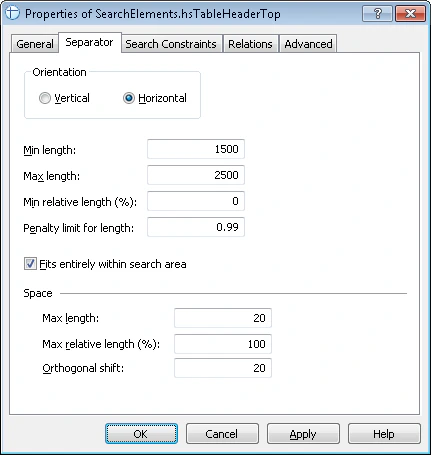
3. In the **Orientation** group, click the Horizontal option.
4. Set the Min length / Max length to 1500 / 2500.
5. Click the Fits entirely within search area option.
6. Set the **Space**, Max length to 20 and the Orthogonal shift to 20.
Prior to setting the values for the length of the separator, you may want to analyze the geometrical properties (that is, size and boundaries) of the neighboring objects detected during pre-recognition. Separator error thresholds are selected by trial and error.
7. Leave the default values for the other parameters of the element.
 1. Click the Relations tab.
2. Since the separator can only occur below the keywords of the names **kwInvoiceDate** and **kwInvoiceNumber**, set the following search constraint:
* Below the element `InvoiceHeader.kwInvoiceDate`, Offset = 0
* Below the element `InvoiceHeader.kwInvoiceNumber`, Offset = 0
3. Click the Advanced tab.
4. Since the sought separator is located at the top of the described search area, set the following [additional search constraint](/flexi-capture/fls/template/advanced-constraints) in the Advanced pre-search relations field: Look for an object on the image nearest to its top boundary. In the [FlexiLayout language](/flexi-capture/fls/code/general-code):\
`NearestY: PageRect.Top;`
The **Nearest** constraint can also be specified via the program’s graphical user interface. Click the **Relations** tab, select **Nearest**, and in the **To:** drop-down list select **Page top edge**.
5. Try matching the FlexiLayout with the test images and make sure that the program successfully detects the element on all the images.
1. Click the Relations tab.
2. Since the separator can only occur below the keywords of the names **kwInvoiceDate** and **kwInvoiceNumber**, set the following search constraint:
* Below the element `InvoiceHeader.kwInvoiceDate`, Offset = 0
* Below the element `InvoiceHeader.kwInvoiceNumber`, Offset = 0
3. Click the Advanced tab.
4. Since the sought separator is located at the top of the described search area, set the following [additional search constraint](/flexi-capture/fls/template/advanced-constraints) in the Advanced pre-search relations field: Look for an object on the image nearest to its top boundary. In the [FlexiLayout language](/flexi-capture/fls/code/general-code):\
`NearestY: PageRect.Top;`
The **Nearest** constraint can also be specified via the program’s graphical user interface. Click the **Relations** tab, select **Nearest**, and in the **To:** drop-down list select **Page top edge**.
5. Try matching the FlexiLayout with the test images and make sure that the program successfully detects the element on all the images.