> ## Documentation Index
> Fetch the complete documentation index at: https://docs.abbyy.com/llms.txt
> Use this file to discover all available pages before exploring further.
# Sample 3. Step 24: Describing the Country field with a Country element
> Extract the Country field with a Character String element tied to the kwOrigin name, setting alphabet, character count, and offset relations.
Use an element of type [Character String](/flexi-capture/fls/template/character-chain) to detect the Country field. The element must be located on the same horizontal level as the name of this field and will be used only if the name has been detected.
To create the Country element:
1. In the Footer element, create an element of type [Character String](/flexi-capture/fls/template/character-chain) and name it **Country**.
2. Click the Character String tab.
3. Select all Latin characters as the alphabet and set the Percentage of non-alphabet characters to 20.
4. In the Character count field, specify this fuzzy interval: `[-1, 2, 25, 2147483647]`. This is an estimate of the length of the character string. Assume that the possible values may range from 2 to 25. Any hypotheses outside this range will be penalized.
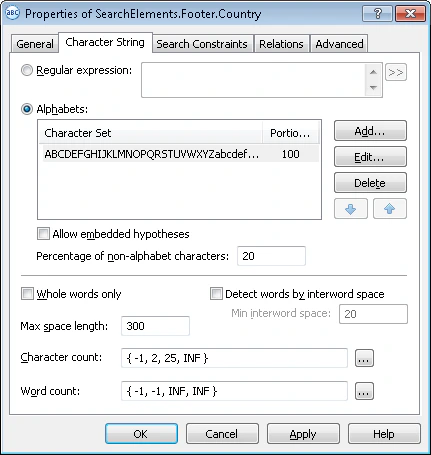 1. Leave the default values for the other parameters of the element.
2. Click the Relations tab.
3. Since the **Country** field can only be located to the right of the keywords of the name **kwOrigin** but no farther than 500 dots from its right boundary, set the following search constraints:
* Right of the element **kwOrigin**, Offset = 10.
* Left of the element **kwOrigin**, Offset = -500, Reference boundary = Right.
4. Since the **Country** element is always located on the same level as the keywords of the name **kwOrigin**, set the following search constraints:
* Above the element **kwOrigin**, Offset = -10, Reference boundary = Bottom.
* Below the element **kwOrigin**, Offset = -10, Reference boundary = Top.
Prior to setting the values for the offsets, you may want to analyze the geometrical properties (that is, size and boundaries) of the neighboring objects detected during pre-recognition. Offset values are selected by trial and error.
5. Click the Advanced tab.
6. The **Country** field is optional on this document but whenever it occurs, it is always located next to its name. So set the following [additional search constraint](/flexi-capture/fls/template/advanced-constraints) in the Advanced pre-search relations field: Look for the object on the image only if the **kwOrigin** element has been detected. In the [FlexiLayout language](/flexi-capture/fls/code/general-code):\
`If Footer.kwOrigin.IsNull Then DontFind;`
7. Try matching the FlexiLayout with the test images and make sure that the program successfully detects the element on all the images where applicable.
8. To describe the location of the **Country** block, select the Source element option, and then click
1. Leave the default values for the other parameters of the element.
2. Click the Relations tab.
3. Since the **Country** field can only be located to the right of the keywords of the name **kwOrigin** but no farther than 500 dots from its right boundary, set the following search constraints:
* Right of the element **kwOrigin**, Offset = 10.
* Left of the element **kwOrigin**, Offset = -500, Reference boundary = Right.
4. Since the **Country** element is always located on the same level as the keywords of the name **kwOrigin**, set the following search constraints:
* Above the element **kwOrigin**, Offset = -10, Reference boundary = Bottom.
* Below the element **kwOrigin**, Offset = -10, Reference boundary = Top.
Prior to setting the values for the offsets, you may want to analyze the geometrical properties (that is, size and boundaries) of the neighboring objects detected during pre-recognition. Offset values are selected by trial and error.
5. Click the Advanced tab.
6. The **Country** field is optional on this document but whenever it occurs, it is always located next to its name. So set the following [additional search constraint](/flexi-capture/fls/template/advanced-constraints) in the Advanced pre-search relations field: Look for the object on the image only if the **kwOrigin** element has been detected. In the [FlexiLayout language](/flexi-capture/fls/code/general-code):\
`If Footer.kwOrigin.IsNull Then DontFind;`
7. Try matching the FlexiLayout with the test images and make sure that the program successfully detects the element on all the images where applicable.
8. To describe the location of the **Country** block, select the Source element option, and then click  and select the **Country** element as the source element.